
Renaming or editing a Dash tile
Applies to: Comms & Engagement & Knowledge & Learning Hubs
If you need to change the name, icon or colour of a Dash tile, where you make the change depends on the type of Dash tile.
Dash tile types
Dash tiles can be one of the following types:
- News – Links to your News category.
- Article Category – Links to a specific article category.
- Article – Links directly to an article in Ocasta.
- Web Link – Links to external content.
Please note: Changes can take up to 5 minutes to appear on the employee-facing side of Ocasta due to caching.
Update a News, Web Link or Article tile
These tile types are updated directly from the Dash configuration page.
- Make sure you're in the Admin area.
- Click Options in the left-hand sidebar.
- Select Dash from the submenu.
- Find the Dash tile you want to update.
- Hover over the tile and click Edit.
- Update the tile details, such as the title, icon or colour, as required.
- Click Save to apply your changes.
Update an Article Category tile
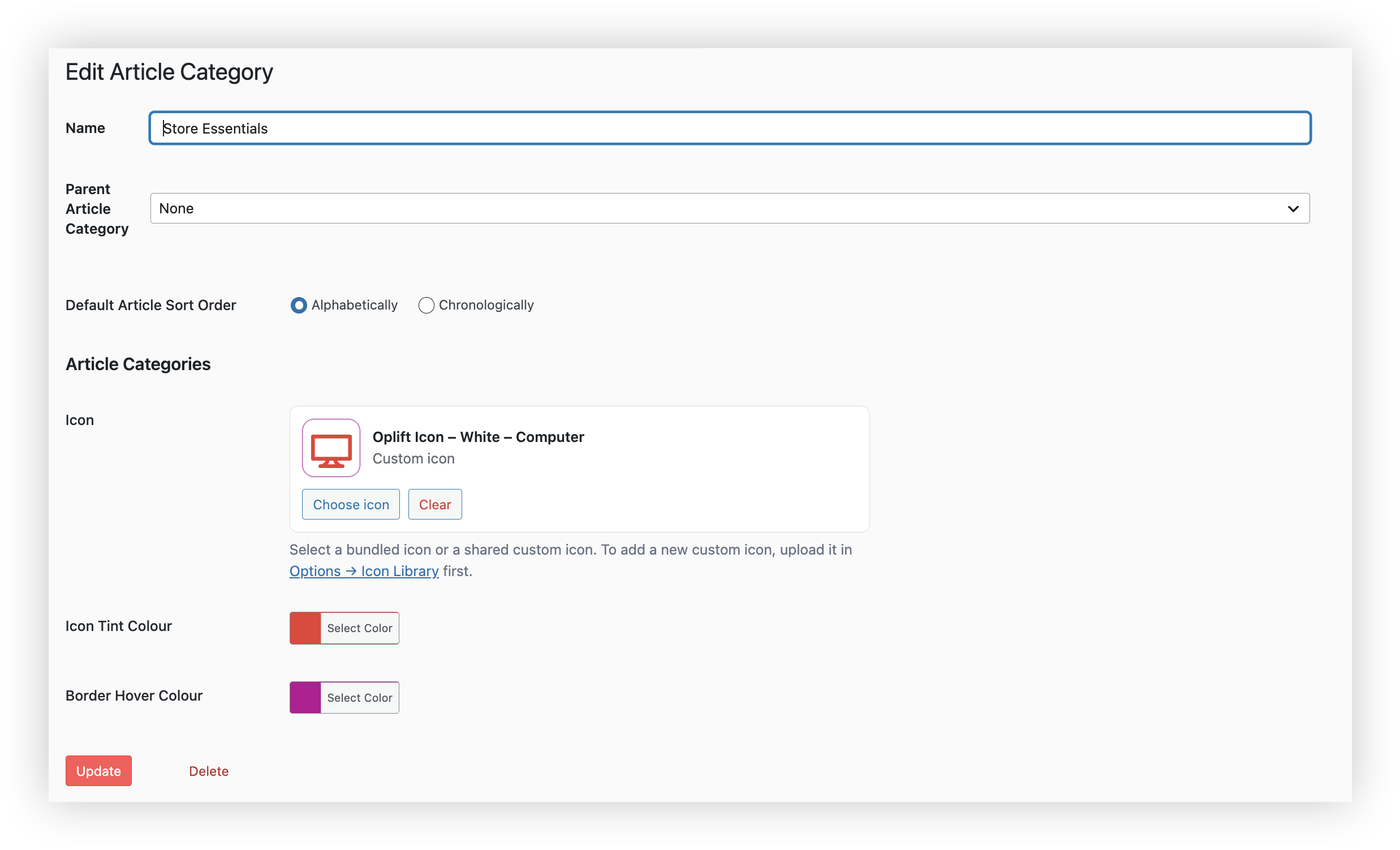
For Article Category tiles, the title, icon and colours are inherited from the article category itself. These cannot be changed from the Dash configuration page.
- Make sure you're in the Admin area.
- Click Articles in the left-hand sidebar.
- Select Article Categories.
- Find and open the category you want to update.
- Update the category title, icon, Icon Tint or Border Hover colour as required.
- Click Save to apply your changes.
Please note: Only top-level article categories (those without a Parent category) can be displayed as Dash tiles.