
Instant Prizes
Applies to: Ocasta Boost
What are instant prizes?
Instant prizes are an optional way to reward users for taking part in Albert.
They give people an extra reason to play by offering small rewards — such as a keyring or voucher — for participating.
Each time a user plays Albert, they have a chance of winning. If they do, they’ll see a congratulations message straight away in the app.
Adding an instant prize
How to add a new instant prize
- Go to the admin portal
- In the left-hand menu, select Albert
- Choose Instant Prizes
- Select Add Instant Prize
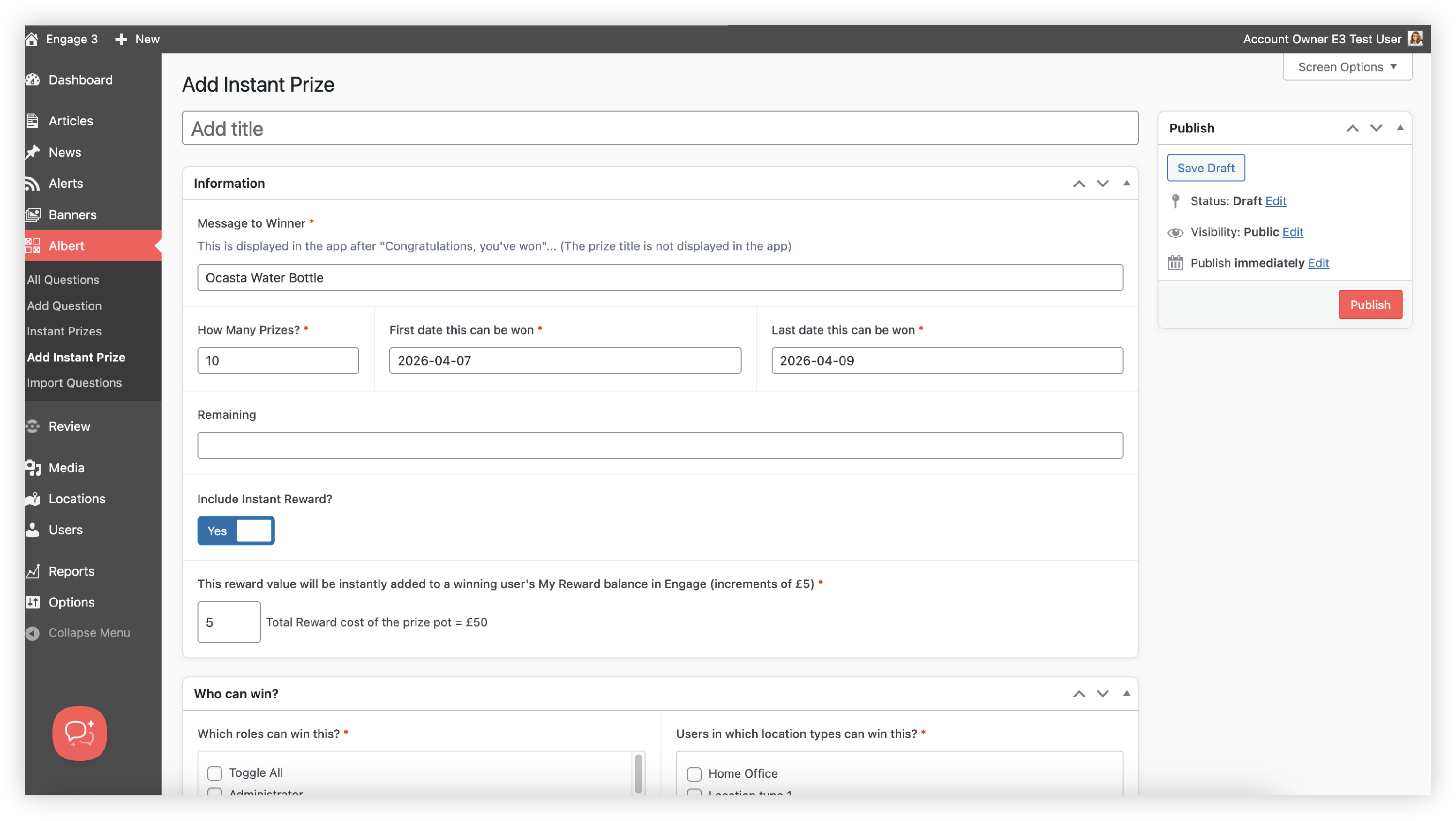
You’ll then need to complete the following fields:
-
Title
Add a name for the prize (e.g. Keyring). This is for admin use only and isn’t shown in the app.
-
Message to winner
This is the message users see if they win.
Example: Congratulations, you’ve won a keyring! 🎉
(Maximum 34 characters)
-
How many prizes
Enter how many of this prize are available.
-
First date this can be won
Set the date users can start winning this prize.
-
Last date this can be won
Set the final date the prize is available. After this, it will no longer be awarded.
-
Who can win?
Choose which users are eligible. You can limit prizes by role or location.
For example, only standard users in office locations.
You can add as many instant prizes as you need.
How are prizes distributed?
Albert uses a range of algorithms behind the scenes to manage how prizes are distributed. Each time a user plays, they have a chance to win a prize.
If you need help setting up or managing your prizes, the Ocasta support team is available to provide guidance.
What is the prize board?
The prize board displays all the prizes that are available for users to win.
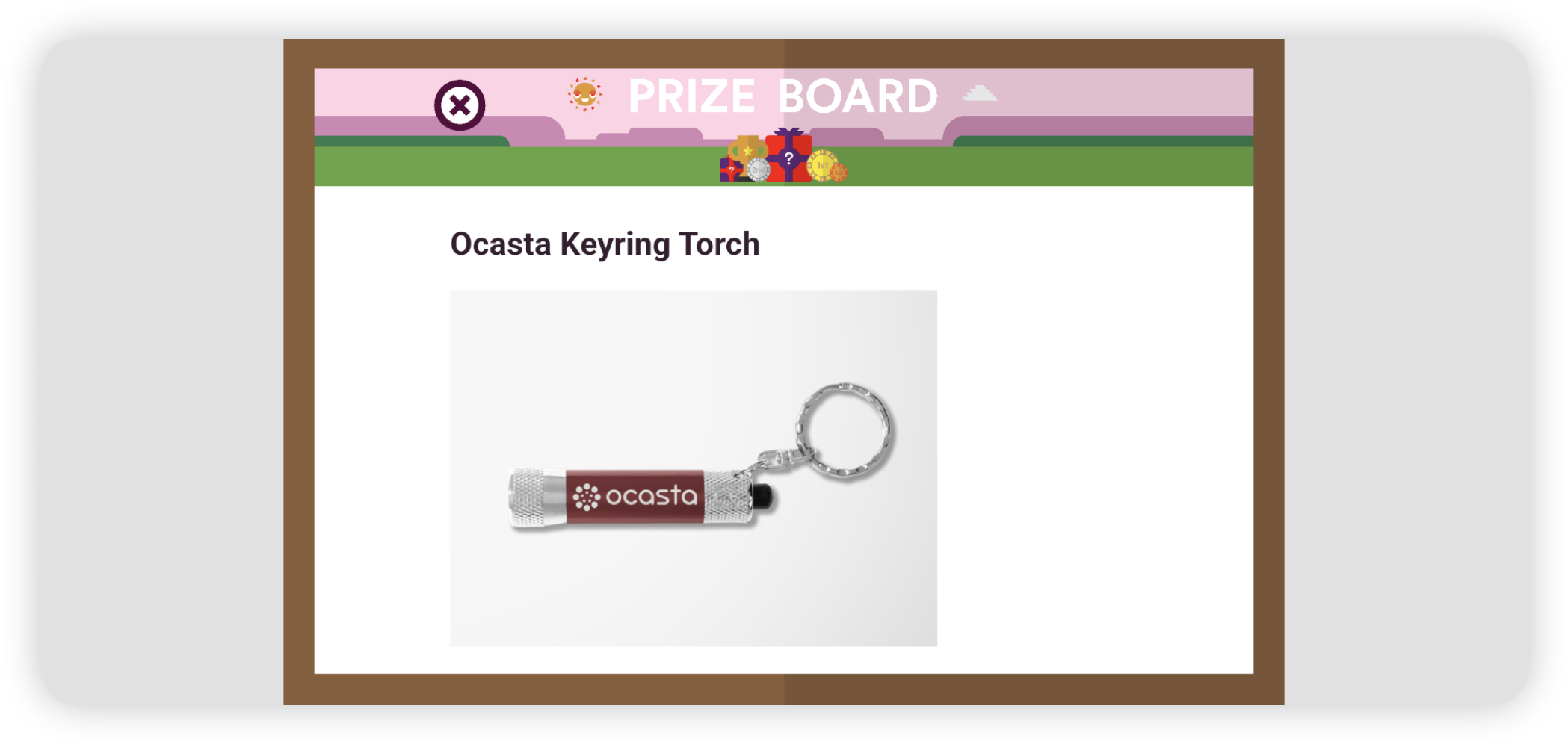
To access it:
- Open Albert from the Boost home screen
- Select the prize pot in the top-right corner of the screen
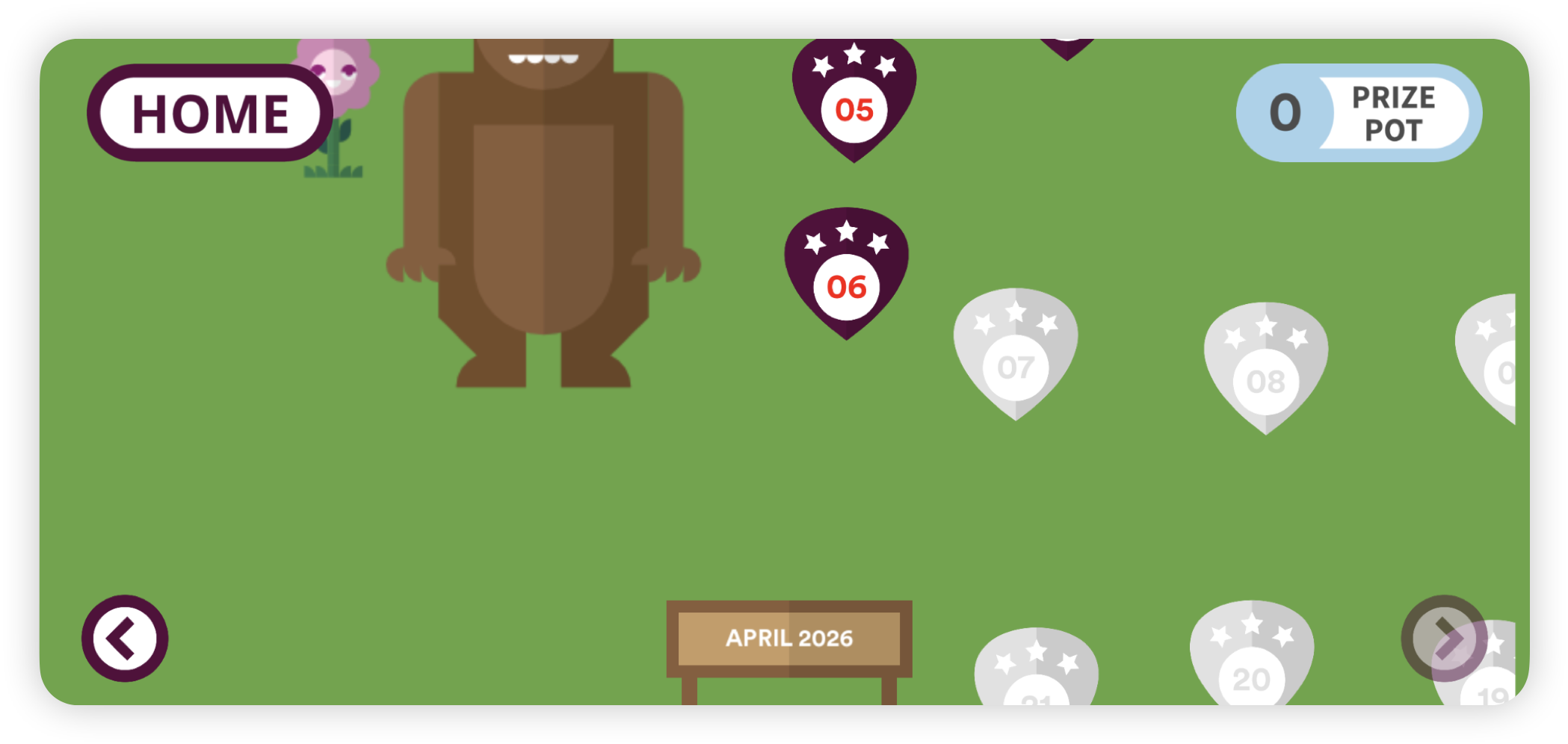
How do I add prizes to the board?
To add prizes:
- Go to Options in the left-hand sidebar
- Select Albert Options from the submenu
- In the Albert Settings section, enter the prizes you want to display and upload any relevant images
- Click Update to save your changes