
How to add a custom banner
Applies to: Ocasta Boost
You can add a custom banner to the top of the Ocasta Boost home screen. This banner can also link to an external page when selected.
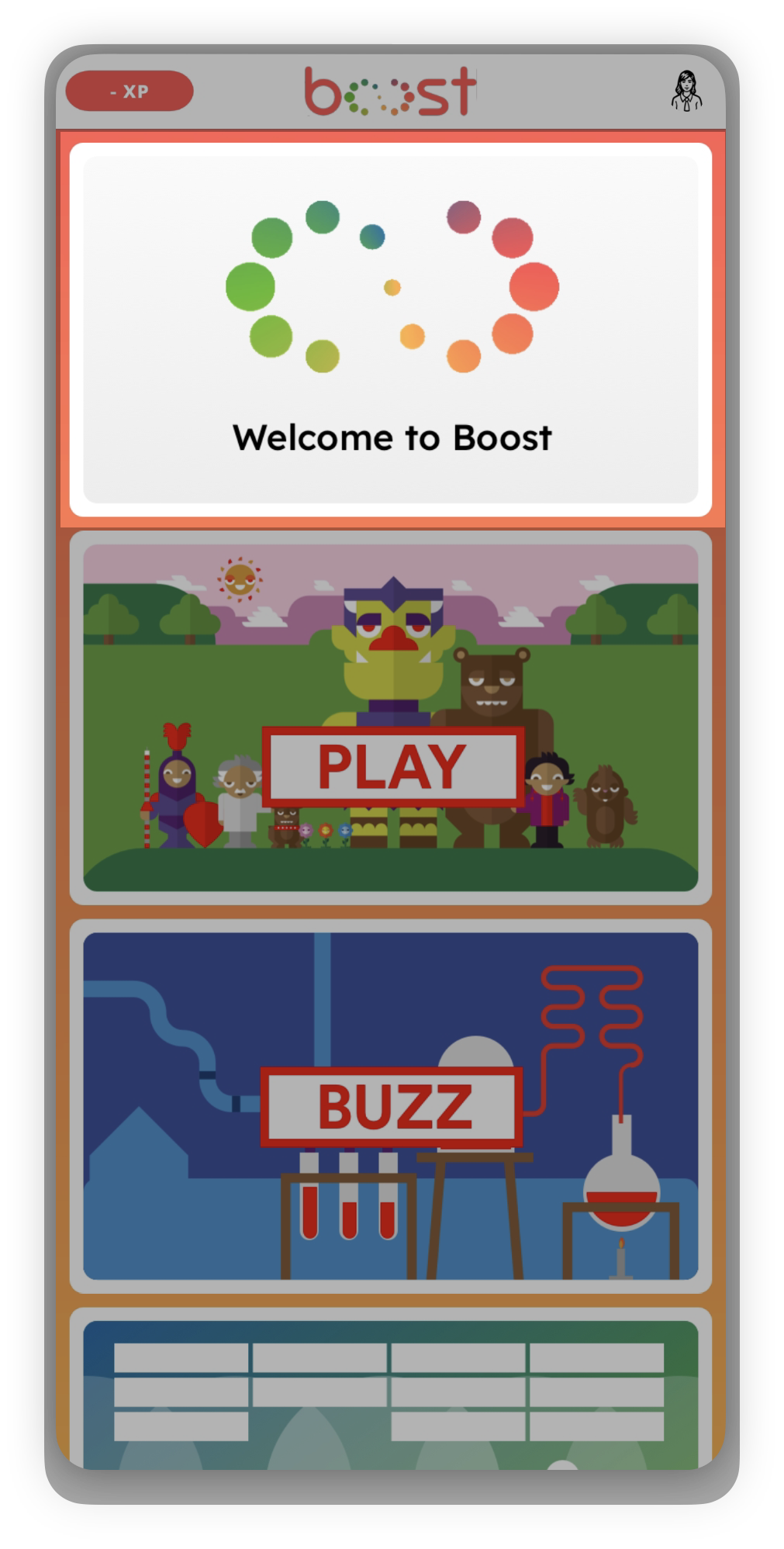
How to add a banner
- Log in to the admin portal
- Go to Options in the left-hand menu
- Select Albert Options
- Scroll to Custom Image Type
- Choose Banner
You’ll also see two other options:
- Background — contact support@ocasta.com if you’d like to use a custom background
- None — removes any existing banner
- Select Add Image and choose an image from your media library, or upload a new one
- (Optional) Add a link in the Profile Screen Link field if you want the banner to open an external URL
- Select Update to save your changes
Image requirements
- The ideal image size is 748 x 436 pixels