
Create article categories 7 simple steps
Categorise your articles with our colourful tiles, creating them is simple when you know how.
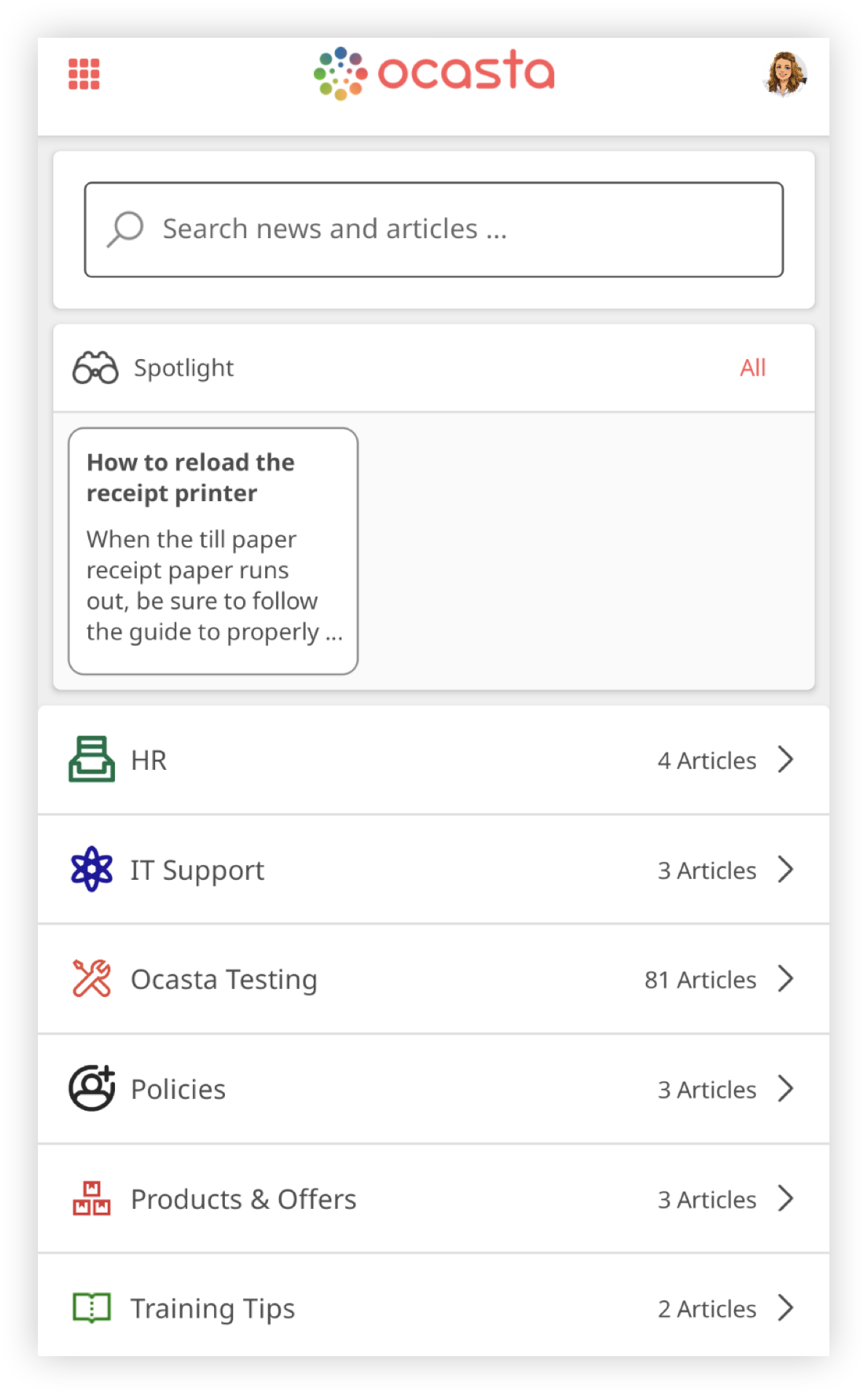
Article categories are exceptionally easy to create, and once they're made, you can house them on the Home screen as a tile. Follow this quick and easy guide to get you started so you can easily categorise all your new articles.
1. Log on to your Ocasta account
2.Once logged in, go to your picture in the top right and click on it, select ‘Admin’ from the drop-down menu.
3. Once logged in select ‘Articles’ in the left column, then select ‘Article Categories’
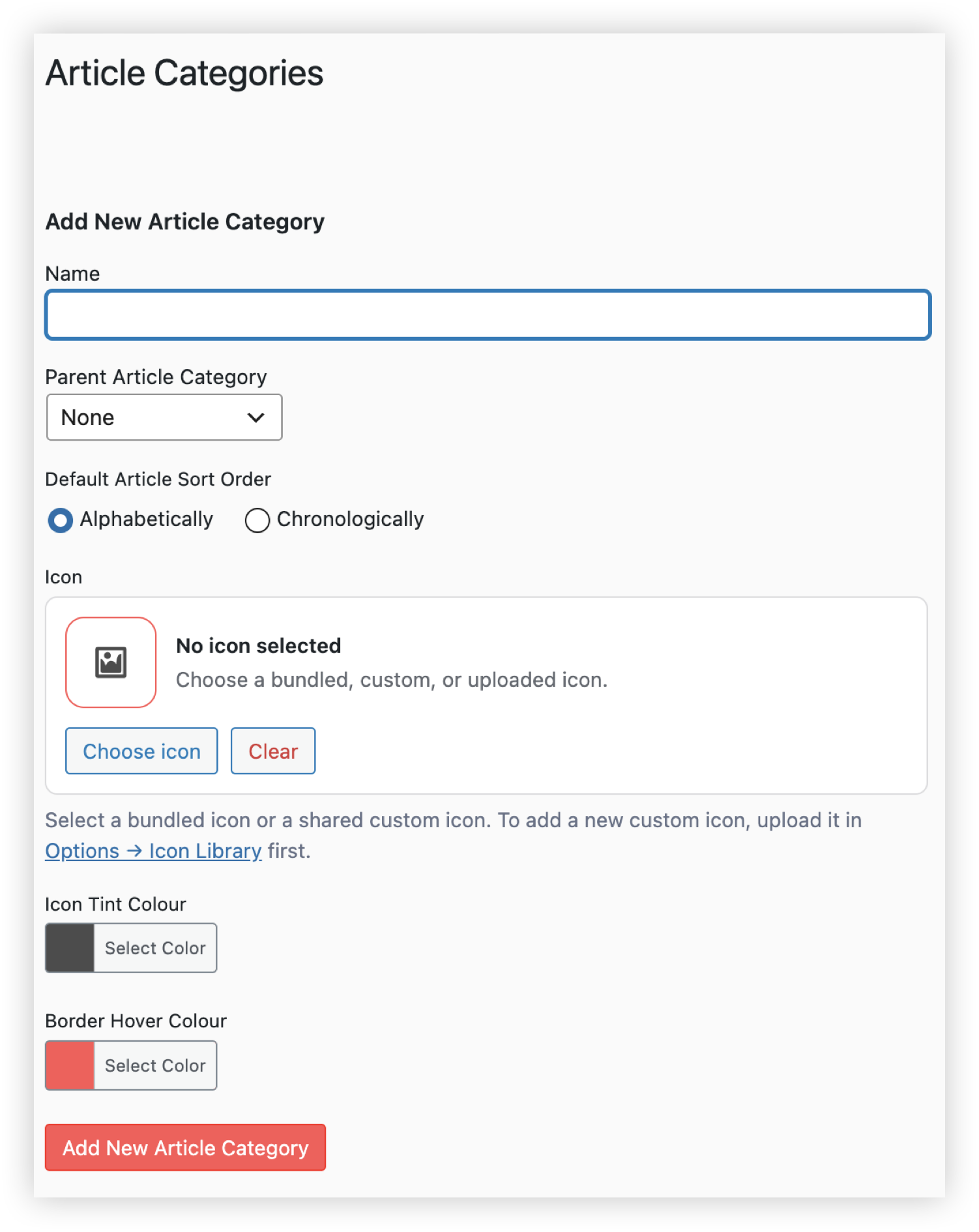
4. Type in the name which you want for your category e.g. HR. Select the default article sort order, either chronologically or alphabetically.
5. Choose whether articles in this category are sorted alphabetically or chronologically by default. Users can still change the sort order when viewing the category.
6. Select an icon for your article category. You can pick from the existing library. The library includes over 1,000 bundled icons to choose from, or you can upload your own icon or image.
Icon Tint Colour - if using and icon, not an image, this option will adjust the colour of the icon for the article category tile.
Border Hover Colour - this is the colour that will highlight the tile when you hover over it.
If you want an article category to appear as a dashboard tile, don't select a Parent Article Category. Dashboard tiles are always parent categories.
Use Parent Article Category when creating subcategories within a dashboard tile. For example, if Compliance is the dashboard tile (the parent category), categories such as Fire Safety, Code of Conduct, and Policies should have Compliance selected as their Parent Article Category.
7. Hit the 'Add New Article Category' button at the bottom of the page and now you have created your category.
Important Note
Before categories appear on the Home screen, you need to add them to the 'Dash' as a Tile. This allows you to build out content before launching it, as well as arranging the content in the best way to suit your employees.
Following that, article categories only appear once they have published articles added to them, to keep the interface clear for your users.
There you have it, your first tile created in just a few minutes. Create as many as you like and watch your dashboard become a customised hub of knowledge for you and your staff.