
Deactivated users
Applies to: Inspections & Checklists Hub | Observations & Coaching Hub
Why can’t I delete a user account?
User accounts aren’t usually deleted — instead, you can deactivate them. This keeps all the work and history linked to that user intact.
For example, if someone has left your organisation but has created content in Ocasta or completed reviews, deleting their account could cause problems. You might lose access to their data or content.
By deactivating the account instead, the user won’t be able to log in, but all their past activity will stay safe and visible.
Deactivation is also handy if someone is away temporarily, such as on parental leave. You can reactivate their account as soon as they’re back.
How do I deactivate a user?
- In the admin, go to Users in the right-hand side menu.
- Search for the user you want to deactivate and open their profile.
- Scroll down to the Account management section.
- Tick the box to Deactivate user account.

- Select Update.
Once deactivated, the user won’t be able to log in to the Ocasta app or on the web.
How can I see which users are deactivated?
- In the admin, go to Users.
- There is a filter at the top which is set to show all Active users by default.
- Set the value to Deactivated, then press the Filter button to apply the filter.
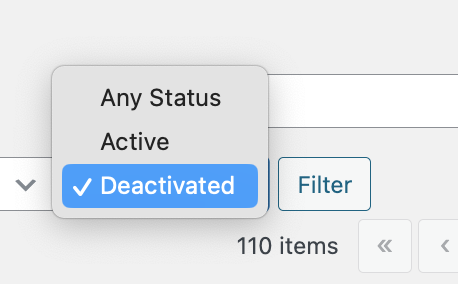
This will show you all deactivated users on your system. You can also export this list as a CSV file if you need to.
Top tip
On the admin dashboard, you’ll see the five admin accounts that haven’t logged in for the longest time. This makes it easy to spot inactive accounts you might want to deactivate — keeping your system tidy and reducing security risks.

Automatic deactivation with user imports
If your organisation runs regular user imports, you might have a custom setup where anyone not included in the import file is automatically deactivated.
Here’s how it works:
- Each user has
last_importedmetadata showing when they were last imported. - The system also knows the date of the most recent user import.
- A custom environment variable,
USER_DISABLE_DAYS, is set to define how many days a user can go without being re-imported before being deactivated.
The system compares each user’s last_imported date with the most recent import date. If the last_imported date is older than the most recent import date minus the number of days set in USER_DISABLE_DAYS , the user will be deactivated.
Example 1 – All users are imported on the same day
If USER_DISABLE_DAYS is set to 1, users do not need to be imported every day.
What matters is that all users are imported on the same day.
- For example:
- You run a full user import on Monday.
- All users are included in that import.
- As long as the next full import happens during the same day, users will remain active.
If a user is not included in the latest import, and more than 1 day passes since they were last imported, their account will be automatically deactivated.
Example 2 – Imports spread across multiple days
If your user imports are spread out over several days, you should set USER_DISABLE_DAYS to match the time it takes to import all users.
For example:
- You import different groups of users throughout the week.
- You know that all users will be imported at least once within 7 days.
In this case, you should set:
USER_DISABLE_DAYS = 7
This ensures users are not incorrectly deactivated while waiting for their next scheduled import.
Important to know
When USER_DISABLE_DAYS is set to 1, it’s vital that all users are imported on the same day. You can import them daily, weekly, monthly, or even ad hoc — but they must all be imported on the same day. Splitting them across multiple files is fine, as long as the files are all imported together on that day.
The USER_DISABLE_DAYS setting cannot be configured by customers directly.
If you would like to enable or change this setting, please contact the Ocasta support team, and we will configure it for you.
This setting is optional. If USER_DISABLE_DAYS is not set, users will not be automatically deactivated when they are missing from a user import.
Automatic deactivation will only occur if this environment variable has been configured for your organisation.
Need help?
If you’d like to talk through setting up automatic deactivation or have questions about your current setup, please contact our support team.