
Logging in and accessing Ocasta
What you’ll use Ocasta for
Ocasta helps you spot what’s working, fix what isn’t, and keep standards consistent — without guesswork.
What you see in the platform depends on which Ocasta hubs your organisation uses — but it’s all about helping you do the job right, every day.
Use checklists and inspections to see what’s really happening day to day. Capture what you see, flag issues, and take action straight away.
Stay up to date with important updates and actions, so you always know what’s changing and what’s expected of you.
Find the knowledge you need quickly, so you can do the job right — without asking around or second guessing.
Get feedback and coaching in the moment through observations, so you can improve as you go and build confidence over time.
Everything works together to give you clarity on what to do next — so you can focus on doing a great job in every moment.
Getting started with Ocasta
Check your email inbox for your welcome email
You should have received a welcome email to help you set up your Ocasta account. The email will come from noreply@oplift.io, with the subject line:
Action required: account setup for Ocasta
Follow the link in the email to activate your account and set your password. Once you’re set up on the web version of Ocasta, you’ll also be able to log in on the app.
If your organisation uses single sign-on (SSO), you may not have received a welcome email — skip to the section below, Using single sign-on (SSO), after downloading the app.
Where can I download the Ocasta app?
You can download the Ocasta app on both iOS and Android:
You can also search the app store on your mobile device for Ocasta. The app icon looks like the one shown below.

What do I need to do after I’ve downloaded the app?
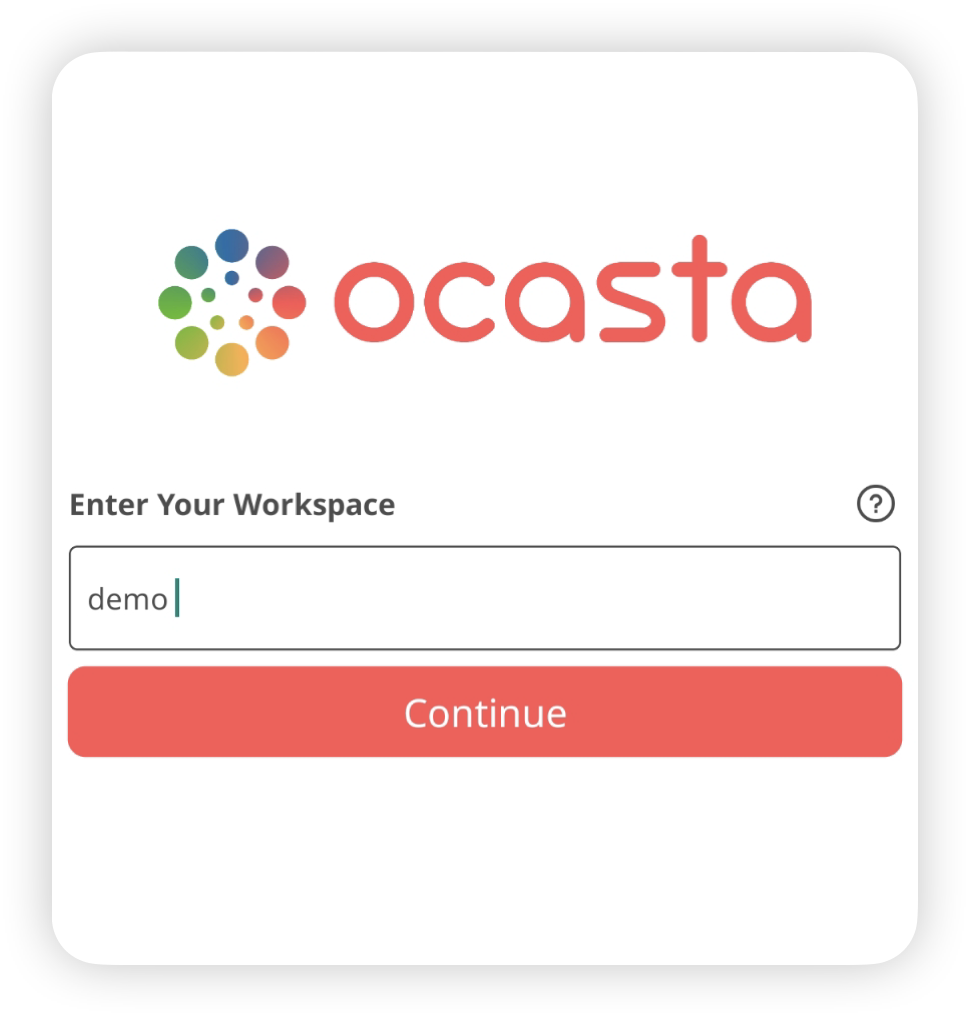
1. Enter your workspace
After downloading the app, you’ll be asked to enter your workspace. This tells Ocasta which organisation you’re signing in to.
Enter the first part of your Ocasta workspace URL.
For example if your URL was
https://demo.oplift.io
You would enter:
Demo
2. Log in with your username and password
You can sign in using your username and password.
If you’re not sure what your username is, check your welcome email. You can also log in using the email address the welcome email was sent to.
Login using single sign-on (SSO)
Some organisations use single sign-on to make logging in quicker and easier.
If your organisation has SSO enabled, you won’t need to create or remember a separate Ocasta password. Instead, you’ll sign in using your usual work email and password.
Here’s what to expect:
- You may be redirected to your organisation’s login page when signing in
- Once authenticated, you’ll be taken straight into Ocasta
- The same login works on the web and in the app