
Finding your way around Ocasta
Ocasta makes it easy to know what to do next, get it right first time, and stay on top of what matters — without guesswork.
What you see in the platform depends on which Ocasta hubs your organisation uses — but it’s all about helping you do the job right, every day.
What you’ll see when you log in to the app
If your organisation uses all Ocasta hubs, you’ll see the following navigation options:
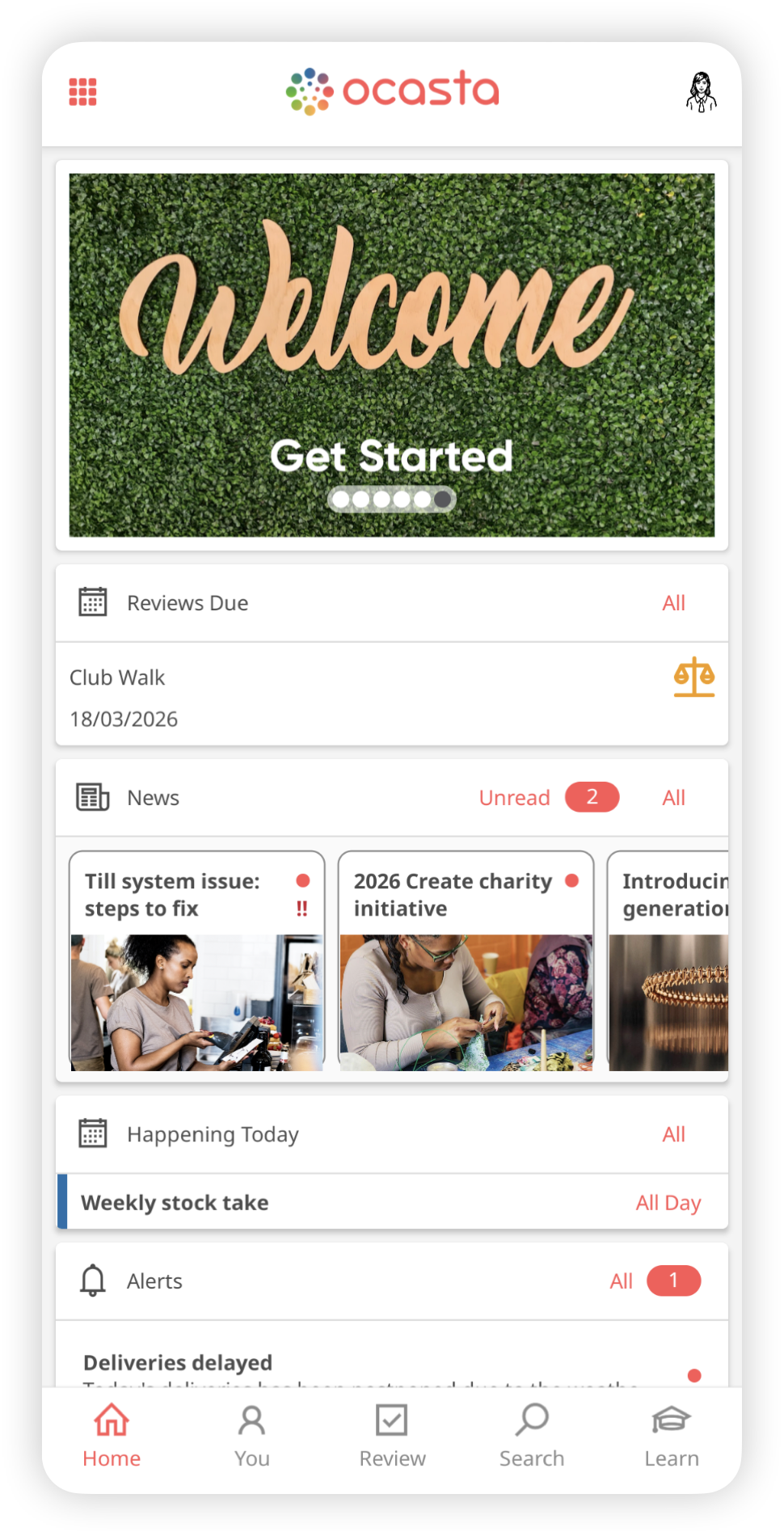
Home
Your starting point for everything — tasks, updates, knowledge, news, calendar events, and anything that needs your attention.
Think of it as your daily workspace. If something matters, it shows up here.
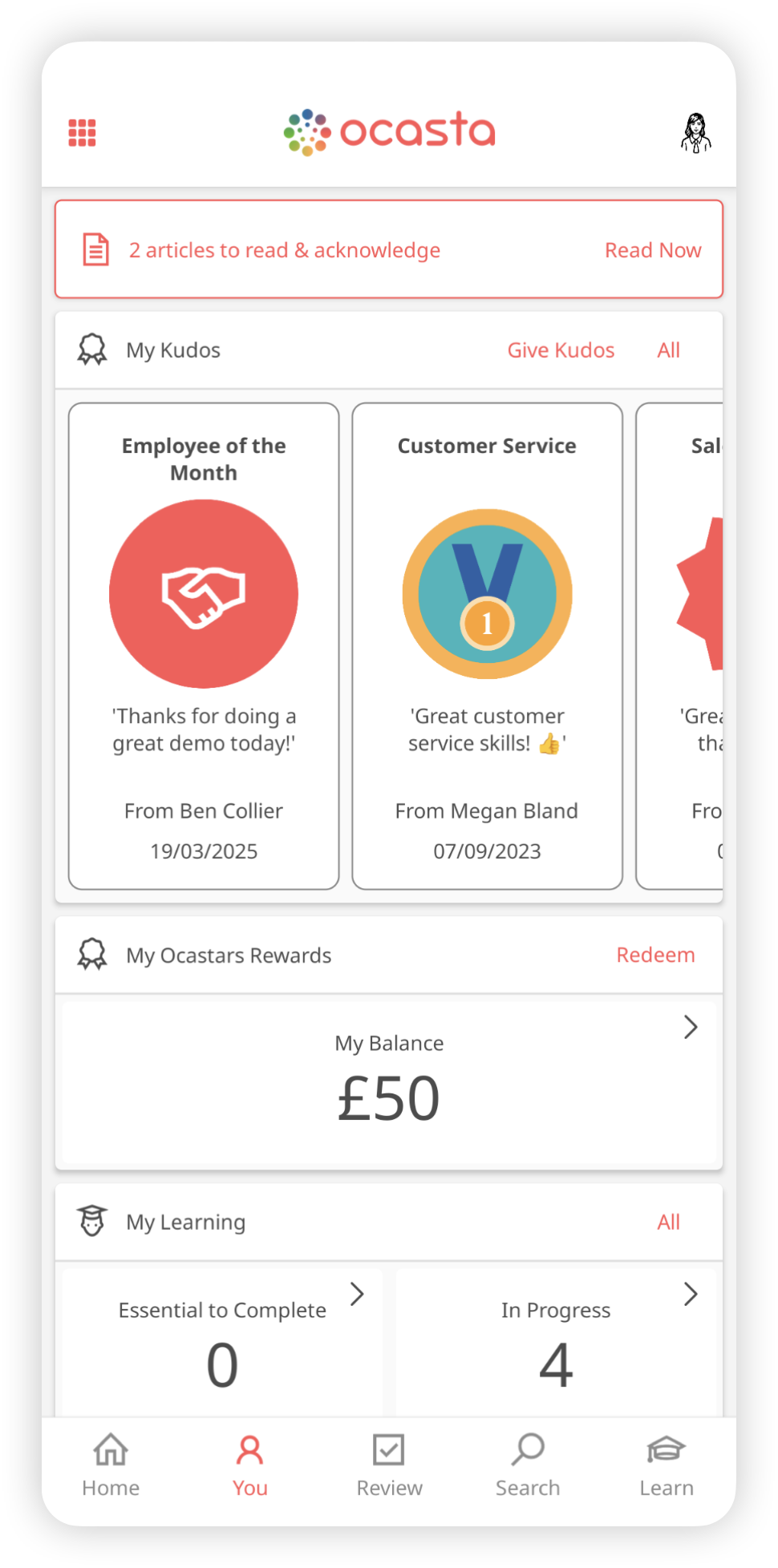
You
Your personal space in Ocasta. It shows everything related to you — your progress, activity, and what you’ve completed.
Use it to:
- See outstanding acknowledgements
- Track your learning progress
- View your tasks and activity
- See recognition (kudos)
It gives you a clear view of how you’re doing — without needing to piece things together.
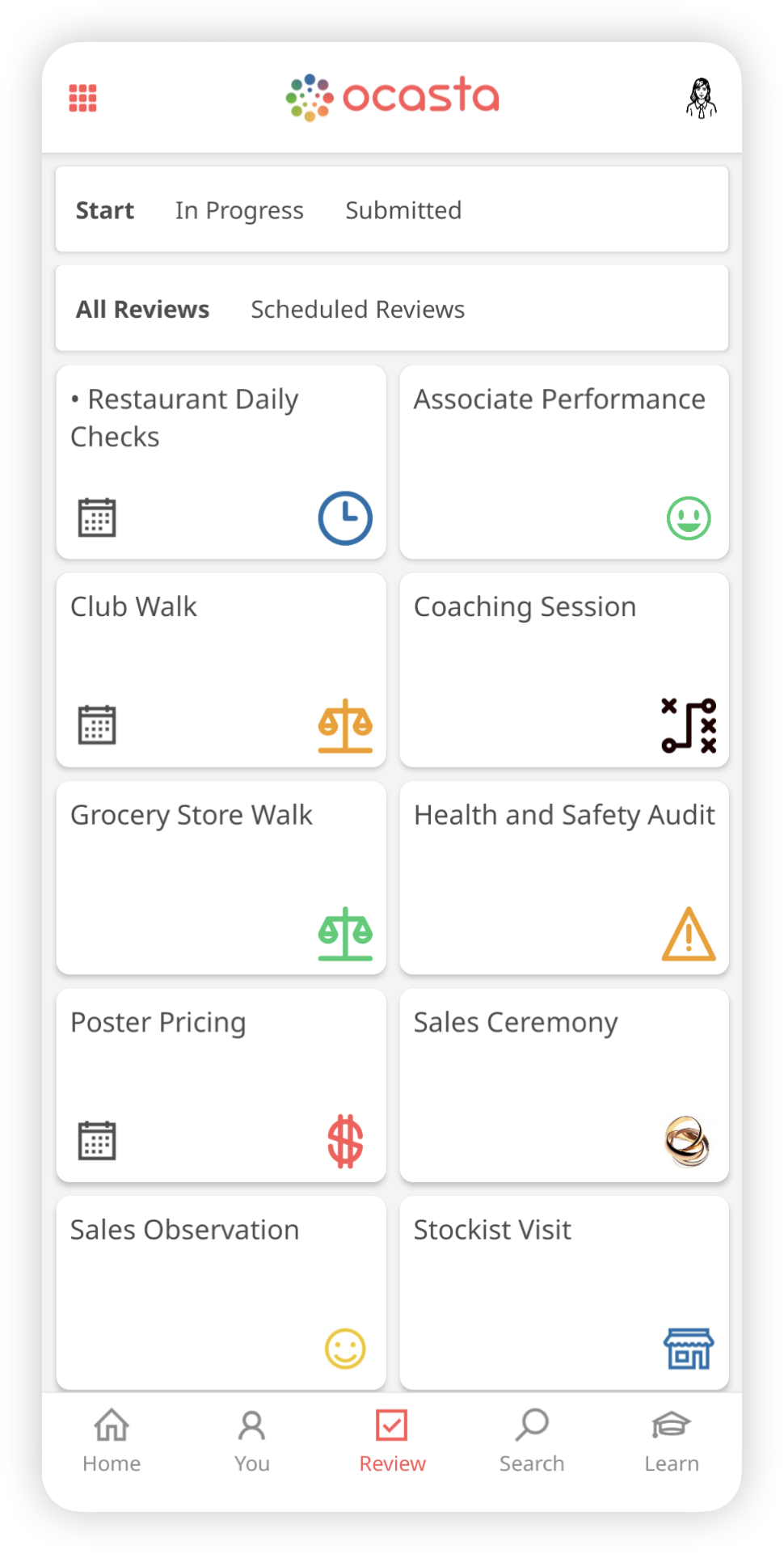
Review
Here you can complete reviews, capture what’s happening, and take action
Use it to:
- Start new reviews
- View reviews in progress
- Check submitted reviews
Instead of relying on updates or chasing information, you can see what’s been captured and what needs attention.
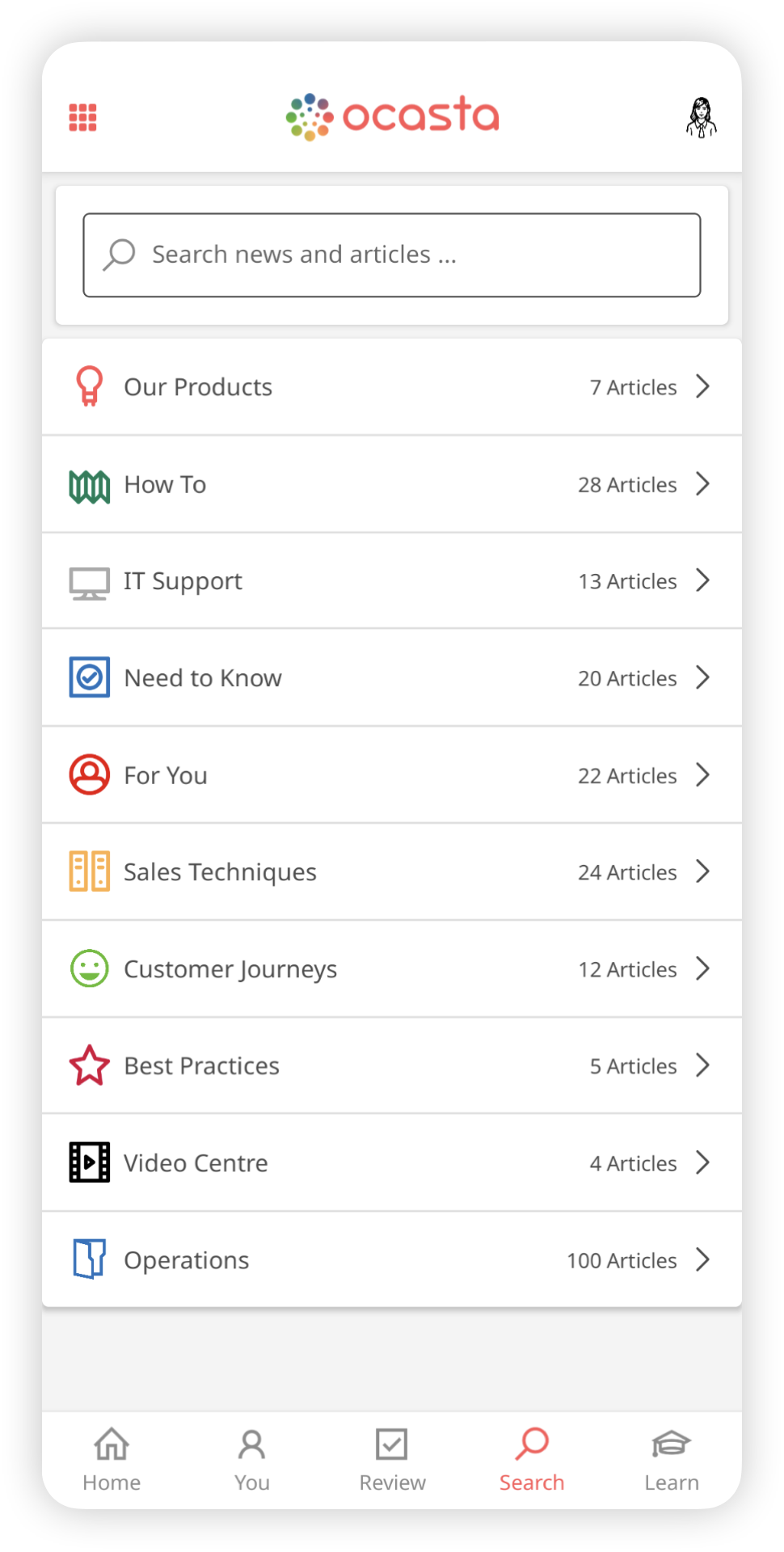
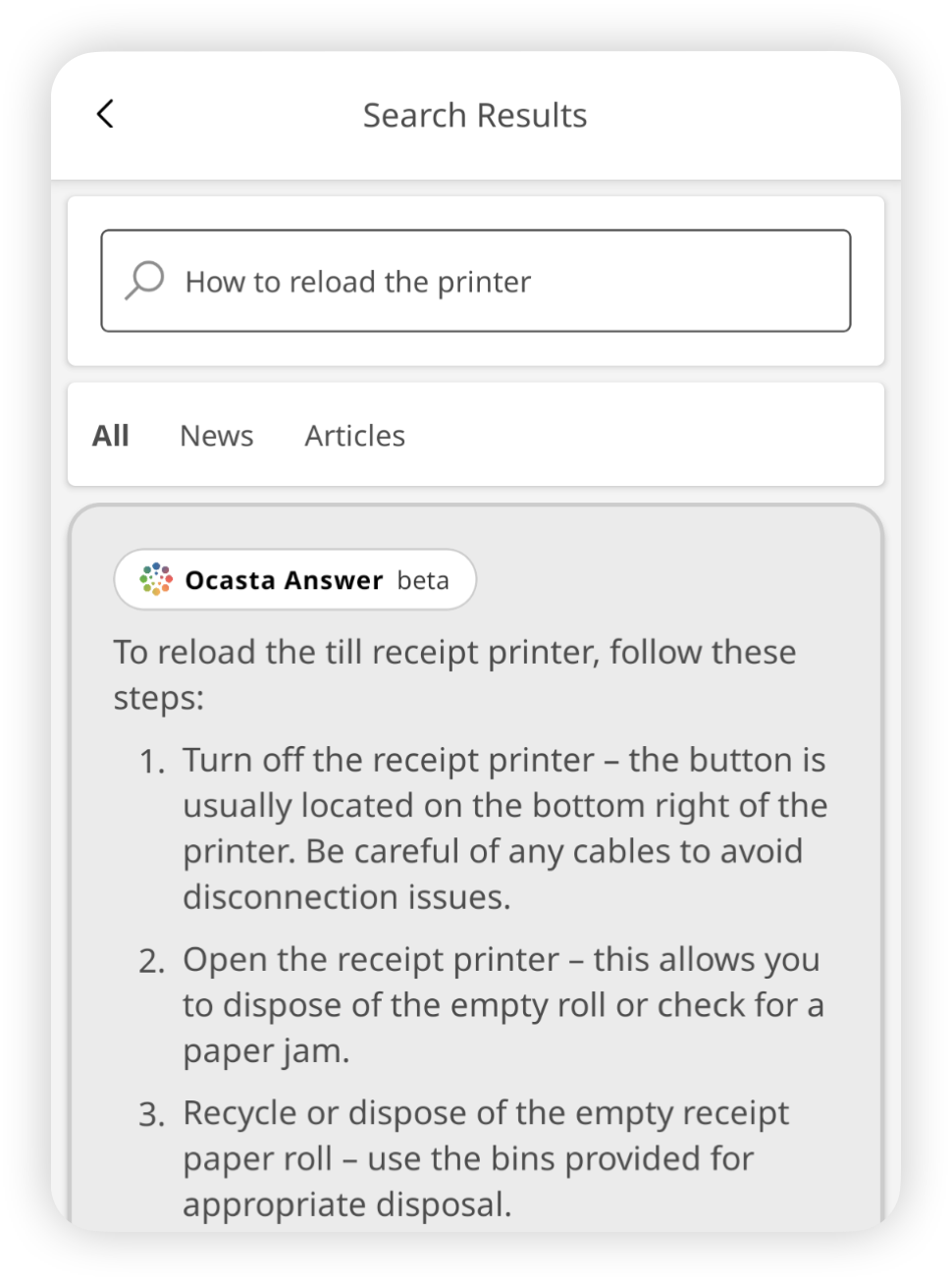
Search
Your quickest way to find answers.
Search the knowledge base to get the right information, fast — without asking around or guessing.
|
|
|
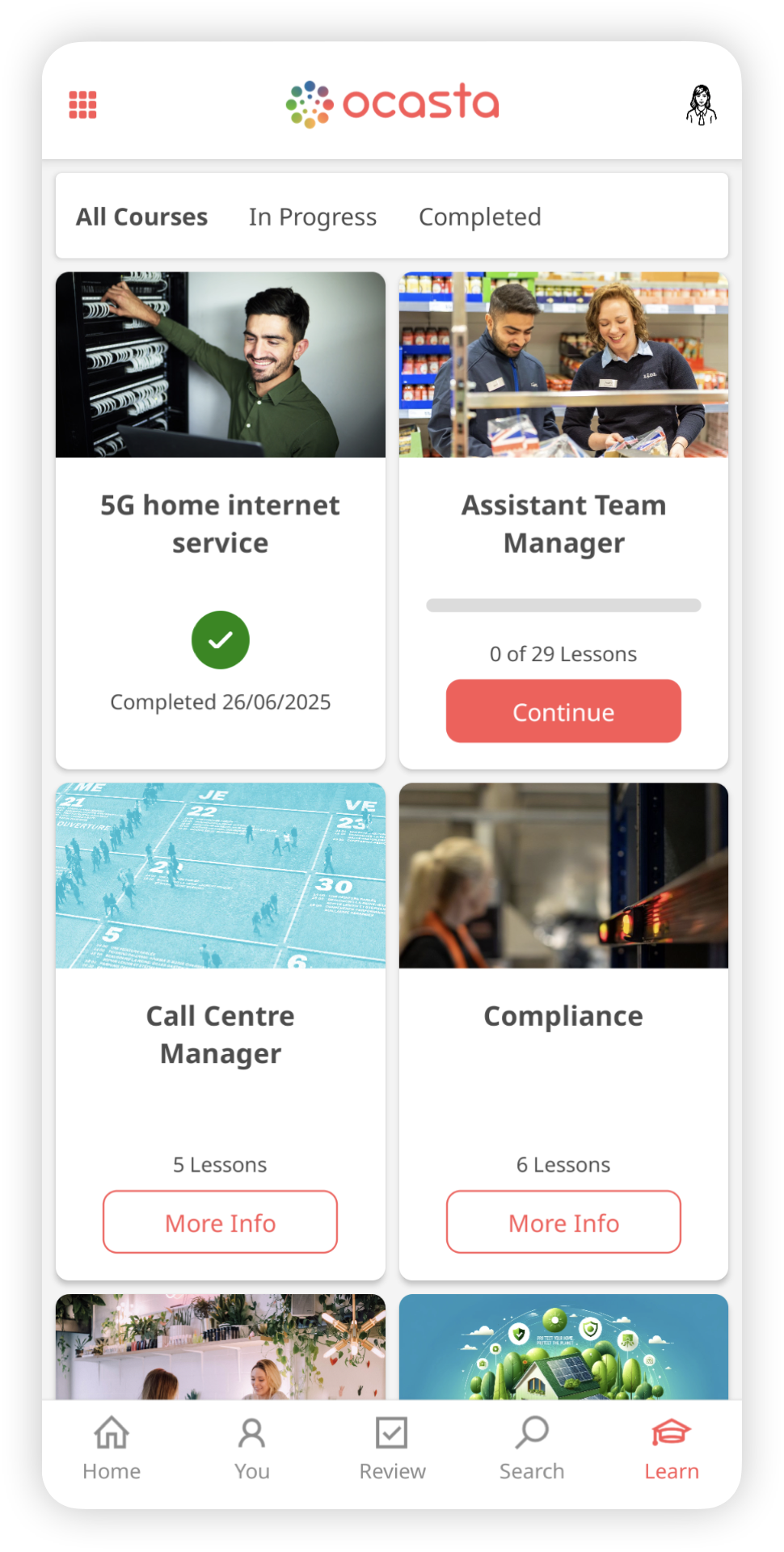
Learn
Where you access all courses available to you.
Start, continue, and complete learning that helps you do the job right.
Different hub setups
Depending on how your organisation uses Ocasta, you may see fewer options.
Comms and engagement and knowledge and learning
You’ll see:
- Home
- You
- Search
- Learn
Inspections and checklists or observation and coaching
You’ll see:
- Home — your starting point for reviews. See what’s in progress, any scheduled reviews, and tasks assigned to you
- Review — start new reviews and view completed ones
- Tasks — see all your open and closed tasks. You can also access these from the Home screen
Additional options on Ocasta web
If you login to Ocasta on the web, you may see additional options depending on your permissions.
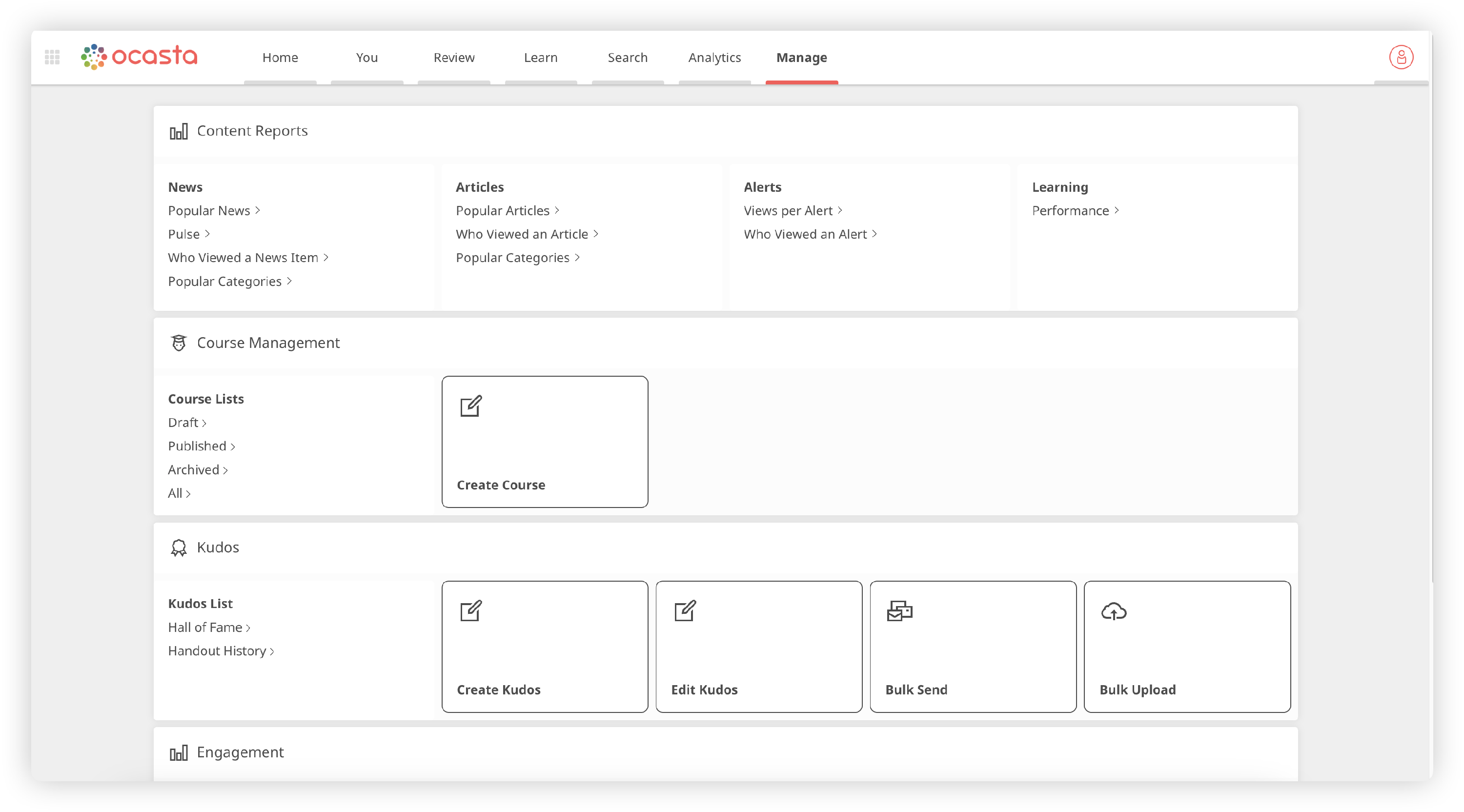
Manage
If you have access, the Manage page lets you:
- View reporting for news and articles
- Create and manage courses
- Manage kudos and view recognition data
- Create and manage audiences
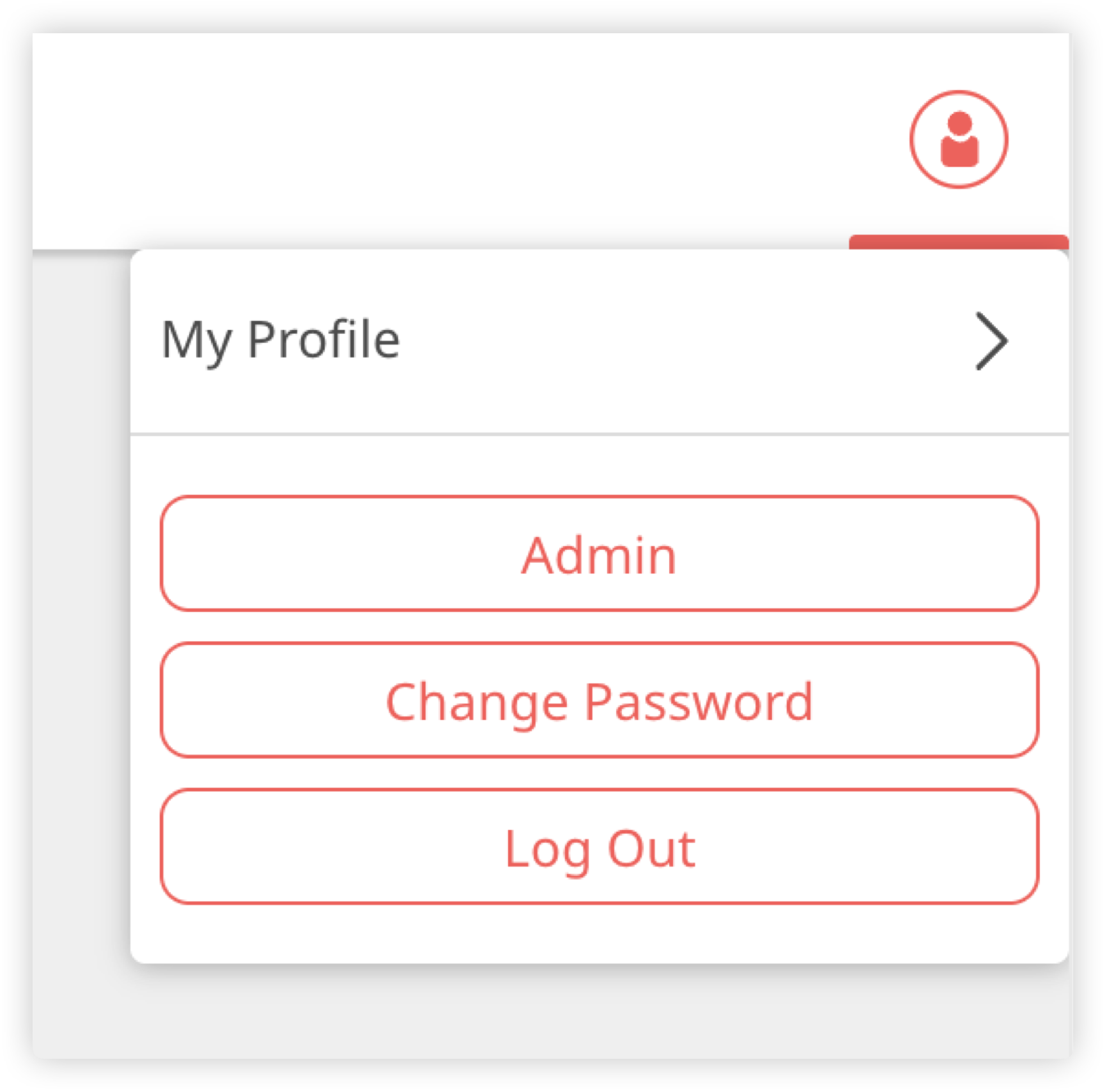
Further admin options — such as creating articles, news, and review templates, or adding users and locations — are available in the Admin.
To access this, select your profile picture and choose Admin.
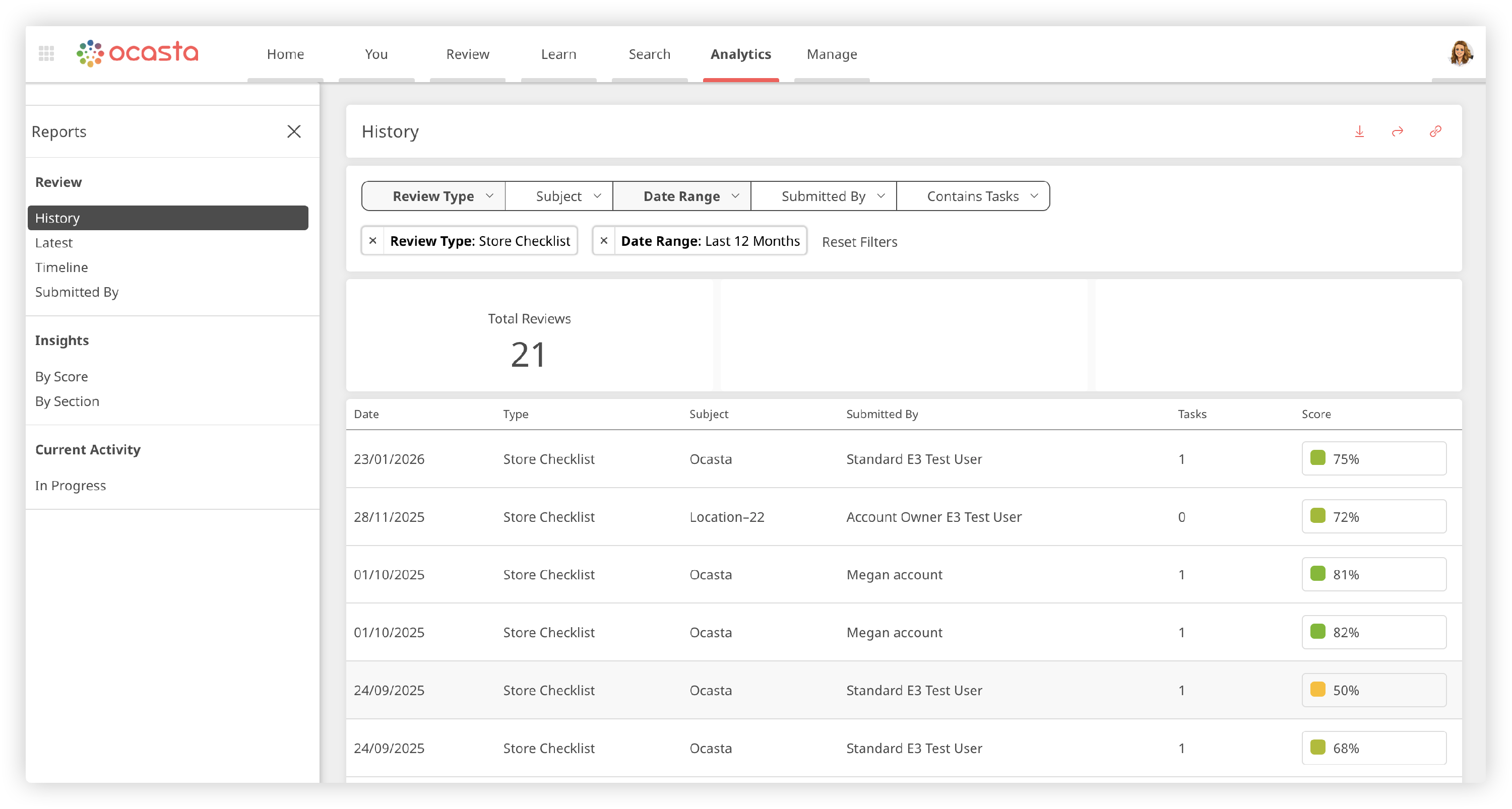
Analytics
If you use the inspections and checklists or observation and coaching hubs, you’ll also see Analytics.
This is where you explore the data captured in your reviews in more detail.
You’ll find various reports which you can use to spot trends, understand performance, and focus on what needs attention.
How to access your profile
Tap your avatar in the top right and select My profile.
From here you can:
- Add or update your profile picture
- Change your password
Read more here.
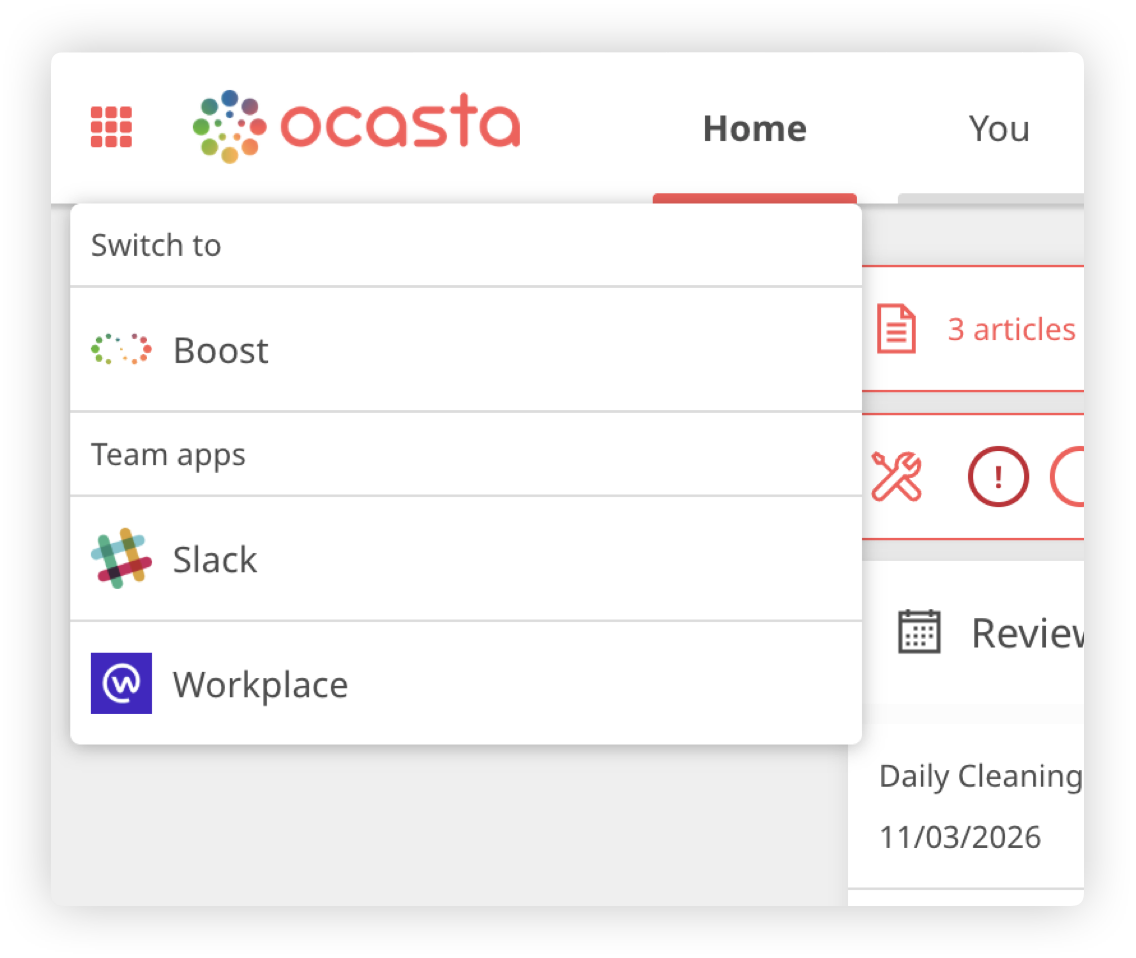
Using the app switcher
In the top left, you’ll see the app switcher (an icon with multiple boxes).
Your organisation may add quick links to other tools you use regularly — such as Salesforce or other internal systems.
Final tip
Check your Home screen regularly and work through items as they appear.
The more you use Ocasta in the moment, the easier it is to stay on track — without guesswork 👍