
Add links and attachments to your news post
Applies to: Comms & Engagement Hub
Add links to your news post
When creating a news item you’ll see a Links tab under Additional Content where you can add internal or external links.
- Select Add Link in the tab.
-
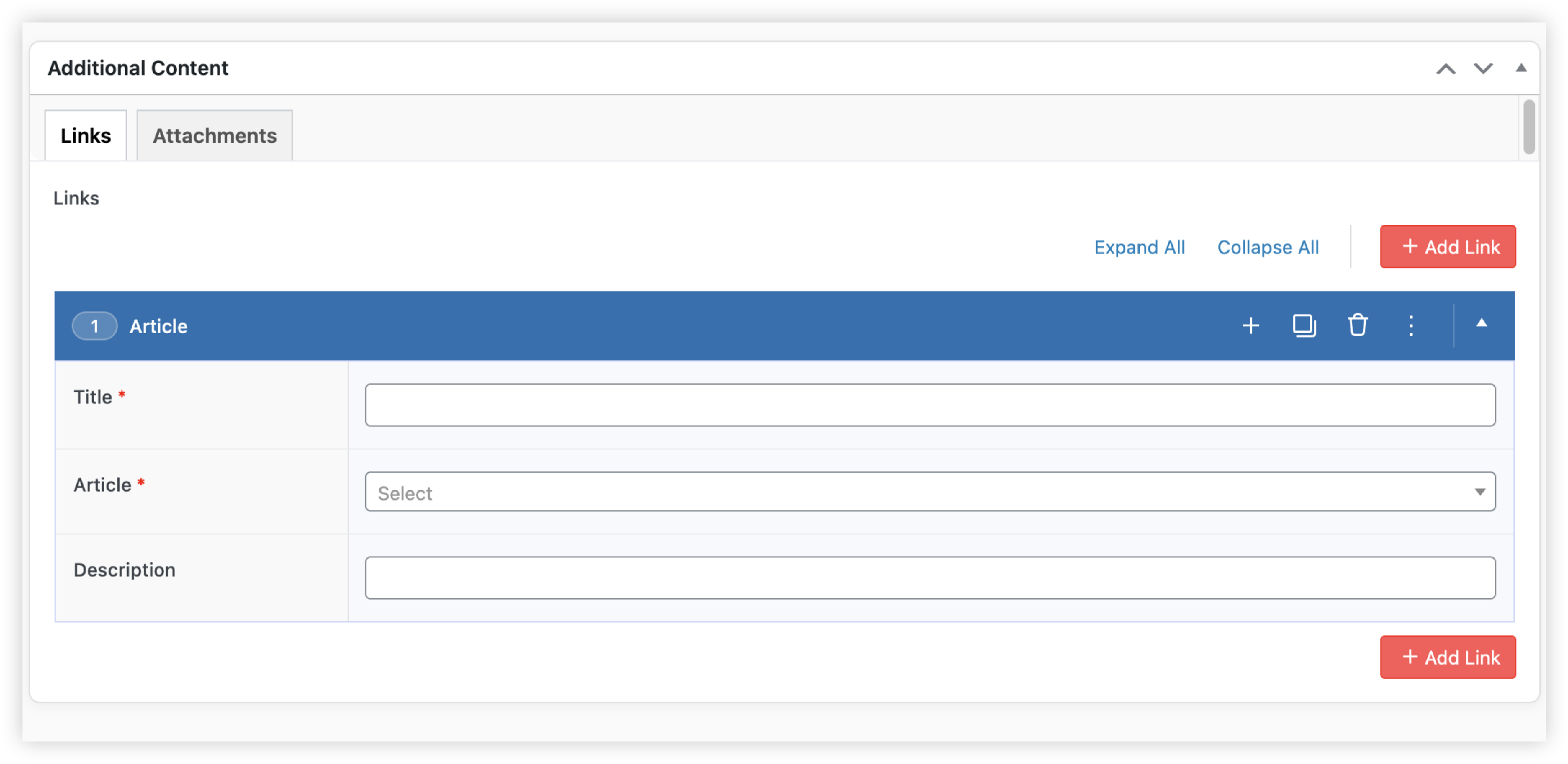
- Choose the type of link:
Internal link
Link to another article in your knowledge base.
- Title — enter the name of the link
- Internal link — select the article from the dropdown
Use this when your news post needs to point people to more detailed guidance or policies.
External link
Link to a page outside Ocasta.
- Title — enter the name of the link
- External link — enter a valid URL starting with https:// (for example, https://ocasta.com)
Add attachments to your news post
- Go to the Attachments tab.
- Enter a Title for the attachment.
- Select Add File to choose an existing file from your media library or upload a new one.

Attachments appear at the bottom of the news post, so your team can quickly access the files they need.