
How to add Albert questions
Applies to: Ocasta Boost
How do I add questions?
-
Open the Admin.
-
Go to Albert in the left side bar.
-
Tap Add Question - continue with the instructions below depending on the type of question you would like to add.

Whack-a-Mole
-
Question - type your question into the box.
-
Game Type - select the type of question from the dropdown box.
-
Answers - for Whack-a-Mole you will need to add 6 answers, 3 of which need to be correct. Enter the answers into the text boxes and select if they are correct answers.
-
To add another option tap Add Option until you have six possible answers.
Shootout, Catapult, Standard (Albert's Lab), The Claw, Penny Pusher & Spin to win
All other question types except Whack a Mole follow follow the same format, with three possible answers.
-
Question - type your question into the box.
-
Game Type - select the type of game from the drop down box.
-
Answers - for all other question types except Whack a Mole you will need to add 3 answers, with 1 correct answer. Enter the answers into the text boxes and select which one is the correct answer.
Each question will need to be assigned to a round/day in order to Publish/Schedule it. New Albert questions are made available to your staff each day so each round represents a day. You can add up to 3 questions per day.
What are question categories?
You can create question categories in the admin whilst creating a question. These are purely for organisational purposes and are optional. You can create as many as you like to to organise your questions in a way that makes sense to you.
-
Open the Admin.
-
Go to Albert in the left side bar.
-
Tap Add Question
-
On the right hand side you'll see a Question Categories section.
-
To add a question category just select Add New Question Category
-
Enter the name for your category.
-
Select if it is a parent category or a subcategory
-
Once you're finished select the Add New Question Category button at the bottom of the section.
-
To assign a question to a category just check the tick box for the category/categories it belongs to.

If you do choose to create question categories you can filter by question category whilst viewing All Questions.
How do I add feedback to a question?
You can also add feedback to a question to help the user learn why they selected the incorrect answer.
-
Whilst editing a question go to the Feedback tab
-
In the feedback box add your feedback
-
After answering the questions the user can view the feedback by tapping on the question plectrum from the questions screen.

How can I duplicate a question?
-
Open the Admin.
-
Go to Albert in the left side bar.
-
Select Questions from the subcategory options.
-
Find or search for the question you'd like to duplicate. Hover over the question and you'll see the Edit/Clone options appear.

-
Tap Clone and the question will be duplicated. It will appear next to the original question in the list with the same title but it will have - Draft added to the end of the title.
-
Select the question to edit it, then you'll need to assign it to a round/day.
How can I set the publication time for Albert Questions?
You have the flexibility to choose the preferred time for your Albert questions to go live and be ready for players.
-
Login to the Albert the Admin.
-
Navigate to Options in the left side bar.
-
Select Albert Options from the menu
-
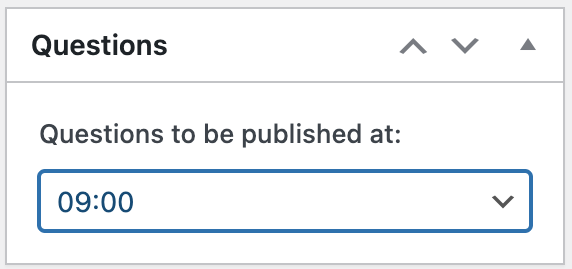
You'll see a section in the top right hand side called Questions.
-
Select the time you would like questions to be published at from the dropdown options.
-
Select Update once you have selected a time.
Please note: Please be aware that adjusting the publish time will only impact questions that are added after you've made the change in the admin.