
User management permissions
User management permissions determine who can view, create, and edit users in Ocasta.
You can give different levels of access depending on a user's role and responsibilities. This helps make sure the right people can manage users while keeping access limited to the areas they look after.
Viewing user management permissions
To view the current user management permissions for an existing role:
- Go to Admin > Users > Permissions.
- Select Manage permissions.
- Select the role or roles you want to view.
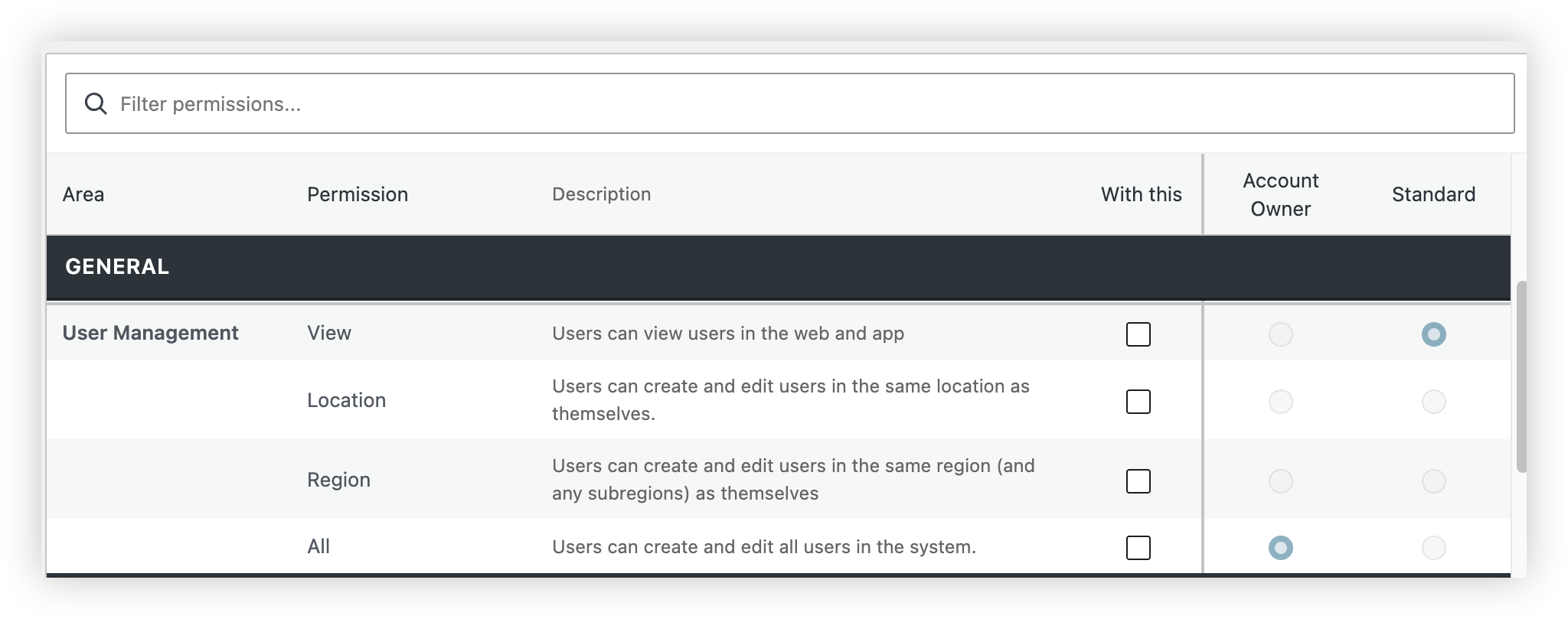
The permissions table includes a User management section, where you can see the level of access assigned to each role.
User management permission levels
There are four levels of user management permission.
View
Allows users to view other users in both the web platform and mobile app
Users with this permission can view users in the front end of the platform that they have permission to view, but cannot create, edit, or delete users in Admin.
This permission is typically used for standard users who need visibility of colleagues but do not manage user accounts.
Location
Allows users to create and edit users within their own location.
This permission is typically used for store managers or branch managers who are responsible for managing their local team.
Users with this permission can:
- Create new users in their location
- Edit existing users in their location
Users with this permission cannot:
- Create or edit users in other locations
- Create or edit users outside the location they are in.
Example
A store manager in Manchester can create and manage users assigned to the Manchester store but cannot manage users in Liverpool or Birmingham.
Region
Allows users to create and edit users within their own region and any sub-regions beneath it.
This permission is often used for regional managers or area managers who oversee multiple locations.
Users with this permission can:
- Create new users within their region
- Edit users across all locations in their region
- Manage users in any child regions or sub-regions
Users with this permission cannot:
- Manage users outside their assigned region
Example
A regional manager responsible for the North region can manage users in all locations and sub-regions within the North region but cannot manage users in the South region.
All
Allows users to create and edit all users across the entire Ocasta platform.
This is the highest level of user management access and is typically reserved for account owners, HR teams, or central support teams.
Users with this permission can:
- Create users anywhere in the organisation
- Edit any user account
- Manage users across all locations and regions
Example
An account owner can create, update, and manage users regardless of where they sit within the organisational structure.
Choosing the right permission level
When assigning user management permissions, follow the principle of giving people only the access they need.
| Permission | Typical role | Description |
| View | Team members, supervisors, Sales associates | Can view users only |
| Location | Store or branch managers | Can manage users within their location |
| Region | Area or regional managers | Can manage users within their region and sub-regions |
| All | Account owners, HR, support teams | Can manage all users across the organisation |
As a best practice, assign the lowest level of access that allows someone to perform their role effectively. This keeps user management secure while ensuring managers have the tools they need to support their teams.