
Single Insight View
Applies to: Inspections & Checklists Hub | Observations & Coaching Hub
The Single Insight View lets you explore a specific insight from a review in more detail. It makes it easy to compare responses to the same insight across multiple reviews and identify patterns, trends, and areas that need attention.
Accessing the Single Insight View
- Go to Analytics on the web platform.
- Open Insight Reports.
- Select either the By Score or By Section report.
- Choose a review template and date range.
- Locate the insight you want to investigate and select the grid icon on the right-hand side.
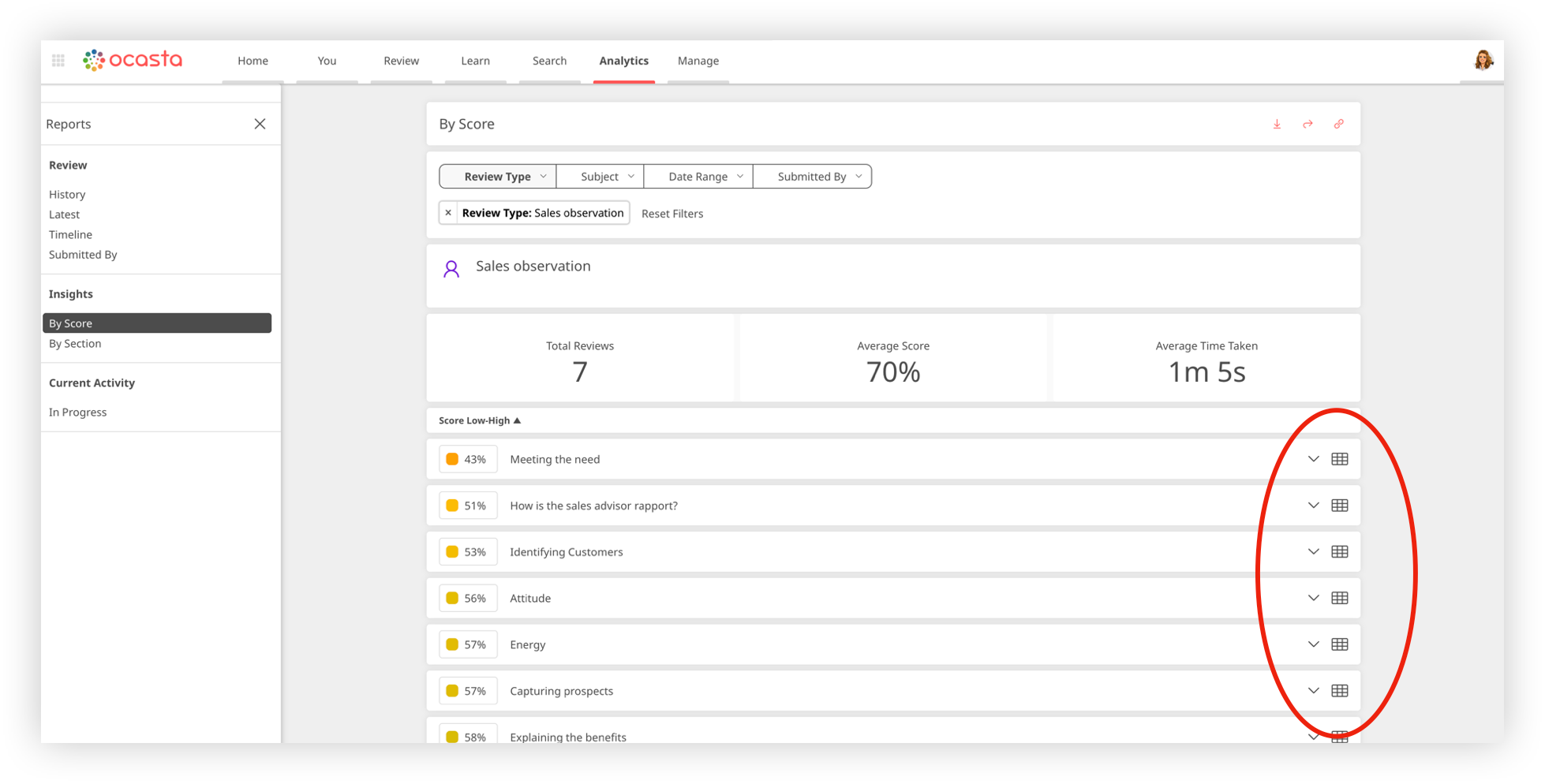
This opens the Single Insight View, showing all responses recorded for that insight during the selected time period.
Navigation
The Single Insight View contains four tabs:
- Overview
- Notes
- Tasks
- Photos

Each tab focuses on a different aspect of the responses collected for the selected insight.
Filtering responses
Only relevant responses are displayed. For example, if you select the Photos tab, you'll only see responses that include photos. The same applies to notes and tasks.
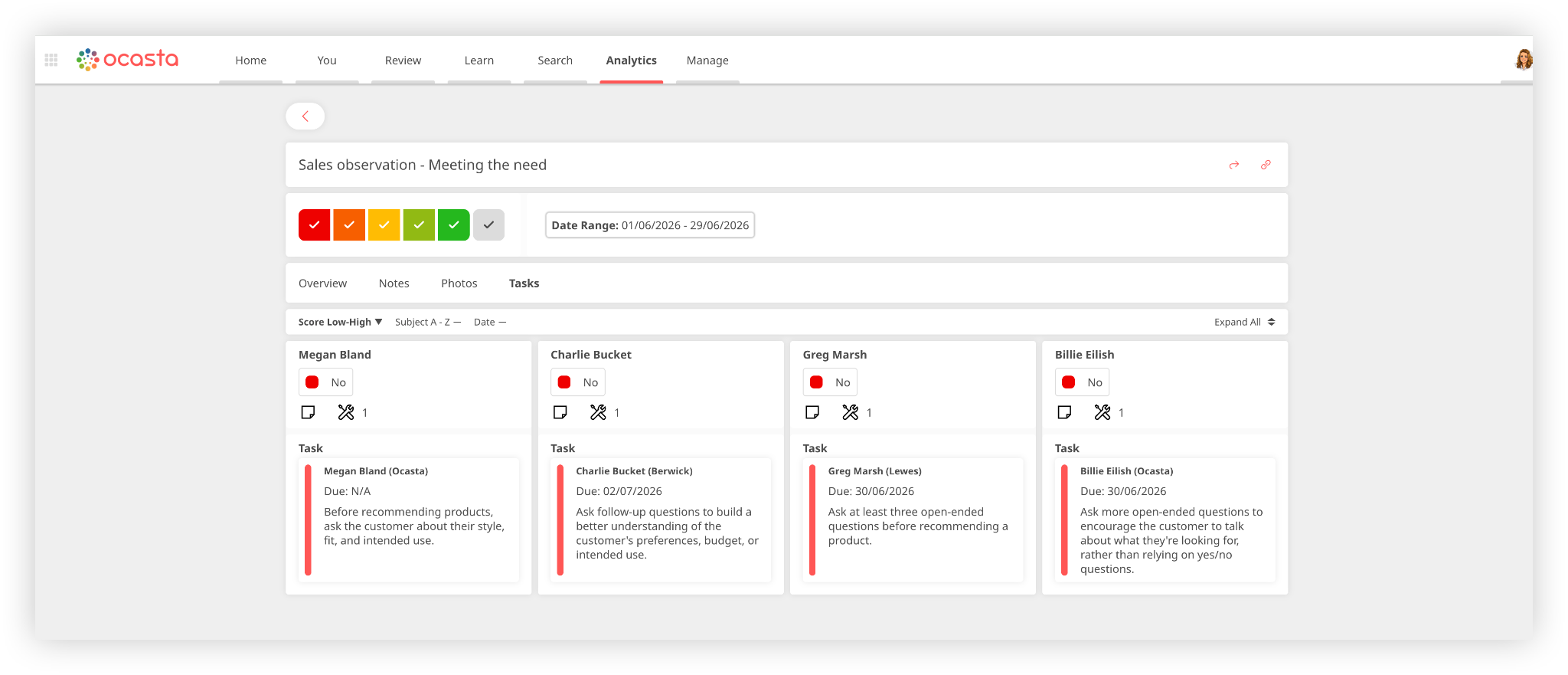
Viewing full insight details
If an insight requires further investigation, select its card to open the full insight record. This provides access to all information captured during the review, including scores, notes, photos, tasks, and any other related details.