
Add subtitles to a video
Applies to: Knowledge & Learning Hub | Comms & Engagement Hub
You can add subtitle files to videos in News and Articles to make your content more accessible and support users who speak different languages.
Note: Subtitles can only be added to videos uploaded to the Media library. Videos embedded from external services (such as YouTube or Vimeo) do not support uploaded subtitle files.
How to add subtitles to a video
- Go to Admin.
- Open News or Articles.
- Create a new item or open an existing one.
- Select Add media.
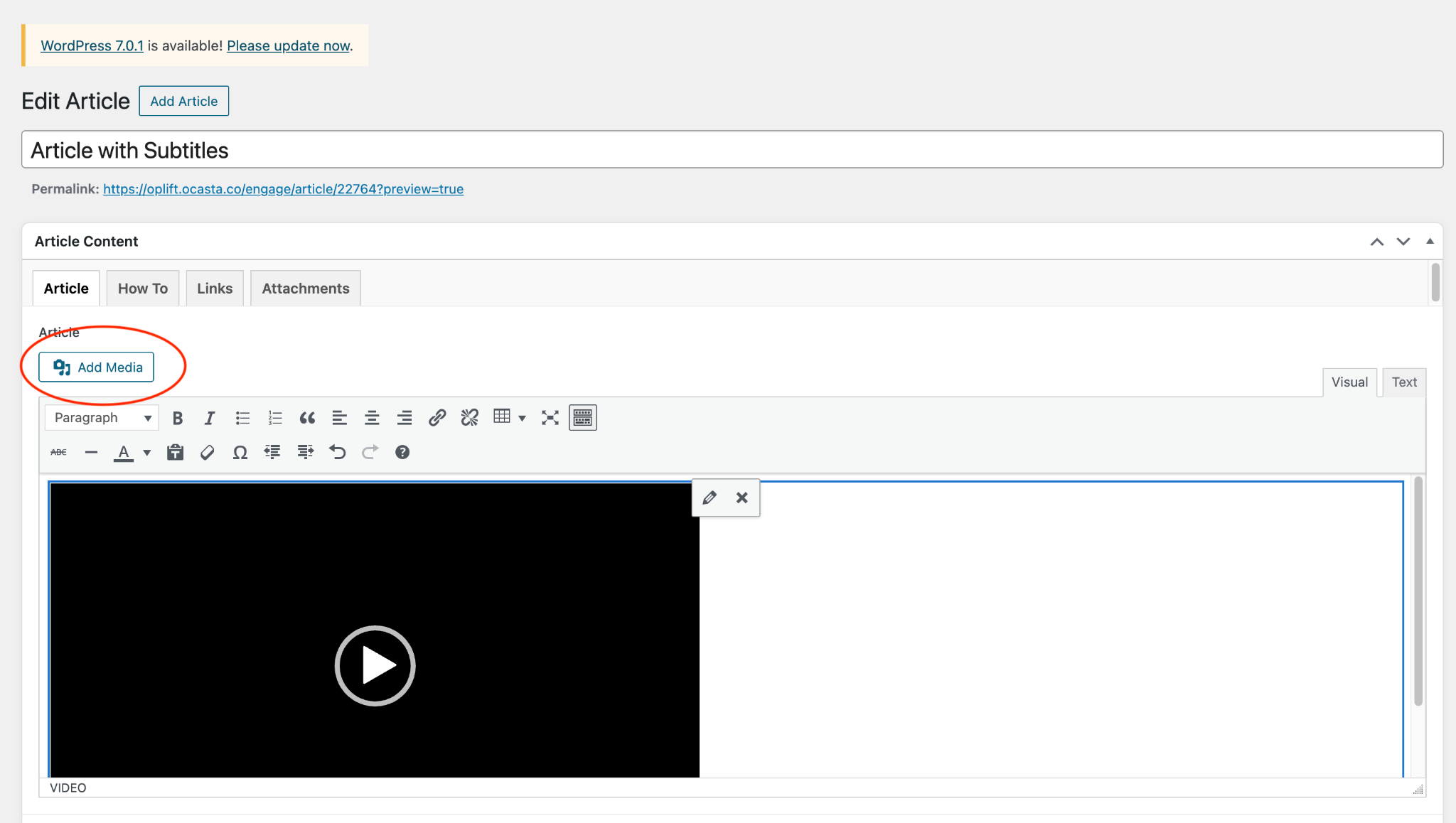
- Choose an existing video from the Media library, or upload a new video.
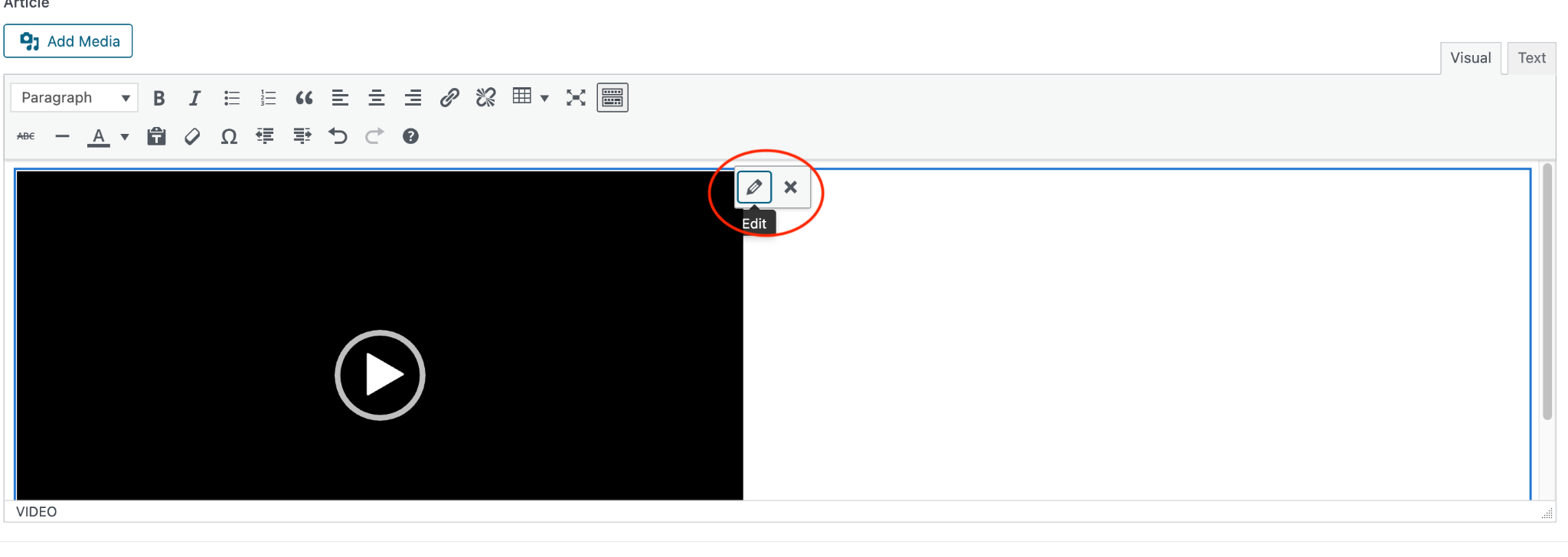
- Once you've added the video, select it and click the Edit (pencil) icon.
- In the Video details window, select Add subtitles.
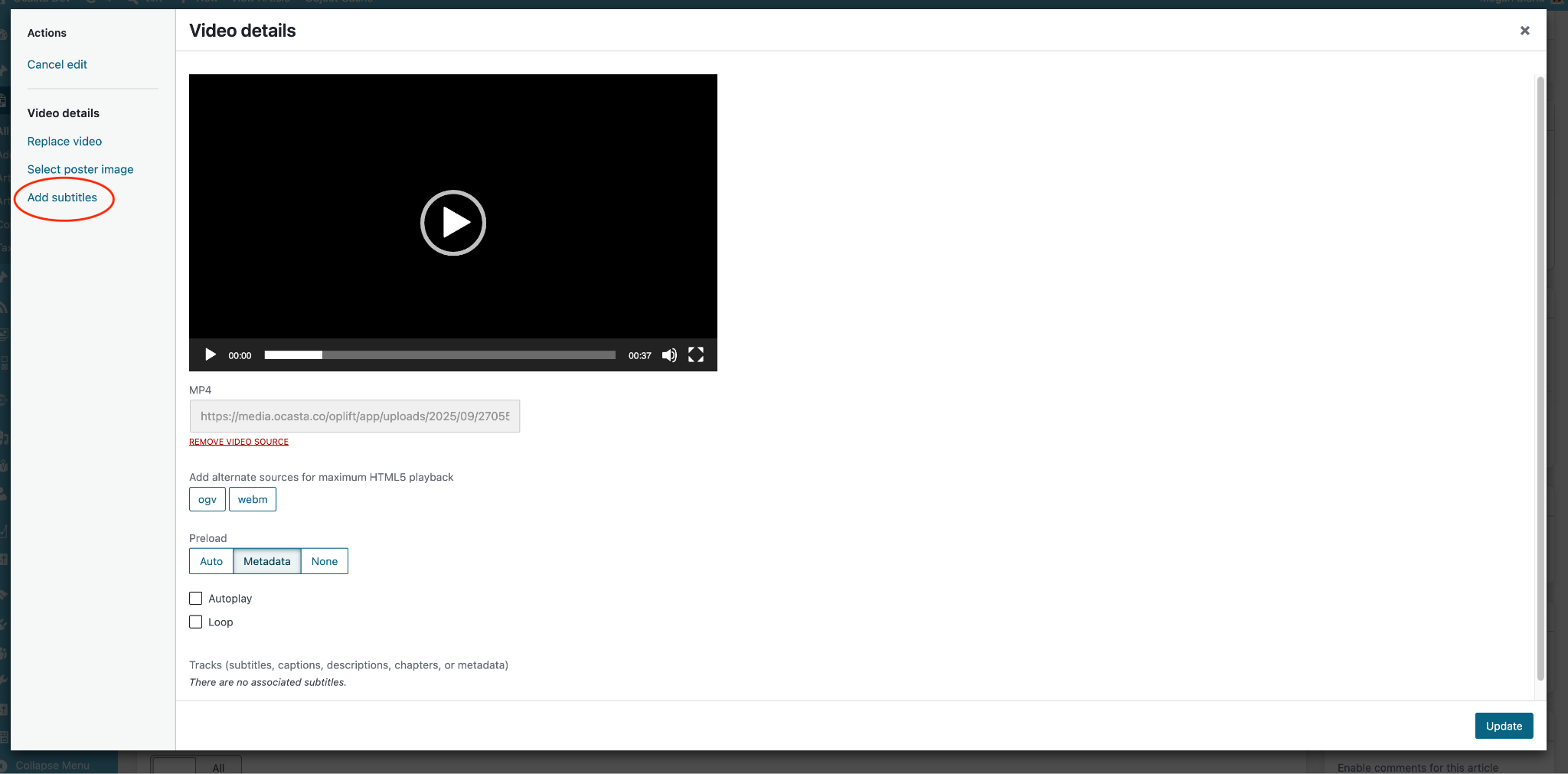
- Choose an existing subtitle file from the Media library or upload a new one.
- Subtitle files must be in .vtt format.
- You can upload multiple subtitle files to the same video, for example one for each language.
Name your subtitle languages
After uploading your subtitle files, you can choose the names that users will see when selecting subtitles.
- Select Video details from the side menu, scroll to the Subtitles section at the bottom.
- Each subtitle file will have a label, for example:
- Label="English"
- Edit the text between the quotation marks to change the display name.
For example:
- Label="English"
- Label="Français"
- Label="Español"
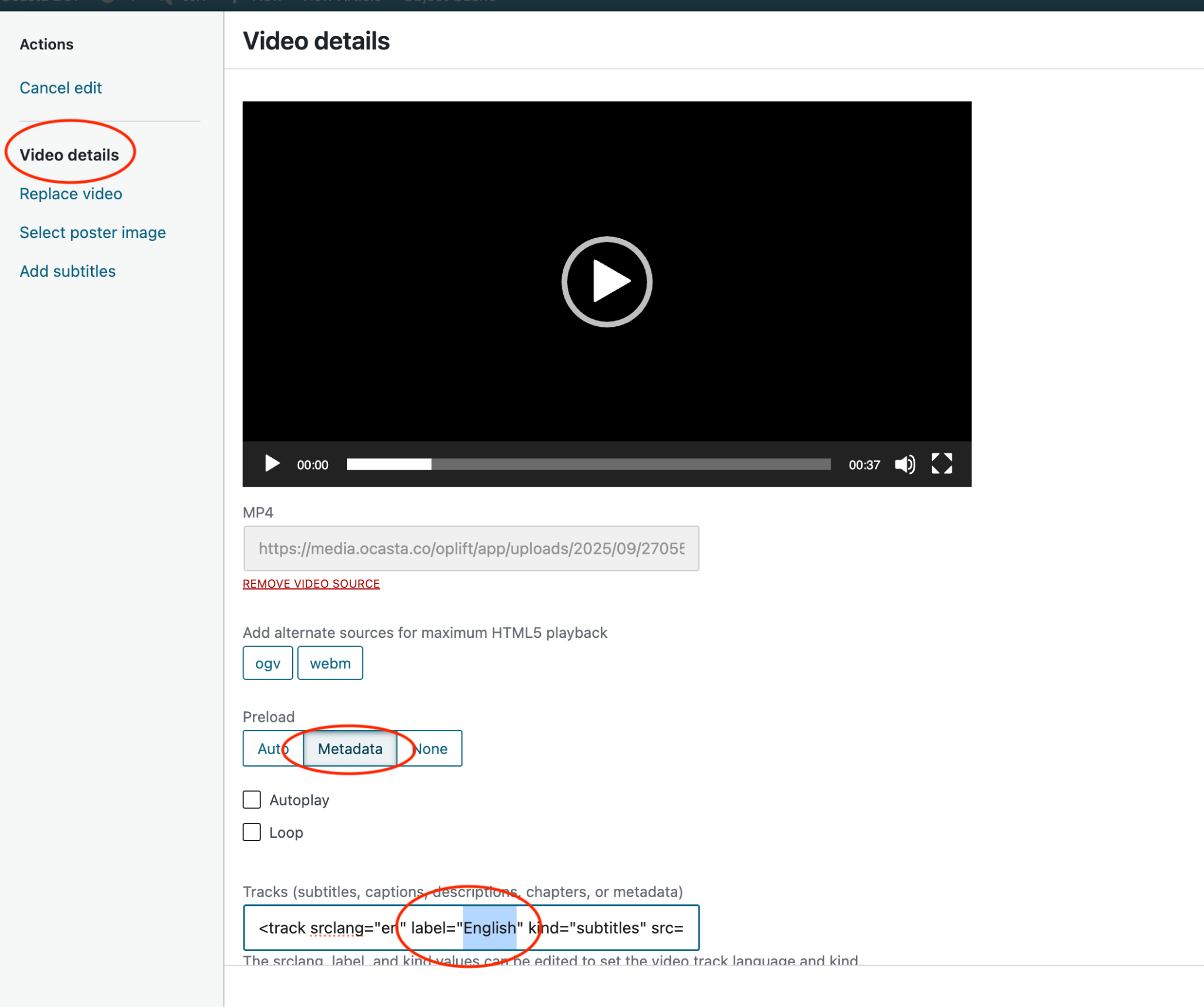
The name of the .vtt file isn't shown to users, so it doesn't matter what the file is called. The Label is what users will see when choosing a subtitle language while watching the video.
Once you've finished creating your News item or Article, publish it as normal.
How to view subtitles
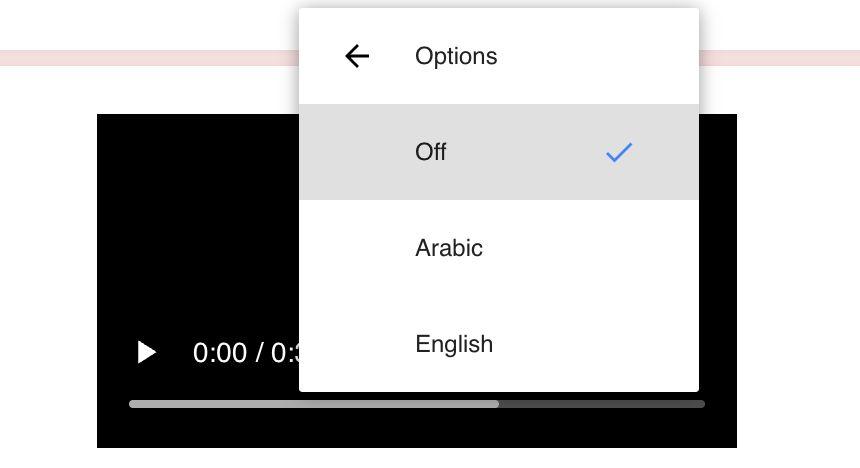
When watching the video, users can turn subtitles on using the video player's caption/subtitle controls.
The location of these controls varies depending on the browser or device being used, but they're usually available in the controls at the bottom of the video player. Depending on the browser or device, the option may appear as:
- CC (Closed Captions)
- A speech bubble icon
- A More options (three dots) menu
- A settings or subtitles menu
If multiple subtitle files have been added, users can select their preferred language from the available subtitle options.
Troubleshooting
I can't add subtitles to my video
Check that the video has been uploaded to the Media library. Subtitle files can't be added to externally hosted videos.
My subtitle file won't upload
Only .vtt (WebVTT) subtitle files are supported.
I can't see subtitles when playing the video
Make sure subtitles are turned on in the video player's controls. If multiple subtitle files are available, check that the correct language has been selected.