
How to turn on Ocasta web notifications
You can turn on browser notifications in Ocasta to receive updates while using the platform on the web.
There are two ways to turn on web notifications: from the home page or on your profile page.
Option 1: Turn on notifications from the home page
If web notifications are available for your organisation, you should see a prompt when you log in to Ocasta through your web browser.
- Log in to Ocasta on the web.
- Look for the notification prompt on the home page.

- Select Enable Notifications.
- If your browser asks for permission to send notifications, select Allow.
Option 2: Turn on notifications from your profile
Alternatively, you can turn on notifications from your profile instead.
- Open your Profile page in Ocasta.
- Find the Notifications section.
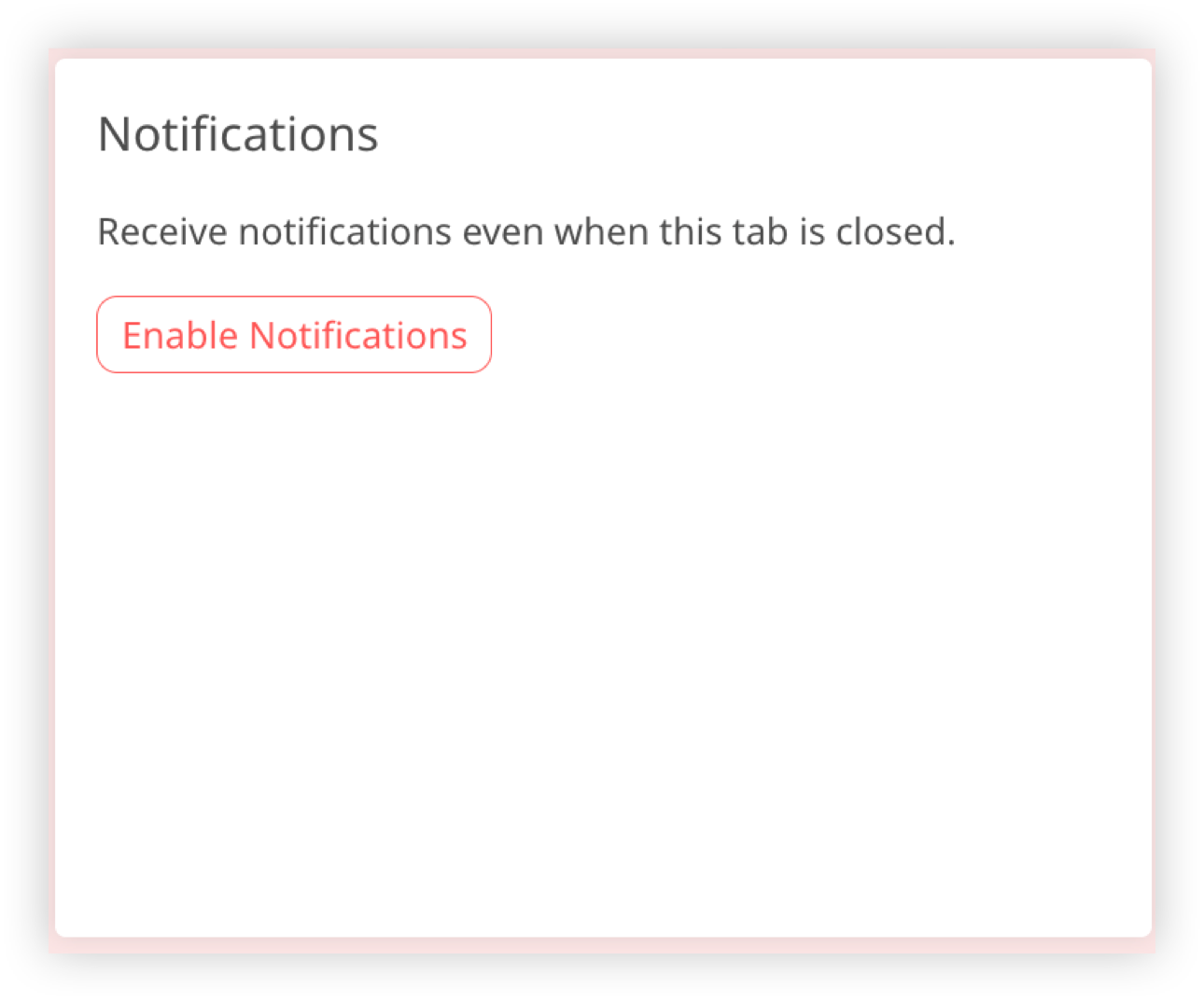
- Select Enable Web Notifications.
- If prompted by your browser, select Allow.
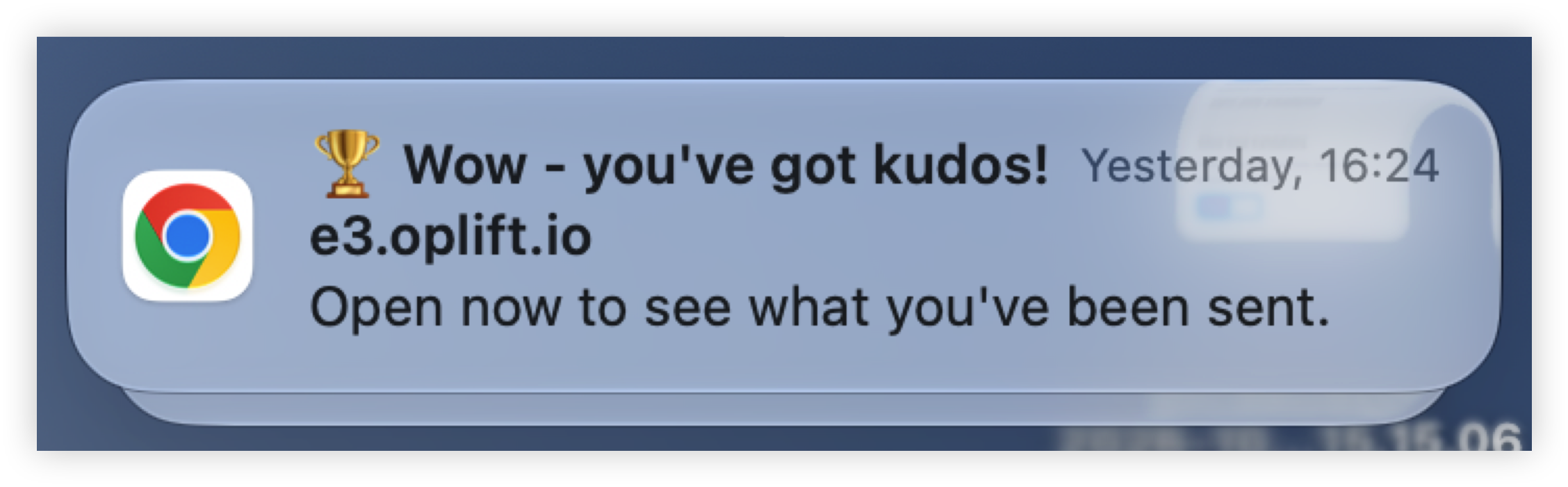
Once enabled, you should start receiving Ocasta notifications through your web browser.
Information for Ocasta administrators
If your organisation uses a restricted network, you may need to allowlist additional domains before users can receive browser notifications.
For details of the domains required, see our Allowlist of Domains Required for Review and Engage Platforms article.