
Use local translation for news and articles
Local translation lets users translate news and articles into the language they use in the Ocasta app.
Turn on local translation
You’ll need administrator access to turn on this option.
- Log in to the Ocasta admin.
- Go to Options > Branding.
- Turn on Allow local translations.
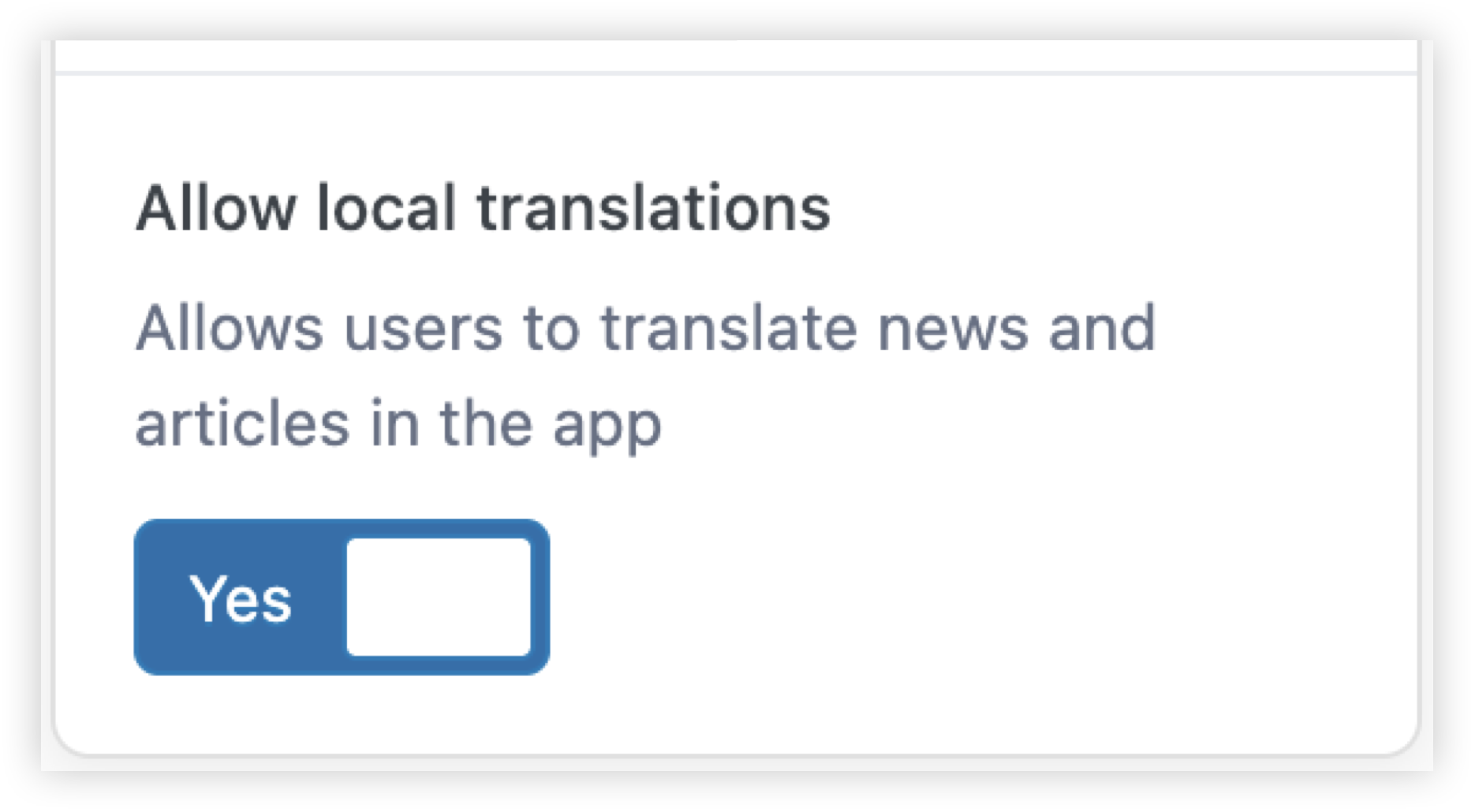
Once local translation is enabled, users will be offered the option to translate news and articles when their app language is different from the site's default language.
Set the default site language
Administrators can set the default site language from the Settings page in the Ocasta admin.
Translate a news item or article
If local translation has been enabled and your app is using a different language from the site's default language, you'll see a Translate button on news and articles.
Tap Translate to start. The content will translate progressively on your device as you read.
To stop the translation, use the cancel option at the bottom of the article or news item.