Article Categories
Applies to: Knowledge & Learning Hub
You can organise articles into broad categories and create multi-level categories by nesting subcategories within parent categories for better structure and easier navigation.
What are article categories?
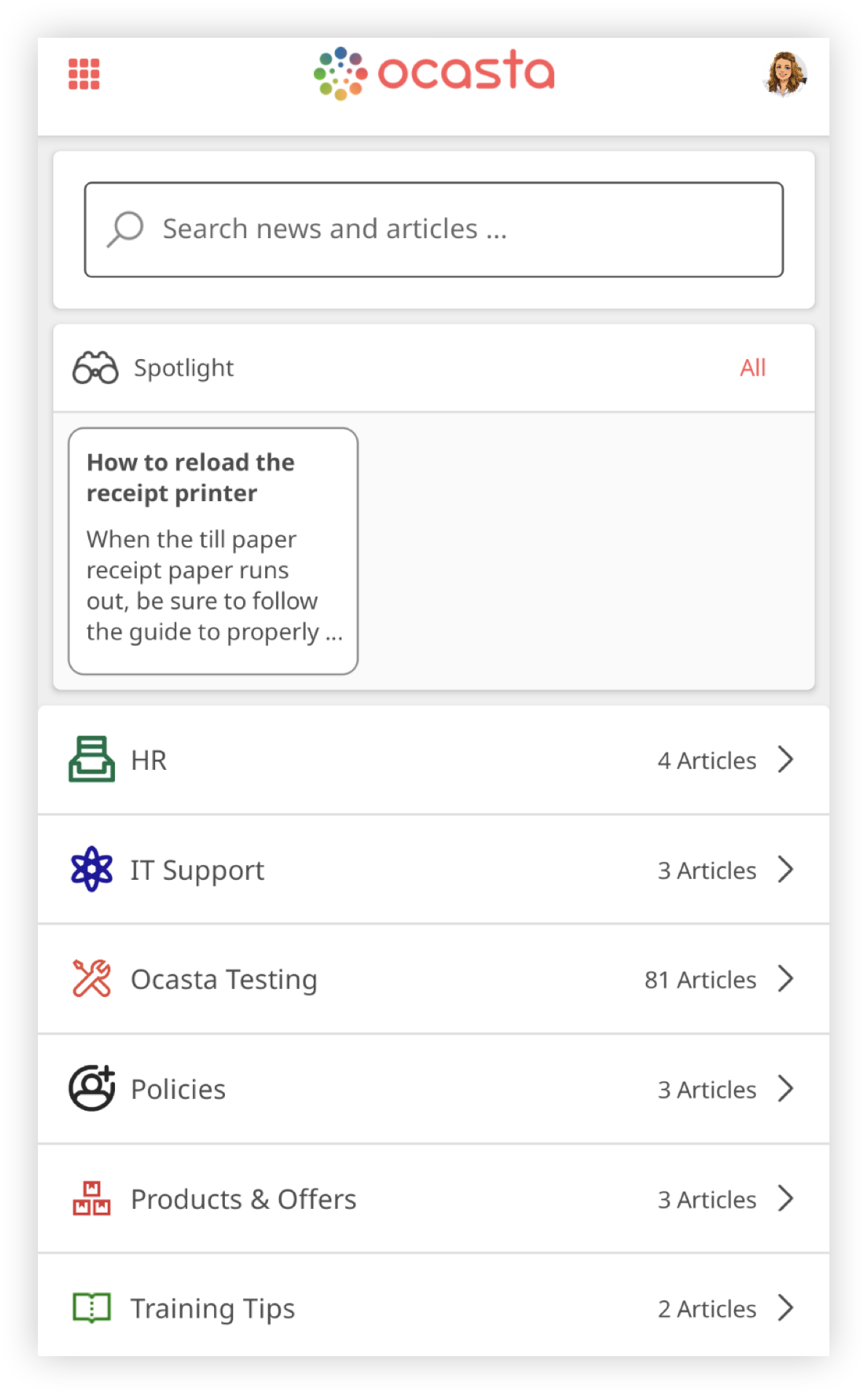
These are how you will categorise all of your articles, you can have as many as you like. They are broad terms which are what each article will belong to. For example an article category may be 'Health and Safety' and you can add all articles to this category if they concern health and safety, making them easy to find.
You can also group articles within categories. For example you may want 'Safety' to be its own category within the 'Health and Safety' category. To do this you simply create another article category but make sure that 'Health and Safety' is selected as its parent category. These are called multi-level categories e.g. Health and safety - Safety - Fire Marshall list
How do I create article categories?
- Click ‘articles’ in the left side bar
- In the subcategories select ‘Article categories’
- These can be multi-level categories e.g. How To - Recruitment - Interview best practice.
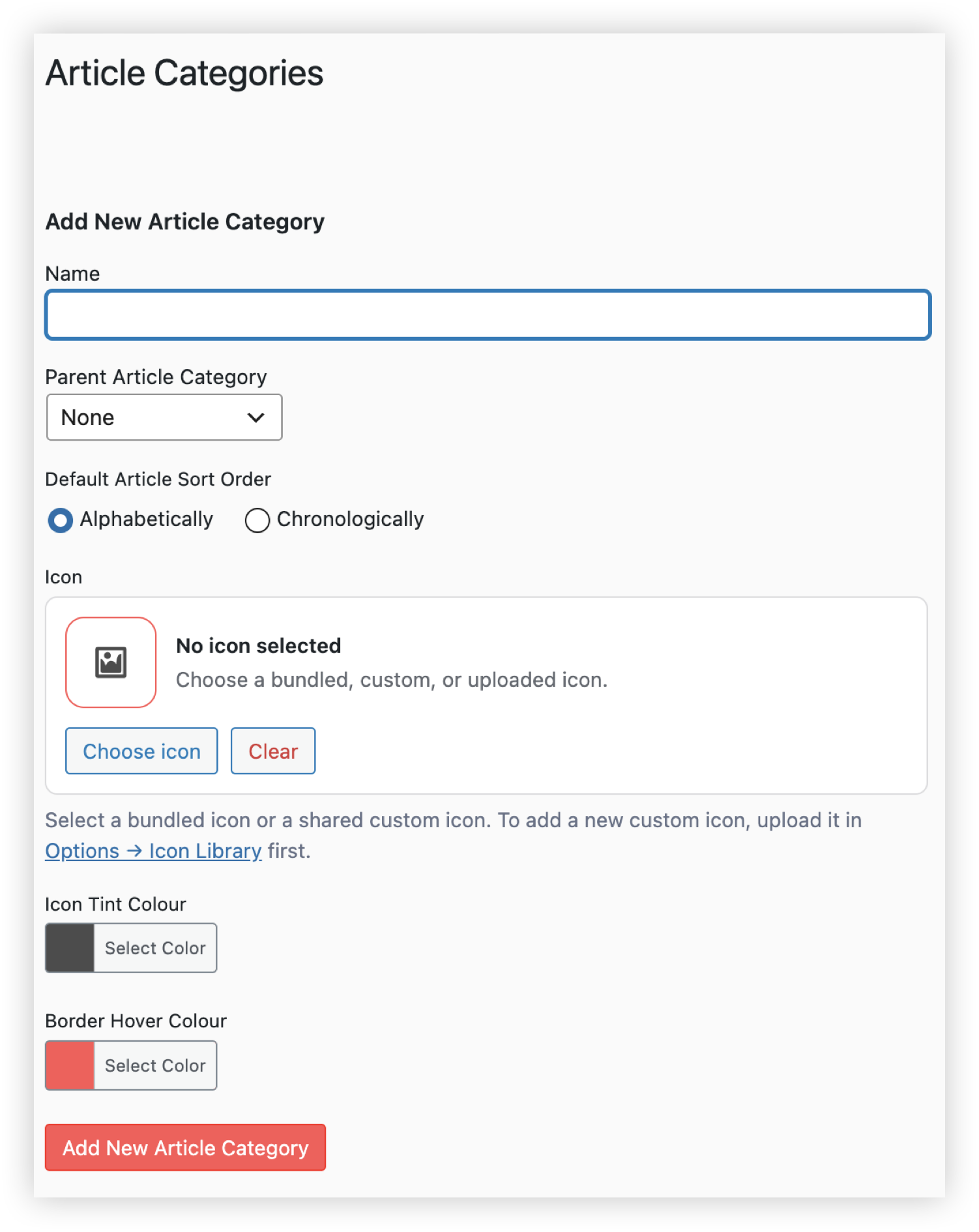
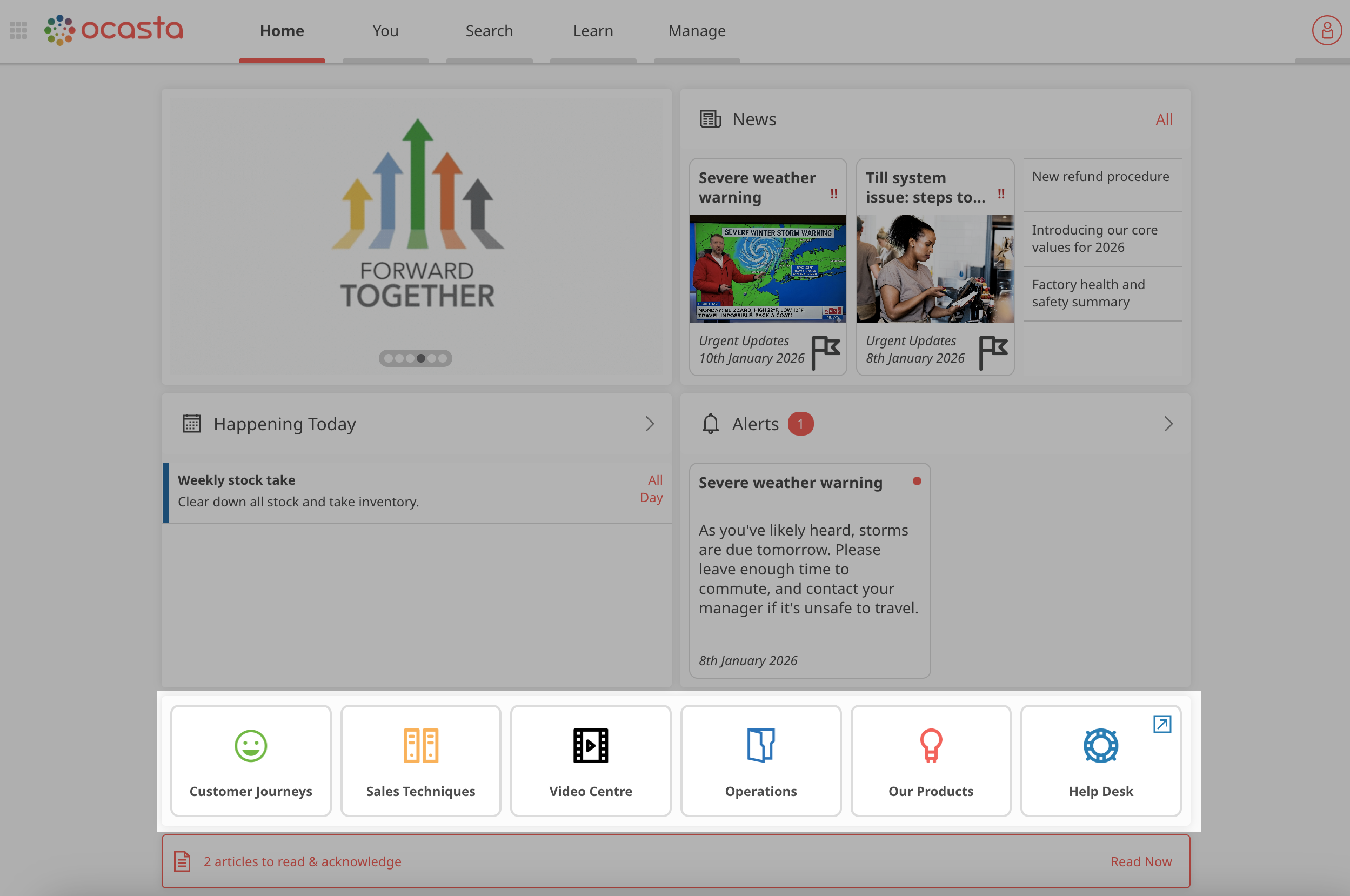
- First you must add name of the overall parent categories, these will be the titles which you have on the home screen dash tiles - e.g How To
- Select parent category - none
- Set your default article sort order, either alphabetically or chronologically.
-
Select an icon for your article category. You can pick from the existing library. The library includes over 1,000 bundled icons to choose from, or you can upload your own icon or image.
Icon Tint Colour - if using and icon, not an image, this option will adjust the colour of the icon for the article category tile.
Border Hover Colour - this is the colour that will highlight the tile when you hover over it.
- Select ‘Add New Article Category’ button
- Now you can begin adding all the subcategories which come under this parent category.
- Add new - e.g. Recruitment
- Select parent category - How To
- Set the default sort order for the sub-category, either alphabetically or chronologically.
- Once you have finished, press the ‘Add New Article Category’ button
Where is the category sort order displayed?
When you select an article category, either via a dash tile on the Ocasta Home page or via the Search page, the articles within the category will be listed in either alphabetically or chronologically, depending on what you set the default to be in the admin when you created the category.
The user can choose to change the sort order by selecting the sort order dropdown in the top right. The same applies to sub-categories.

How can I make my article category a tile on the Home screen?
Follow these instructions to make your article category appear as a dash tile on the home screen. Create Article Dash Tile