Integrate and launch external apps
Applies to: Knowledge & Learning Hub | Comms & Engagement Hub
How to quickly launch your existing apps from Ocasta
What Are Apps?
The app switcher is where your team can quickly access external tools from Ocasta.
Apps are links to the platforms your organisation already uses — like Scheduling, Payroll and Slack— brought into one place for easy access. When someone selects an app, it opens the platform directly.
To open the app switcher, select the squares icon in the top left of the navigation bar.
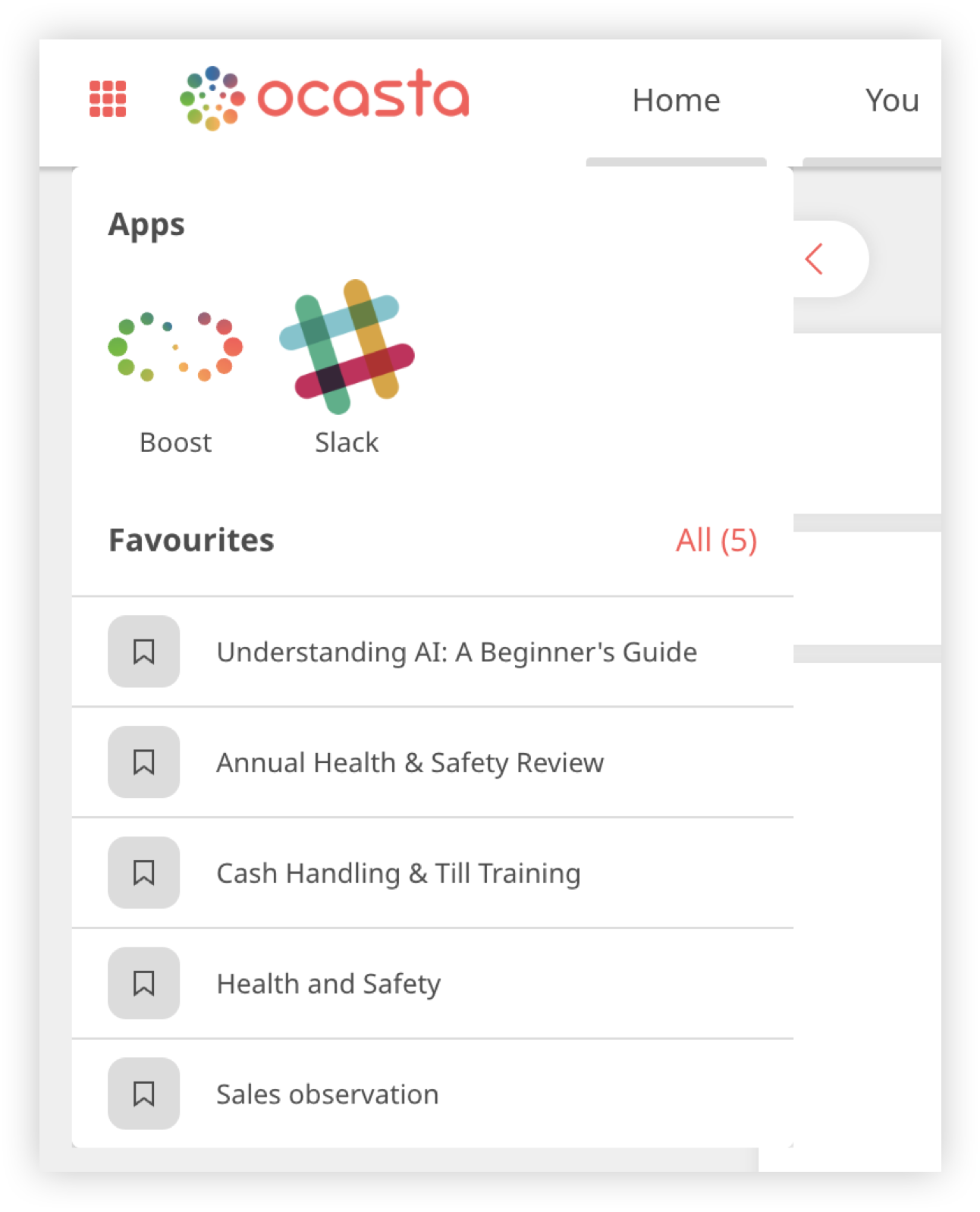
You can also view your favourites from the app switcher. You can read more about how to manage your favourites here.
How can I edit an existing app or remove an app from the app switcher?
- Click Options in the left-hand sidebar.
- In the sub-category menu, click Apps.
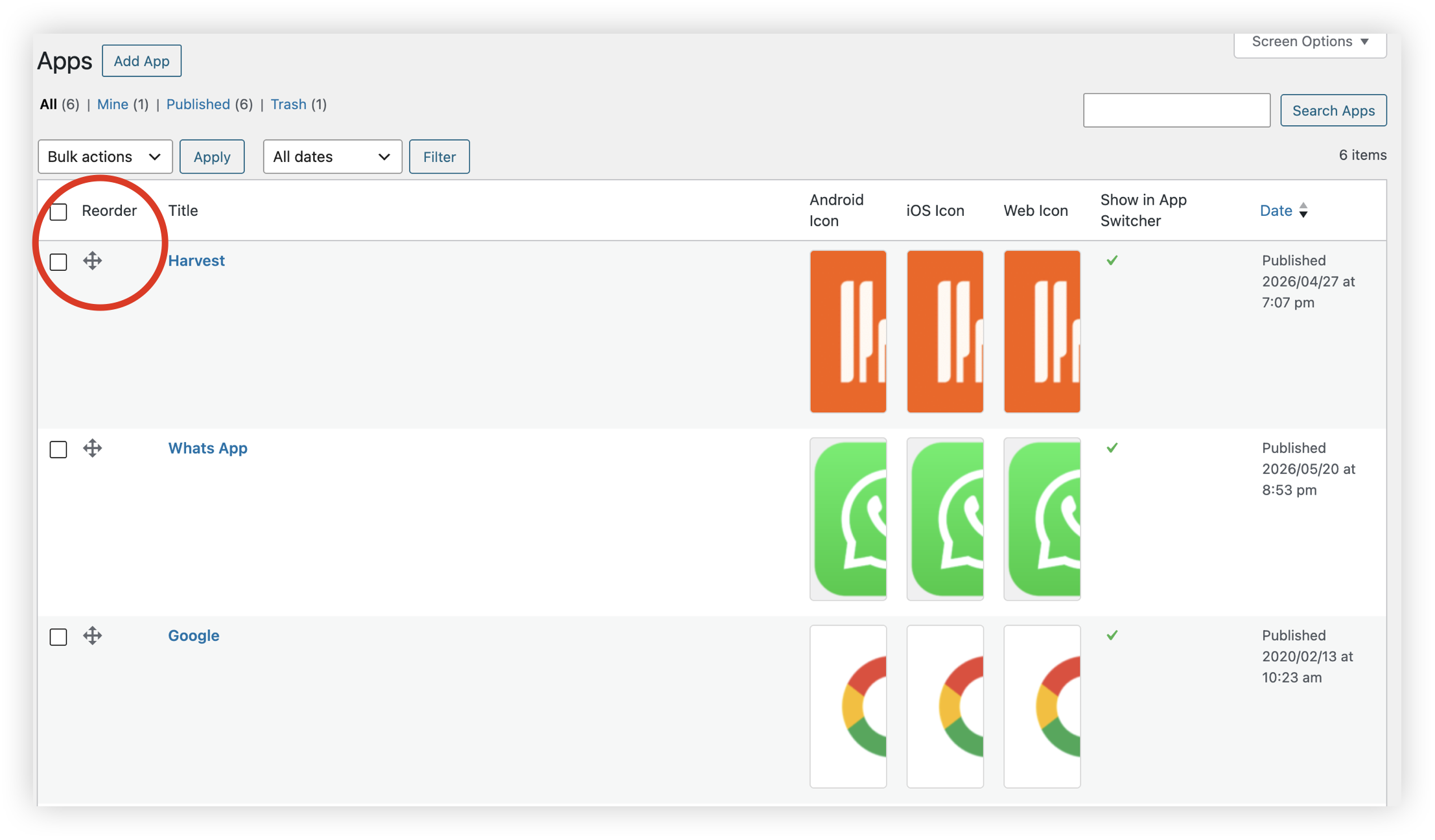
- You'll see a list of all available apps.
- You can see which platform each app applies to: iOS, Android, Web, or all three.
- In the Show in app switcher column, a green tick indicates that the app is currently displayed in the app switcher.
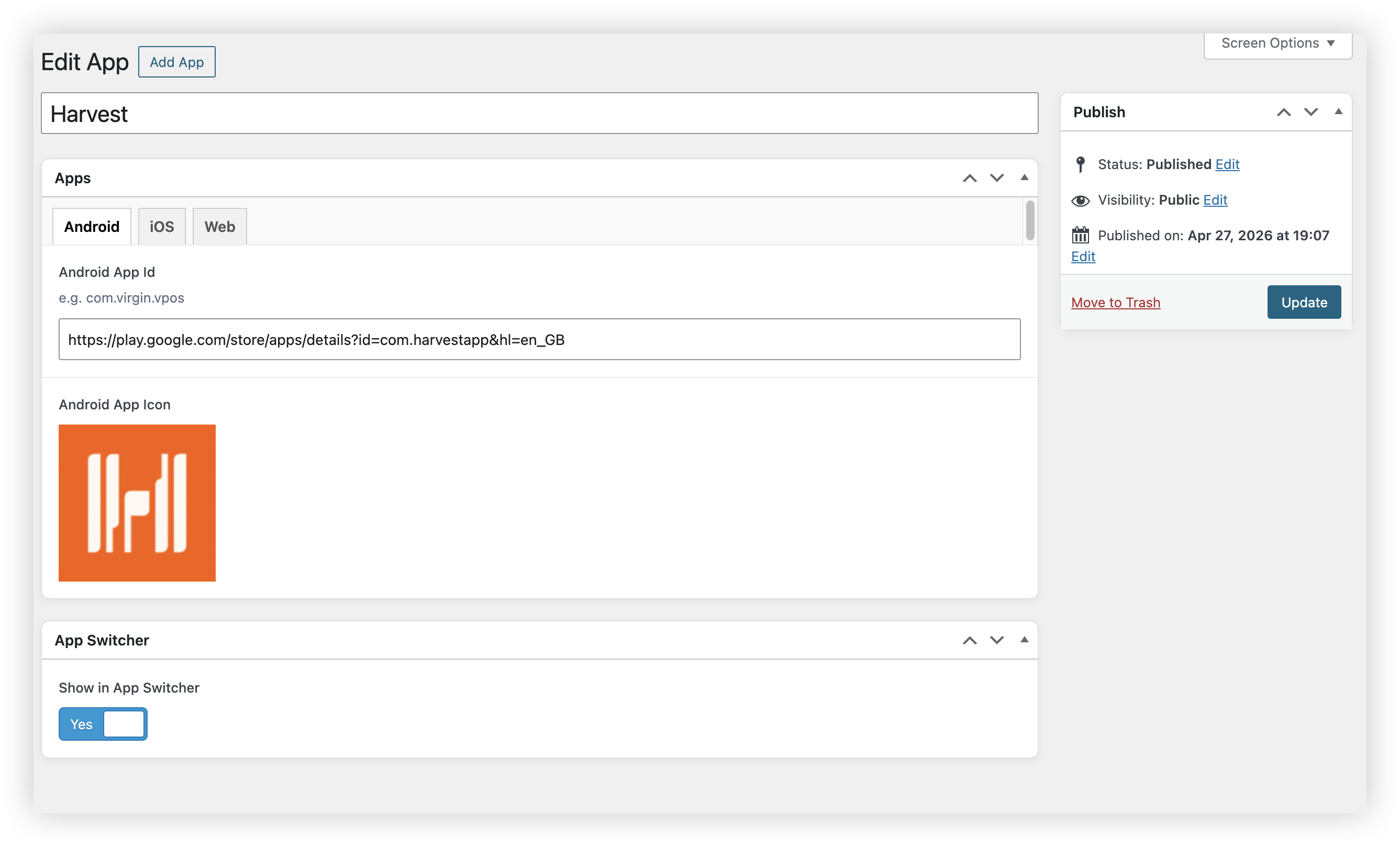
- To edit an app, select it from the list.
- You can then edit the title, URLs, and images.
- At the bottom of the page, simply toggle Show in app switcher to No if you don't want the app to be displayed.
How can I re-order the apps?
To re-order how apps are displayed in the app switcher, use the drag-and-drop option on the Apps page.
- In the Re-order column, click and hold the arrow icon.
- Drag the app to the desired position in the list.
- Release the mouse button to place it in its new position.
Apps at the top of the list will appear first in the app switcher.
How do I add a new app?
- Click Options in the left-hand sidebar.
- In the sub-category menu, click Apps.
- Click Add App.
- Enter the title of the app.
- Select whether the app is available on Android, iOS, Web, or all platforms.
- Add the URL for each platform.
- Under App icon, upload an image for each platform.
- Toggle Show in app switcher to Yes if you want the app to appear in the app switcher.
- Once you're ready to publish the app, click Publish in the top-right corner.