
Dash Tiles
Applies to: Knowledge & Learning Hub | Comms & Engagement Hub
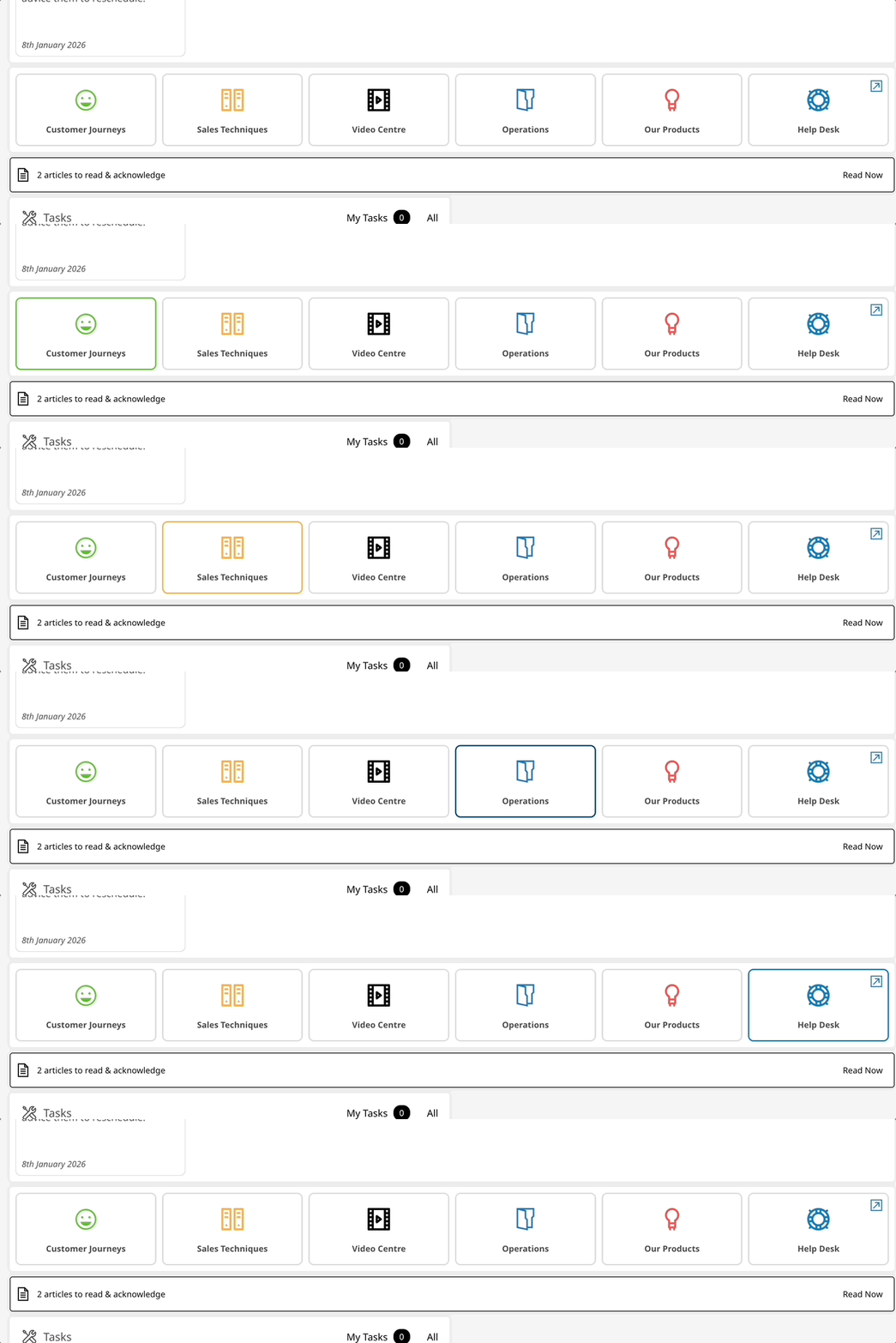
These are the coloured tiles that will appear on your dash linking to your content.
What are dash tiles?
These are the tiles that will appear on your Home screen, they are designed to categorise all of your articles and links making them easy to find. You can have parent article categories, web links, news and calendar tiles.
Article tiles are where your articles will be kept, they are the parent article categories, for example policies, procedures, how to guides, products, company information etc.
Web link tiles will link out to external pages for example your business website.
The news tile is where all of your latest news will be kept, you can only have one of these tiles, this will be automated from the news items that you post.
The calendar tile will link to your organisations full calendar view displaying events, activities and reminders visible to all employees.
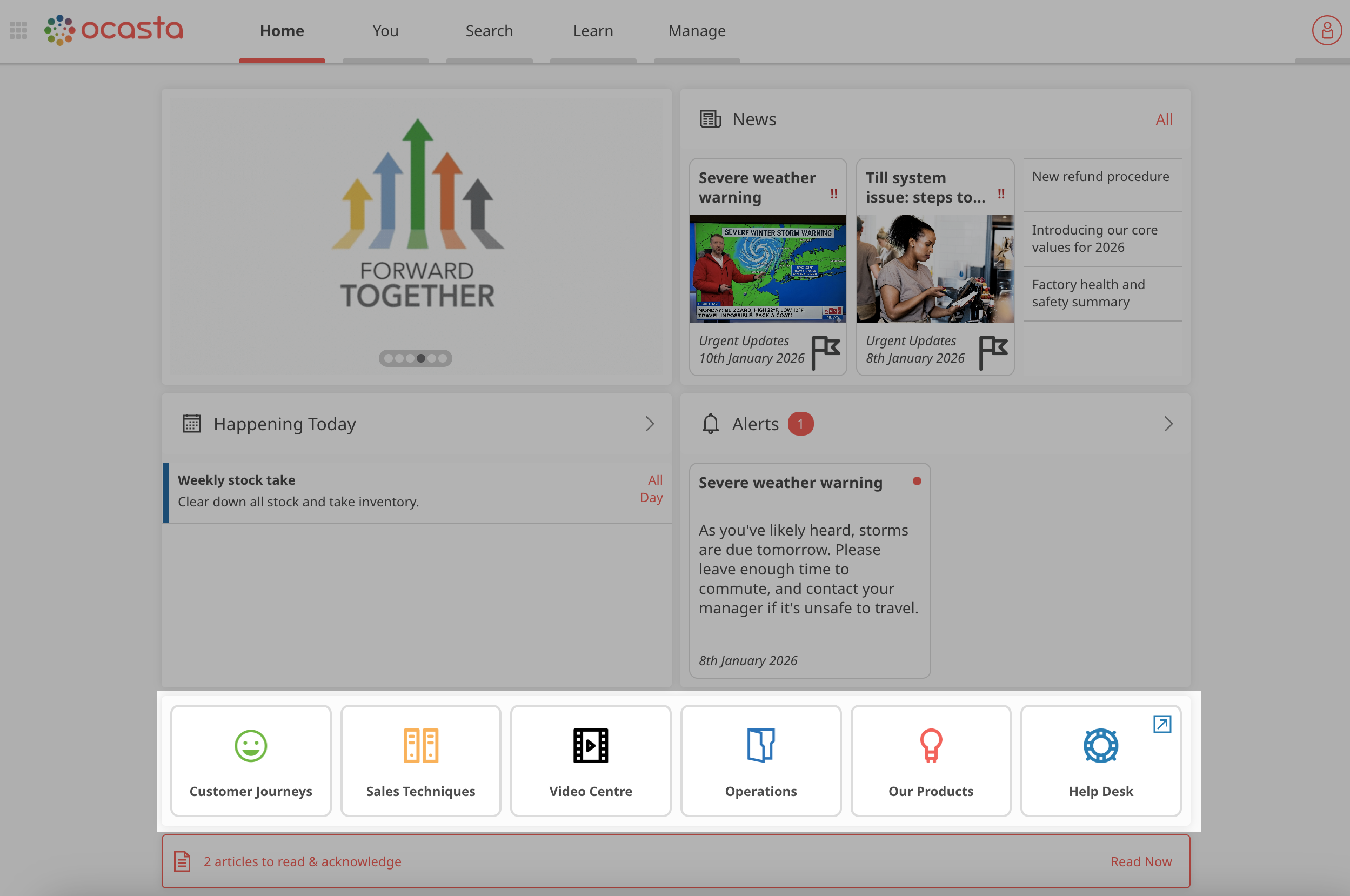
Your new dash tile should now appear on the dashboard. Don't forget to refresh the page 🙂
How do I create and organise dash tiles?
All Dash tiles are created in the Admin under Options → Dash.
Here, you can:
- Add icons
- Set tile colours
- Choose where each tile links (e.g. news, calendar, web link, or article category)
See the detailed instructions below for how to configure each option.
Article Category
-
If you haven't already, you first need to set an Icon, Icon Tint Colour and Border Hover Colour for your dash tile.
Dash tiles that link to an article category will display the icon set assigned to that category.
- You first need to go to Articles in the left hand side bar then select Article Categories
- Select the interested parent article category from the table.
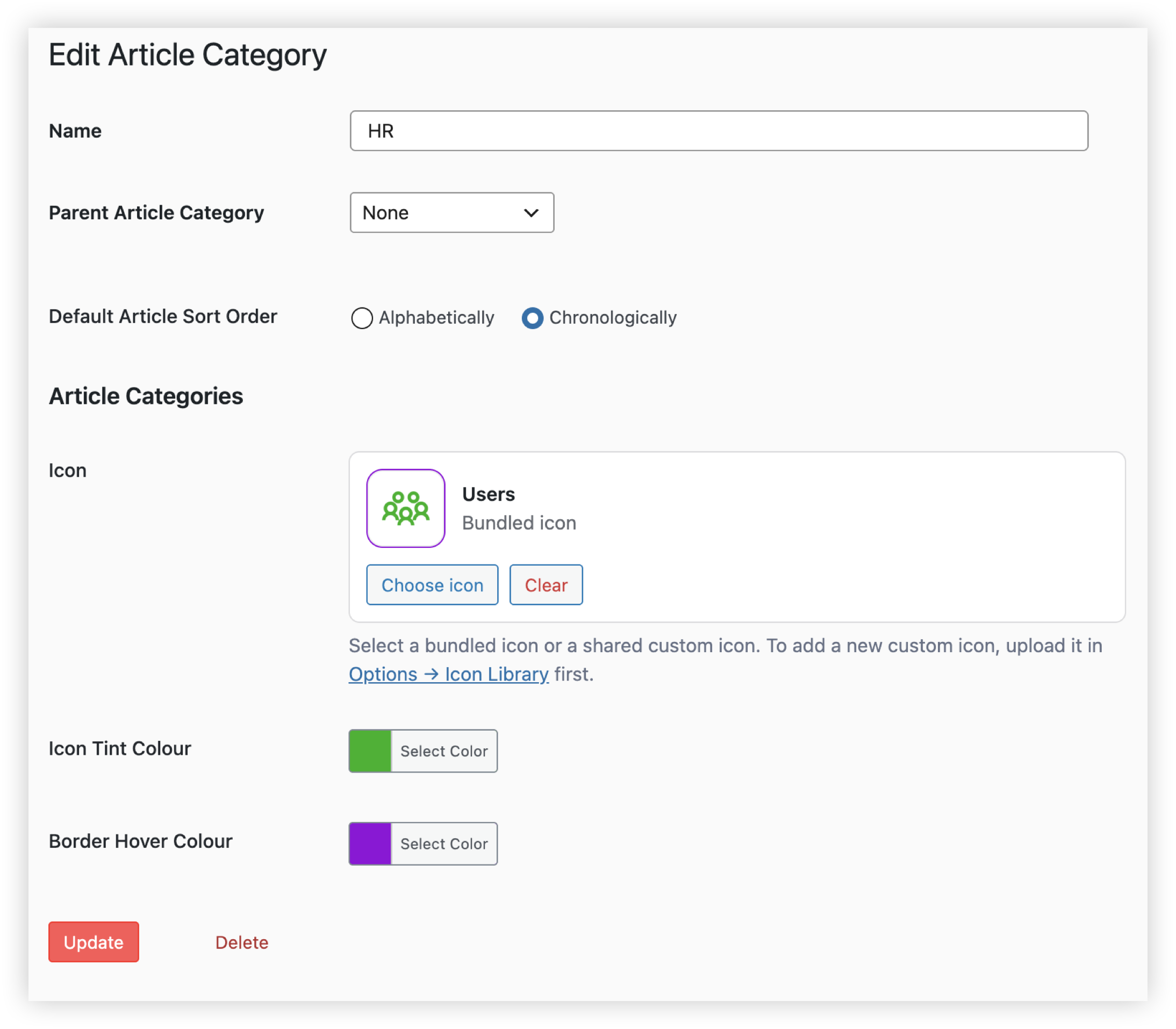
- Icon - Select an icon for your article category. You can pick from the existing library. The library includes over 1,000 bundled icons to choose from, or you can upload your own icon or image.
- Border Hover Colour - this is the colour that will highlight the tile when you hover over it.
- Icon Tint Colour - if using and icon, not an image, this option will adjust the colour of the icon for the article category tile. If you have uploaded an image instead of an icon, set this colour to Clear.
- Now go back to Options in the left side bar and select Dash
- Add a new tile and select 'Article Category'
- You need to select the parent article category you would like from the drop down menu which the tile will link to.
- Platform - select which platforms you would like these to show on, either Web, Android or iOS

- Tap Save when you are finished 👍
Calendar
- Go back to Options in the left side bar and select Dash
- Select Add Tile - Calendar
- Enter a title for the dash tile, such as Calendar.
- Platform - select which platforms you would like these tiles to show on, either Web, Android or iOS
- Icon - Select an icon for your article category. You can pick from the existing library. The library includes over 1,000 bundled icons to choose from, or you can upload your own icon or image.
- Border Hover Colour - this is the colour that will highlight the tile when you hover over it.
- Icon Tint Colour - if using and icon, not an image, this option will adjust the colour of the icon itself. If you have uploaded an image instead of an icon, set this colour to Clear.
- Tap 'Update' when you are finished 👍

Web Link
- Go back to Options in the left side bar and select Dash
- Select Add Tile - Web Link
- Title box - write the name of the link which will appear on the tile
- Url - write the url link you want the tile to link to, you need to include 'https://www'
- Icon - Select an icon for your article category. You can pick from the existing library. The library includes over 1,000 bundled icons to choose from, or you can upload your own icon or image.
- Border Hover Colour - this is the colour that will highlight the tile when you hover over it.
- Icon Tint Colour - if using and icon, not an image, this option will adjust the colour of the icon itself. If you have uploaded an image instead of an icon, set this colour to Clear.
- Platform - select which platforms you would like these to show on, either Web, Android or iOS
- Once you have completed, press the ‘Update’ button

News
There is also a News component for the home screen, which is typically used instead of a News Dash tile—however, the tile option is still available if needed.
The News tile links to your News category page, where all news items are displayed and organised by category.
- Go back to Options in the left side bar and select Dash
- Select Add Tile - News
- Platform - select which platforms you would like these tiles to show on, either Web, Android or iOS
- Icon - Select an icon for your article category. You can pick from the existing library. The library includes over 1,000 bundled icons to choose from, or you can upload your own icon or image.
- Border Hover Colour - this is the colour that will highlight the tile when you hover over it.
- Icon Tint Colour - if using and icon, not an image, this option will adjust the colour of the icon itself. If you have uploaded an image instead of an icon, set this colour to Clear.
- You can only have one news tile. Once finished select “Add Tile” to add your next tile or 'Update' if you don't want to add another

Your new dash tiles should now appear on the dashboard. Don't forget to refresh the page 🙂
Deleting a dash tile
Details how to delete a dash tile are available here.