
Customising your Ocasta Home page
You can tailor the Ocasta home page to show the components that matter most to your teams — and in the order that makes the most sense for how they work.
A member of the Ocasta team can take care of this for you. Just email support@ocasta.com with what you’d like to change.
Below is a clear overview of each home page component, what it does, and which hubs it’s available with.
Banners
Available with: Comms & Engagement hub
Banners are a simple, visual way to get important messages in front of people fast.
They sit at the top of the home page and can link to a news post, article, app, or external page. Users can swipe through them whenever and wherever they are.
Banners work well for:
- Time‑sensitive updates
- Company events
- Promotions or campaigns
- Key announcements you don’t want missed

News (standard or zen news)
Available with: Comms & Engagement hub
You can choose how news appears on the home page — either standard news or zen news.

Standard news
Every time you publish a news item, it appears on the home page with an icon showing its category.
Unread news is prioritised at the top, followed by the latest updates once everything has been read. Users can see how many unread items they have and tap through to view all news.
Zen news
Zen news keeps things calm and focused.
It only shows unread news items. When someone is fully up to date, they’ll see a simple message confirming there’s nothing new to read — no clutter, no distractions.
Alerts
Available with: Comms & Engagement hub
Alerts are instant notifications sent straight to users.
They’re ideal for urgent or operational messages where timing matters — things like system issues, safety updates, or last‑minute changes.
Alerts appear in their own section on the home page, showing how many are unread, with the option to view all alerts in one place.

Spotlight
Available with: Knowledge & Learning Hub
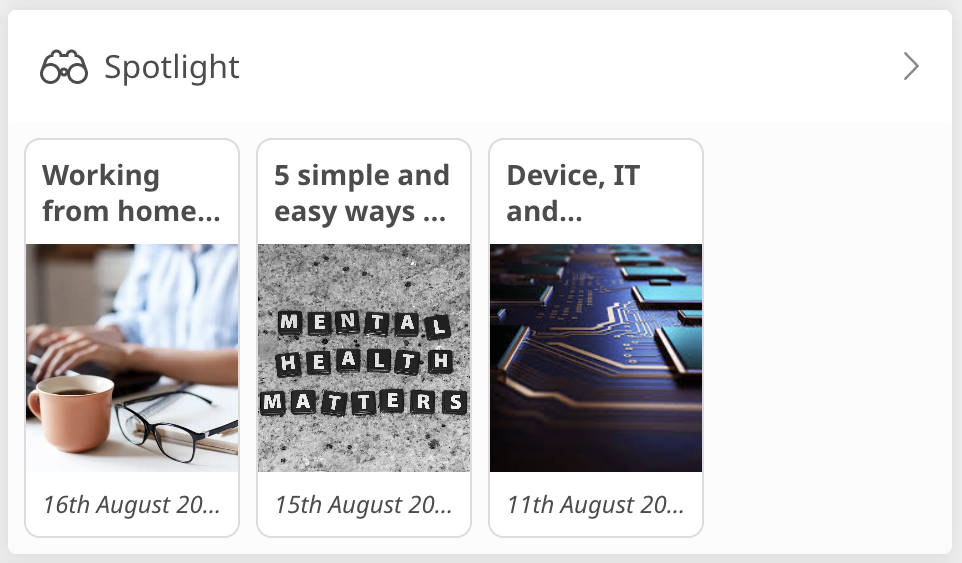
Spotlight helps you draw attention to content that really matters.
When an article is marked for Spotlight, it appears in a dedicated section on the home page. This is useful for:
- Critical information
- Recently updated content
- Knowledge you want people to revisit
If no articles are selected for Spotlight, this section simply won’t appear — keeping the home page clean and relevant.
Dash tiles
Available with: Comms & Engagement and Knowledge & Learning Hubs
Dash tiles are the main navigation tiles on the home page.
They help organise content into clear categories, making it easy for people to find what they need without guessing. Tiles can link to:
- Article categories
- Individual articles
- Web links
You can also use parent tiles to group related content together.

Calendar
Available with: Comms & Engagement hub
The Ocasta calendar helps teams stay aligned on what’s happening and what’s coming up.
You can choose to:
- Display the calendar directly as a home page component, or
- Add a calendar dash tile that links through to the full calendar view
Either way, it keeps key dates, events, and deadlines visible and easy to check.

Kudos
Available with: Comms & Engagement hub
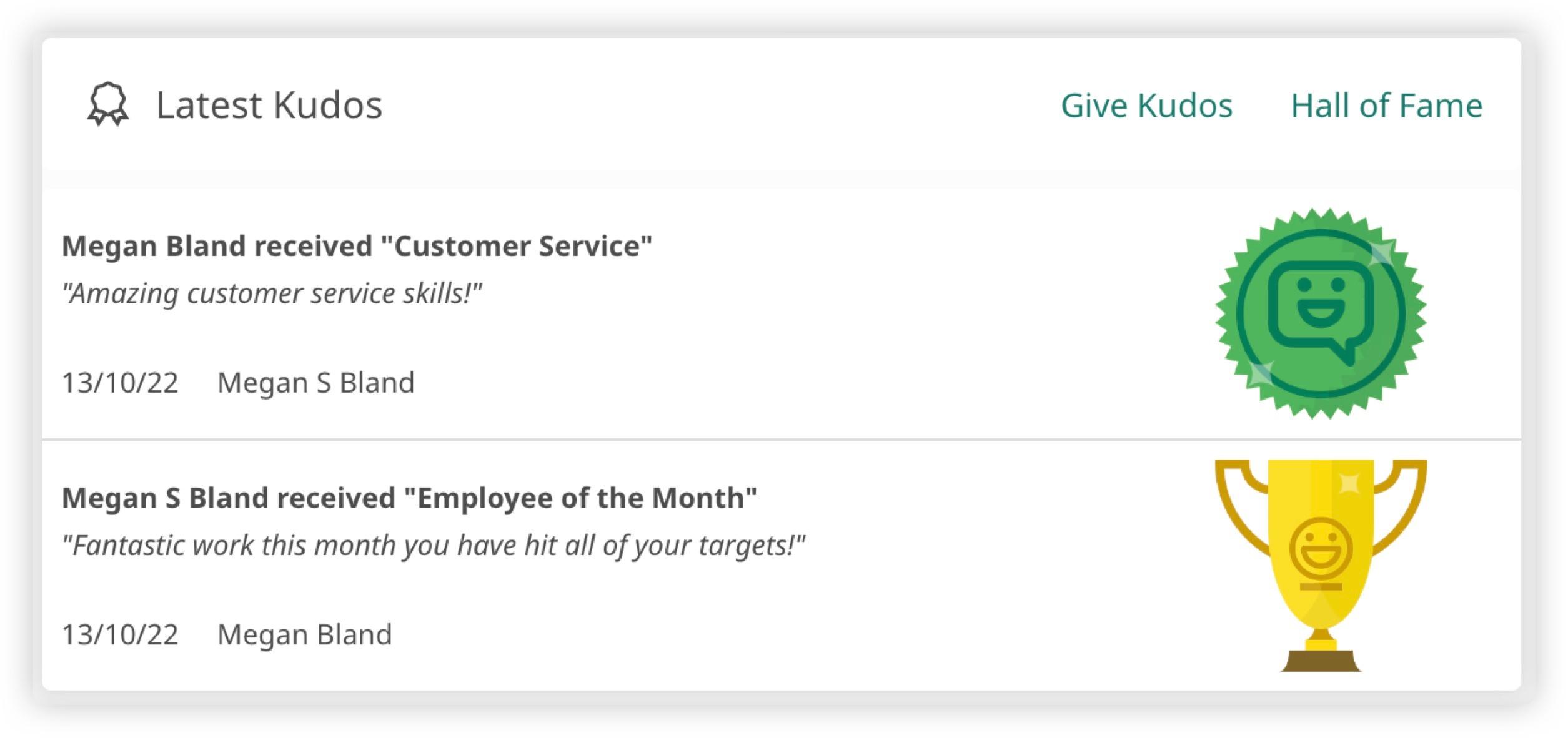
Kudos lets team members recognise and encourage each other.
The Kudos component shows the most recent awards shared across the organisation. Awards only appear once the recipient has opened them.
If someone has an unopened award, it shows as a mystery Kudos — adding a small moment of anticipation and positivity to the day.
Search bar
Available with: Comms & Engagement hub and Knowledge & Learning Hub
Adding a search bar to the home page gives people a fast way to find articles and information.
It’s especially useful for frontline teams who need answers in the moment, without scrolling or digging through menus.
Tasks
Available with: Inspections & Checklists Hub and Observation & Coaching Hub
If your organisation uses these hubs, tasks automatically appear on the You page.
You can also choose to show tasks on the home page to make priorities more visible.
There are two display options:
- Light view — shows the number of open and overdue tasks, with a link to view details
- Full view — shows a list of open tasks directly on the home page, allowing users to open tasks and update their status without leaving the screen

My reviews
Available with: Inspections & Checklists Hub and Observation & Coaching Hub
The My reviews component shows how many reviews are:
- In progress
- Completed
Users can tap through to see their reviews in more detail, helping them stay on top of ongoing work.
Reviews due
Available with: Inspections & Checklists Hub
If you’re using scheduled reviews, this component highlights any reviews that are due.
Reviews are listed in order of urgency, helping teams focus on what needs attention first. This is currently available for location‑based reviews.

Need changes made?
A member of the Ocasta team can update your home page layout and components for you.
Just email support@ocasta.com with what you’d like to show, hide, or reorder — and we’ll take it from there 👍