
Understanding permissions for reviews
Applies to: Inspections & Checklists Hub | Observations & Coaching Hub
Permissions for reviews are controlled in two places:
-
User role settings – where permissions are granted based on the role assigned to a user.
-
Individual review templates – where you can define which roles can perform or view each specific review.
1. Permissions set at the user role level
When setting up a role, you can configure three types of review permissions:
-
General Review Access
-
Review Roaming
-
Review Task Permissions
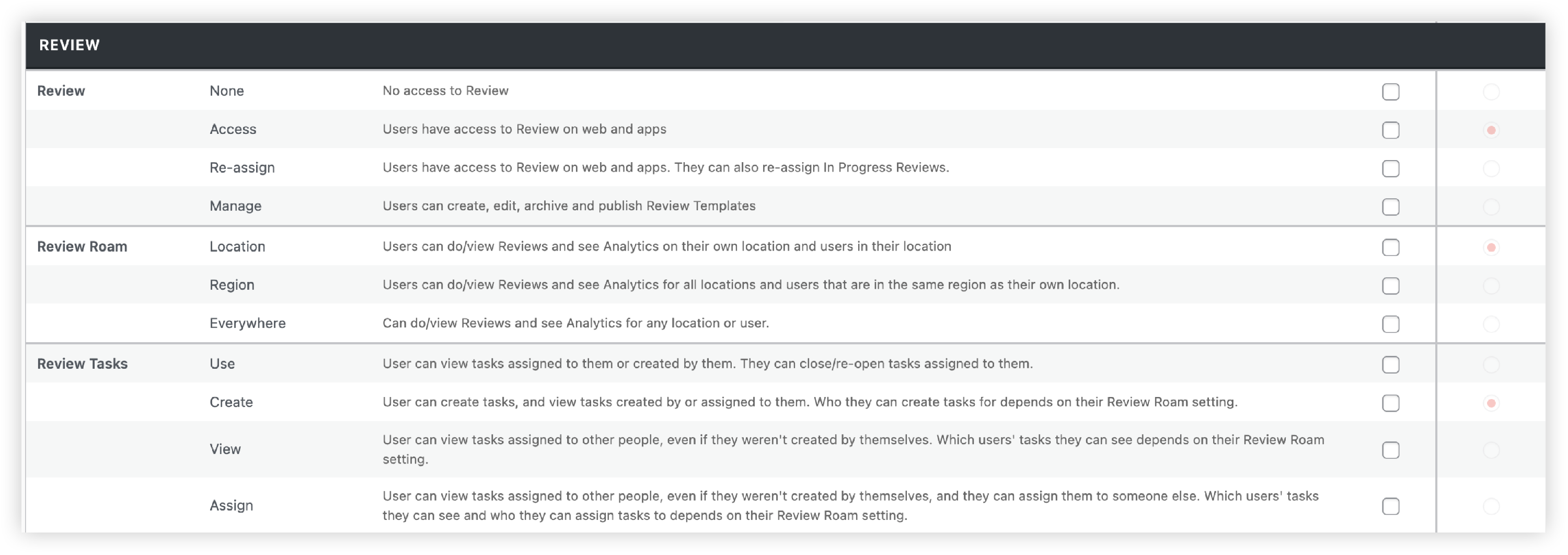
General Review Access
Defines what level of access a user has to the Ocasta platform.
-
None: No access to the reivews.
-
Use: Can log in to Ocasta via web and apps and view reviews. Assigned to most standard roles.
-
Re-assign: The same permission as the Use permission, but they can also reassign In Progress reviews. Typically for management roles.
-
Manage: Full access, including the ability to create, edit, archive, and publish review templates, as well as reassign reviews. Usually reserved for head office roles.
Review Roaming Permissions
Determines which locations and users the role can view when performing of viewing analytics for reviews:
-
None – Roam within their Location:
Can view and perform reviews and access analytics for users within their own location only. -
Region – Roam within their Region:
Can access reviews and analytics for all users and locations within their region (and sub-regions). -
Everywhere – View All Locations:
Full access to reviews and analytics across all locations and users.
Review Task Permissions
There are four permission levels:
-
Use:
User can view tasks assigned to them. They can close/re-open tasks assigned to them. They can't create tasks.
-
Create:
User can create tasks, and view tasks created by or assigned to them. Who they can create tasks for depends on their Review Roam setting.
-
View:
User can view tasks assigned to other people, even if they weren’t created by themselves. Whose tasks they can see depends on their Review Roam setting.
-
Assign:
User can view tasks assigned to other people, even if they weren’t created by themselves, and they can assign them to someone else. Whose tasks they can see and who they can assign tasks to depends on their Review Roam setting.
2. Permissions set on review templates
You can specify which roles can perform or view each review template. This allows you to tailor access to match your organisational structure.
For example:
-
A review intended only for Regional Managers can be restricted to only allow that role to perform the review and view the completed reviews in the analytics.
-
Employee reviews may be limited to the manager and the individual being reviewed.
Setting Permissions on a Template
When adding or editing a review template, locate the Permissions section on the right-hand side. It includes two options:
-
Which roles can perform these reviews?
-
Which roles can view this review?
Use the checkboxes to select the relevant roles.

Note: It is important to bear in mind that when you make changes to who can view or perform reviews that the changes will apply to historic reports as well as future ones.
For employee reviews, if you want only the manager and the employee to view the review conducted on that employee, make sure the employee's role does not have permission to perform or view reviews.
Instead, enable the 'Allow observee to view report' option. This allows the employee (observee) to see reviews conducted on themselves, without giving them access to reviews carried out on others.
