
Assign a task to a location
Applies to: Inspections & Checklists Hub | Observations & Coaching Hub
Sometimes, it doesn’t matter who completes a task — it just needs to happen in the right place.
Assigning a task to a location makes the task visible to the people working there, so the right person can pick it up when it makes sense. No chasing people. No guessing who’s responsible.
This is especially useful for shared responsibilities, shift-based teams, or operational tasks where any qualified team member can take action.
What assigning to a location means
When you assign a task to a location:
- The task is linked to a location, not a specific person
- Anyone with access to that location and the View tasks permission can pick up and complete the task.
- The task shows the assigned location instead of a user
Once someone picks up the task, it becomes assigned to them and moves into their personal task list.
Where you can assign location tasks
You can assign tasks to locations in two ways.
Direct tasks
Direct tasks are one-off tasks created from the Tasks page without starting a review.
With direct tasks, you can:
- Assign the same task to multiple locations
- Quickly distribute operational actions across several sites
- Create tasks independently from inspections or reviews
This works well for operational updates, quick actions, or location-wide changes.
Tasks created within a review
Tasks created during a review or inspection can only be assigned to one location.
This keeps the task connected to the specific location where the issue, observation, or action was identified.
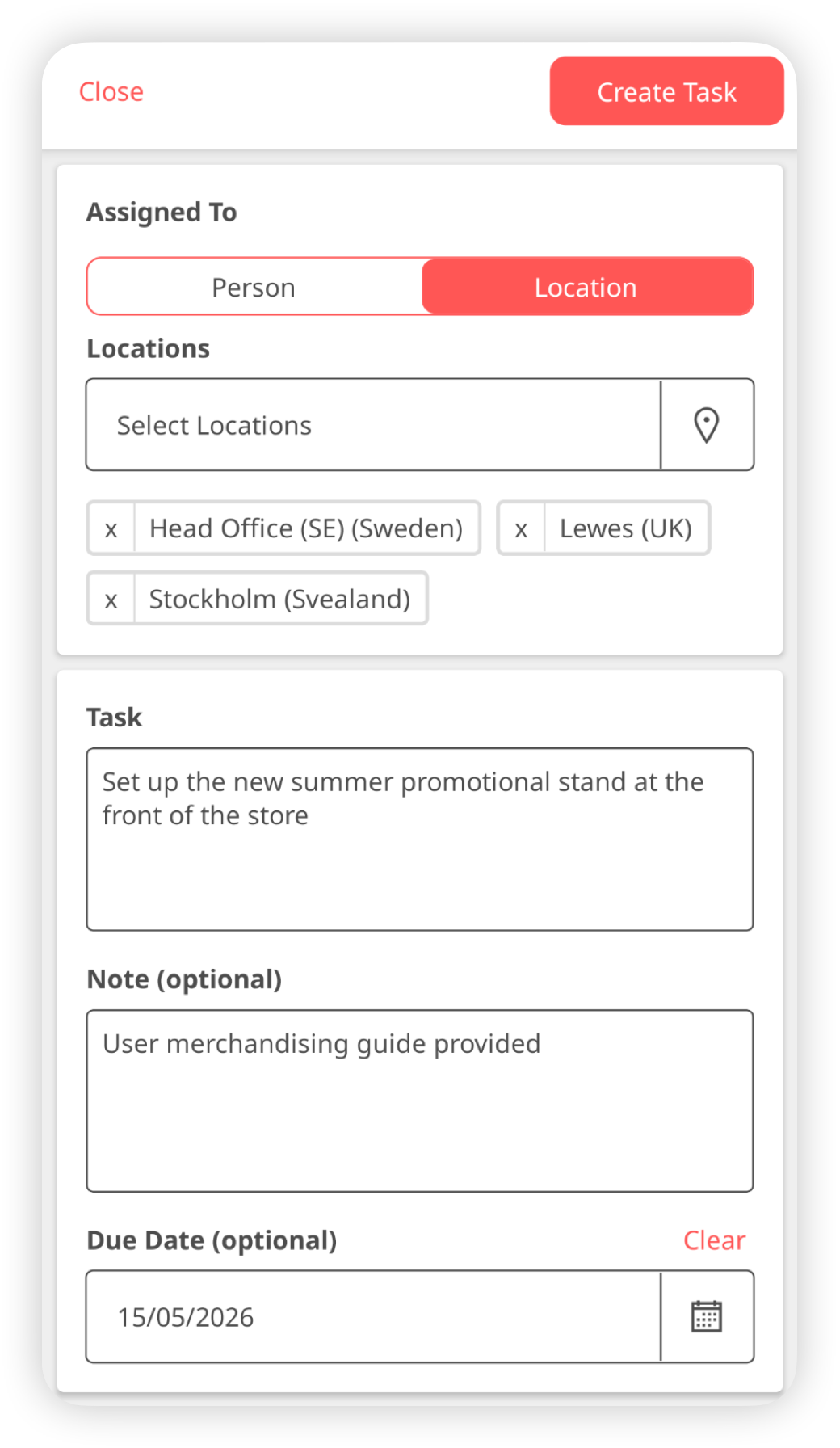
Permissions and location access
You can only assign tasks to locations you have permission to access. This is controlled by roam permissions.
If a location isn’t visible when assigning a task, it means you don’t currently have access to that location.
How users complete location tasks
When a task is assigned to a location:
- Users with permission to view that location can see the task under Open tasks. They will also be able to see it on the Feed.
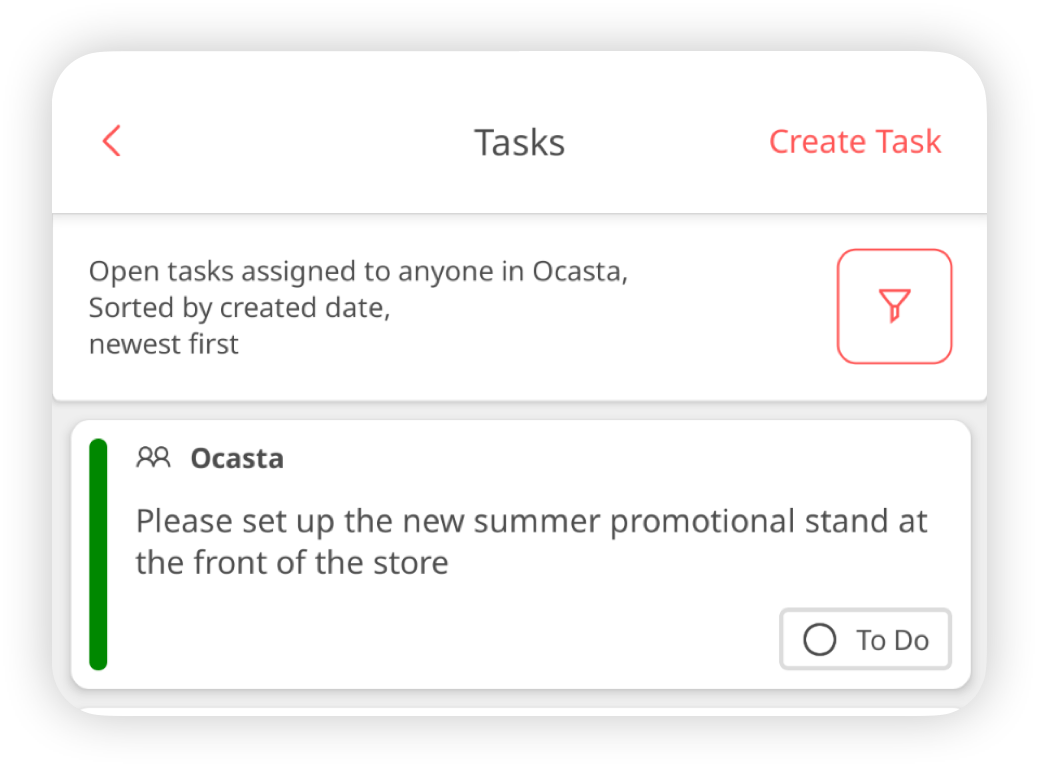
- The user opens the task and selects Pick up
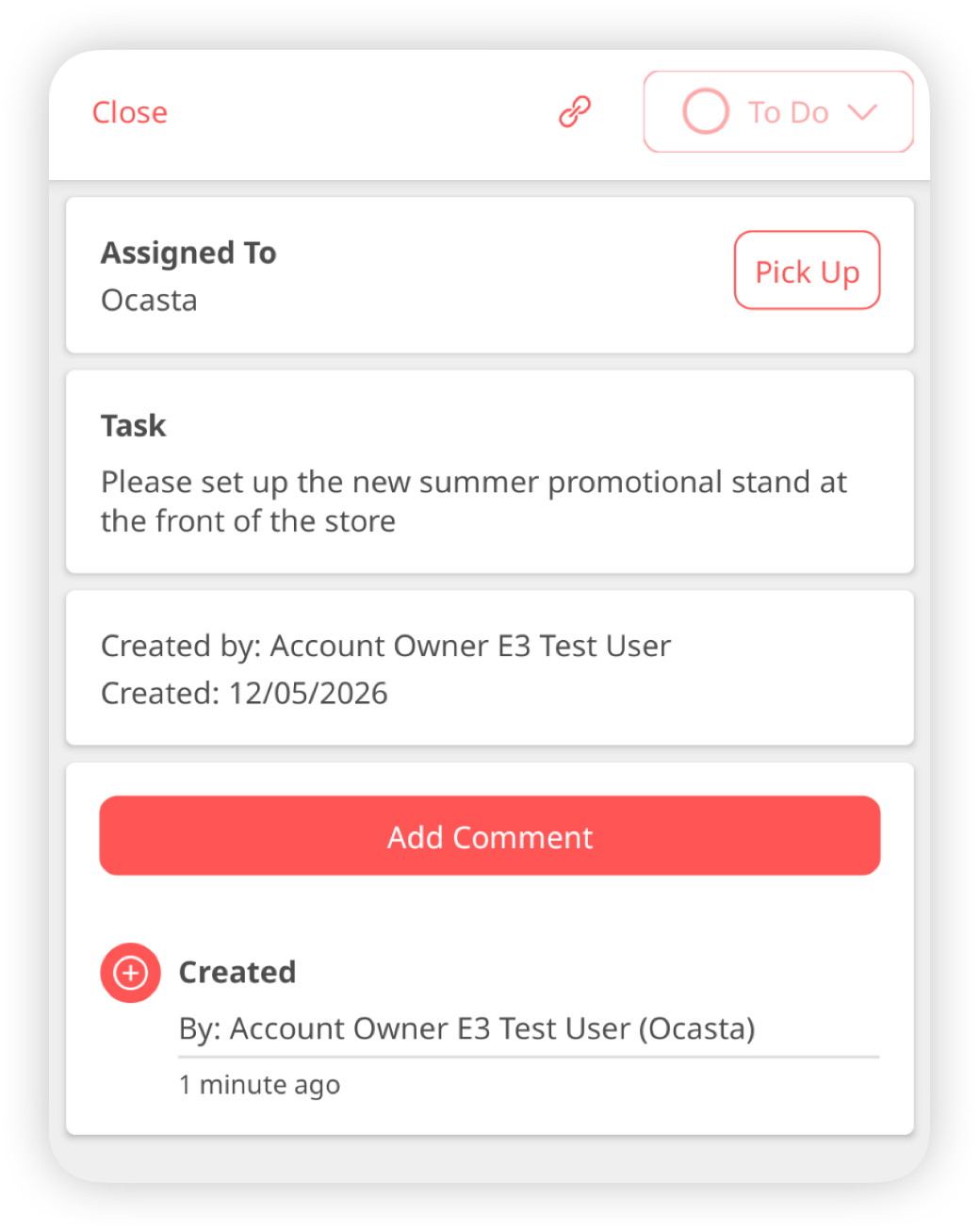
- The task becomes assigned to them
- The task appears under My tasks
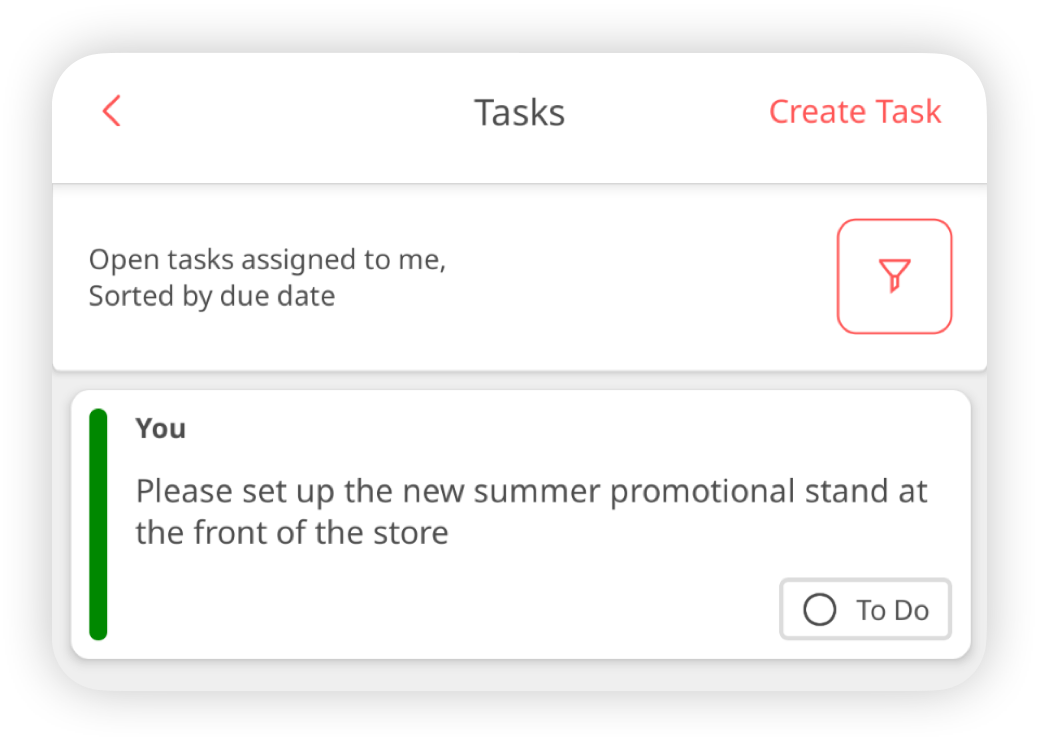
- They complete the task as normal
To view and pick up location tasks, users need:
- Permission to access the location
- View tasks permission
Users with only Use tasks permission won’t be able to view or pick up location tasks.
If you need help checking task or location permissions, contact support and we’ll help you review your setup.
Activity tracking
Every action taken on the task is recorded in the activity log, including:
- When a user picks up the task
- When the task is reassigned
- When the task is completed
This gives you a clear record of who took ownership and when each action happened.
Reassign a location task to a specific person
If needed, you can still assign a location task to an individual user.
To do this:
- Open the task
- Select Assign
- Choose a user
Your role must include the Assign tasks permission to do this.
Any reassignment is also recorded in the activity log, so you always have a full history of the task.