How do I create a course?
Courses are created on the web.
-
If you are an Admin user you will see the Manage section on the top nav bar on the web.
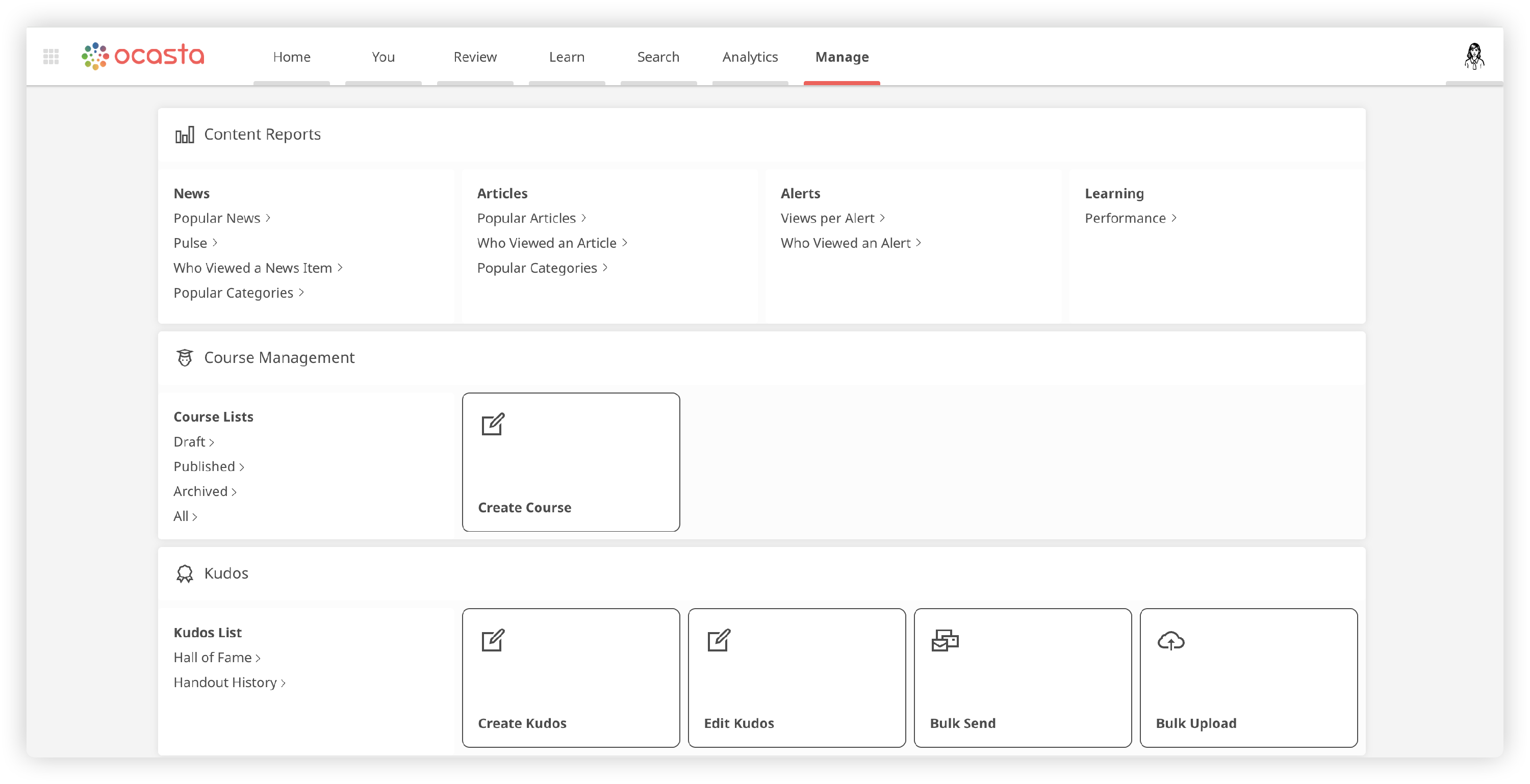
- Go to the Course Management section and select Create Course
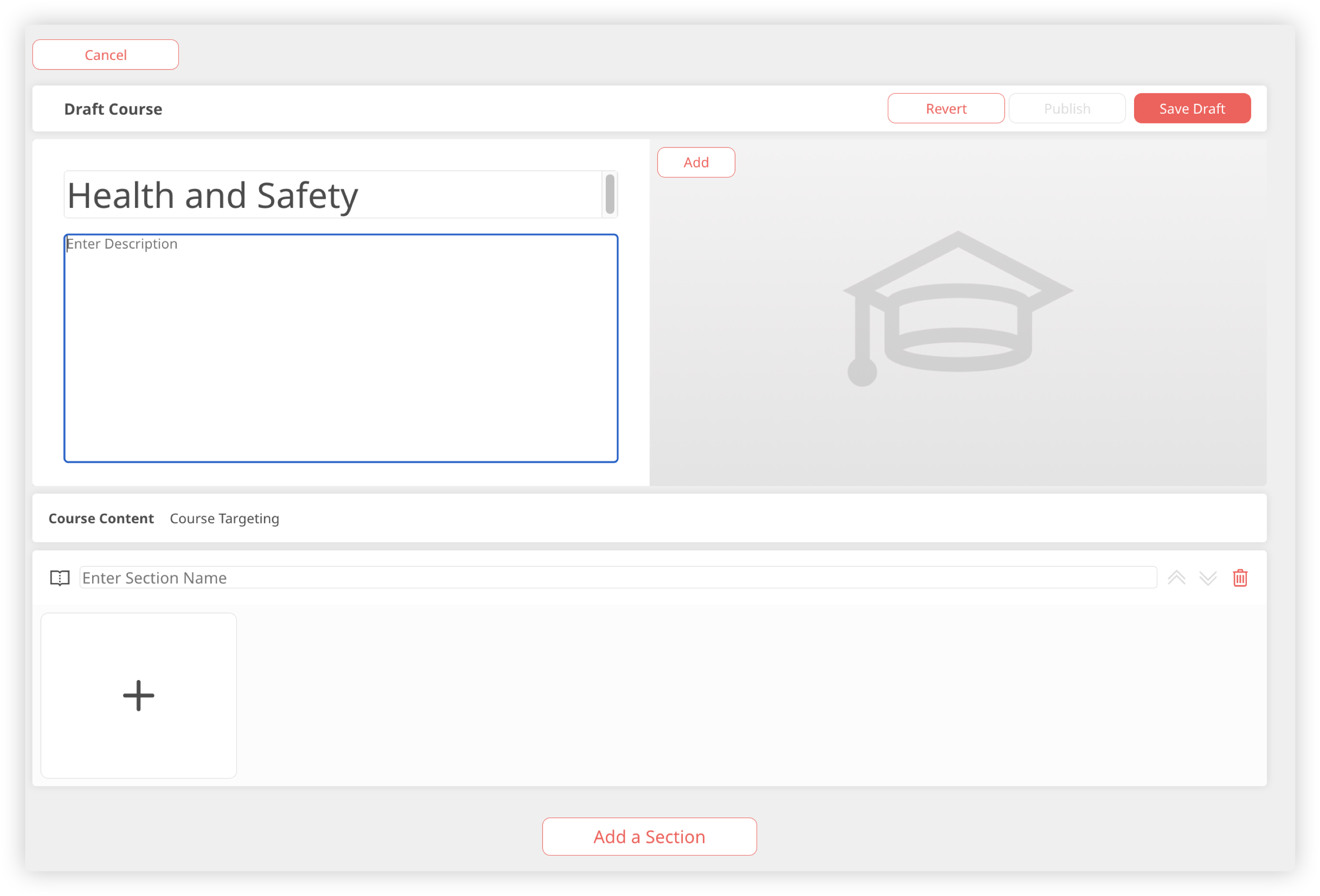
- Title - Enter a title for your playlist
- Description - Enter a description so other users will know what the playlist contains
- Image - add an image which will be displayed as a thumbnail for the Course
How do I create sections within a course?
You can have multiple sections within a Course
- Select 'Add a Section' to add a new section
- Enter a section name
How do I add articles to a course?
If you want to add tasks or questions to your articles read this article first.
You can only add an article once, however different sections can contain the same articles that are in other sections.
- Within a section select the ' +' button
- This will bring up a pop up containing a search bar
- Search for the exact title of an article or keyword and press enter
- A list of articles will be displayed
- Select the article you would like and click 'Add'
- Repeat these steps until you have added all the articles you would like in that section. You can only add published articles to a Course.
How do I save my course as a draft or publish my course?
- Whilst editing a Course you'll see three options, 'Save as Draft', 'Revert' or 'Publish'
- If you 'Save Draft' your course will display in the Draft courses list which you can access from the Manage tab.
- Before you publish a course you will need to set the course targeting to say which roles have access to the course.
How do I preview a course?
- Once you have created your course you'll see a 'Preview' option in the top right. This is only available on the web.
- During preview mode you can complete a course to check everything is correct before making it available to all users.
- You can preview any course in any status (draft/published/archived).
How can I delete a draft course?
To delete a course, it must be in Draft status. If the course is currently Published and no longer needed, you'll need to archive it first.
To delete a course:
- Go to the Manage page.
- Select View All Courses.
- Locate the course you want delete
- In the top right corner, select Delete
-
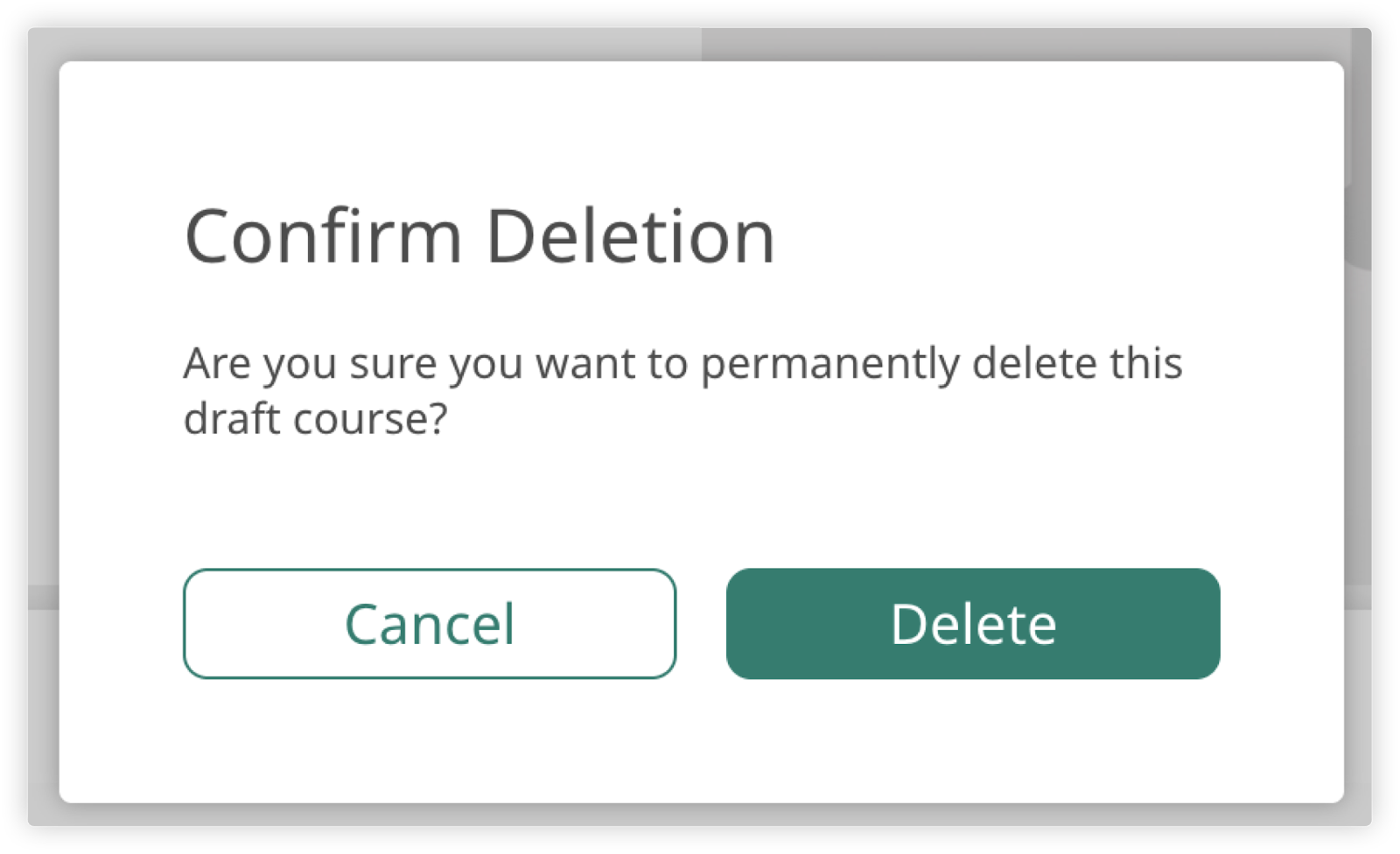
You’ll be asked to confirm. Click Confirm to permanently remove the course.