
How can I target a course to specific user roles?
When creating new courses, learning creators can define which user roles should have access to each course. Courses can also be classified as optional, recommended, or essential. This ensures that users see only content that is relevant to their role, making learning more focused and efficient.
- Go to the Manage page.
- Under Course Management select to view all courses
- Find the course you want to edit and open the course. Select the edit button
- Go to the Course Targeting tab
- A list of all available user roles in the system will be displayed.
- Tick the checkbox next to each user role that should have access to the course.
- For each selected role, choose whether the course should be marked as:
- Optional: Users can take the course at their discretion.
- Recommended: Suggested for users, but not mandatory.
- Essential: Required learning for the role.
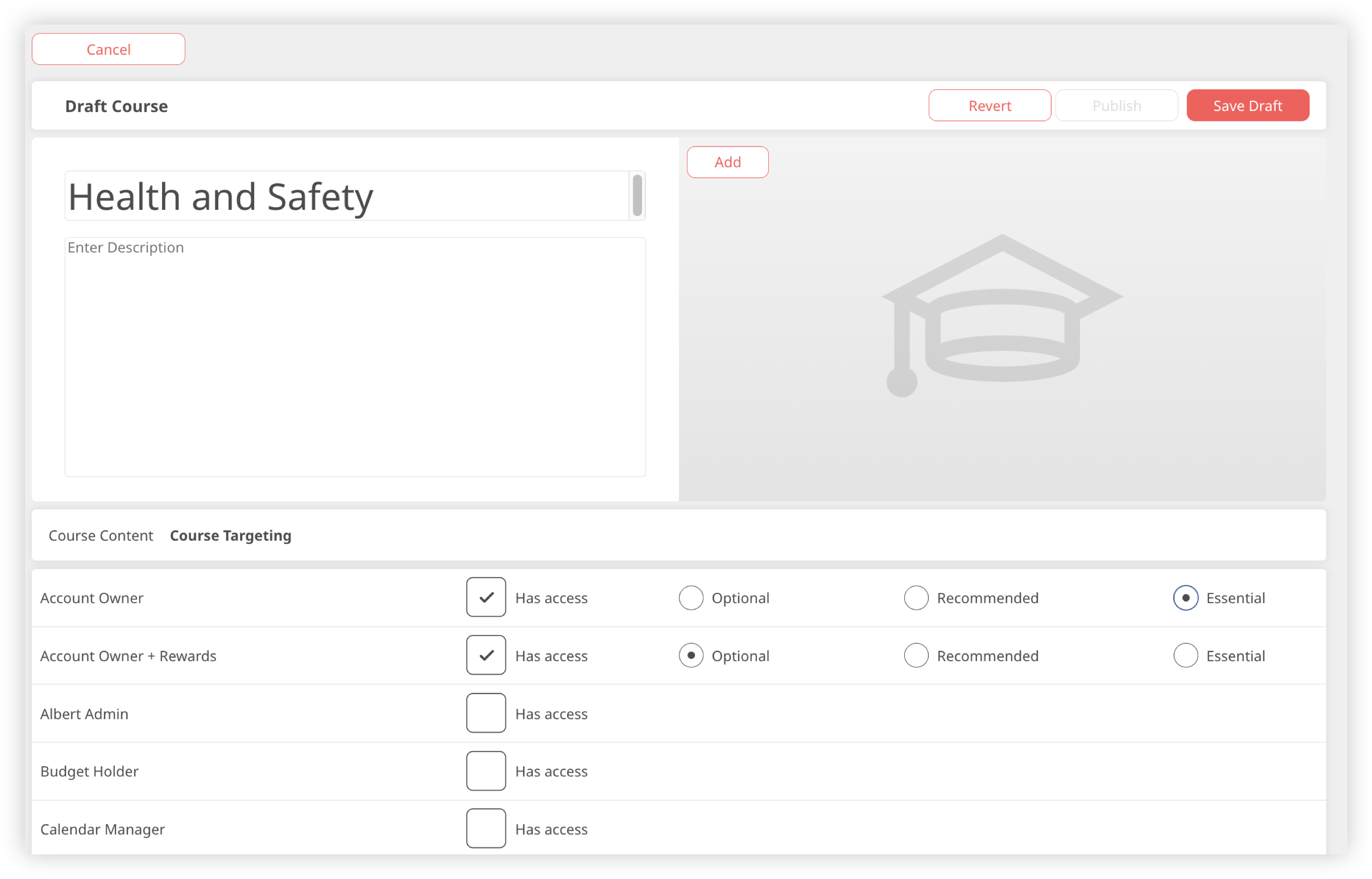
Labels will be shown to users based on these classifications, making it clear how important each course is for them. Essential courses are also shown first, then Recommended, then Optional. Everything else is listed alphabetically.