
Role Creation
Setting up roles in Ocasta lets you control who sees what and who can do what. Instead of guessing what people should access, you define it clearly. Each role has its own permissions, so every user gets exactly what they need — no more, no less.
For example, frontline employees might only need to view content and complete tasks, while managers can create posts, assign tasks, and review performance.
Create a new role
You can create roles from scratch or copy an existing one.
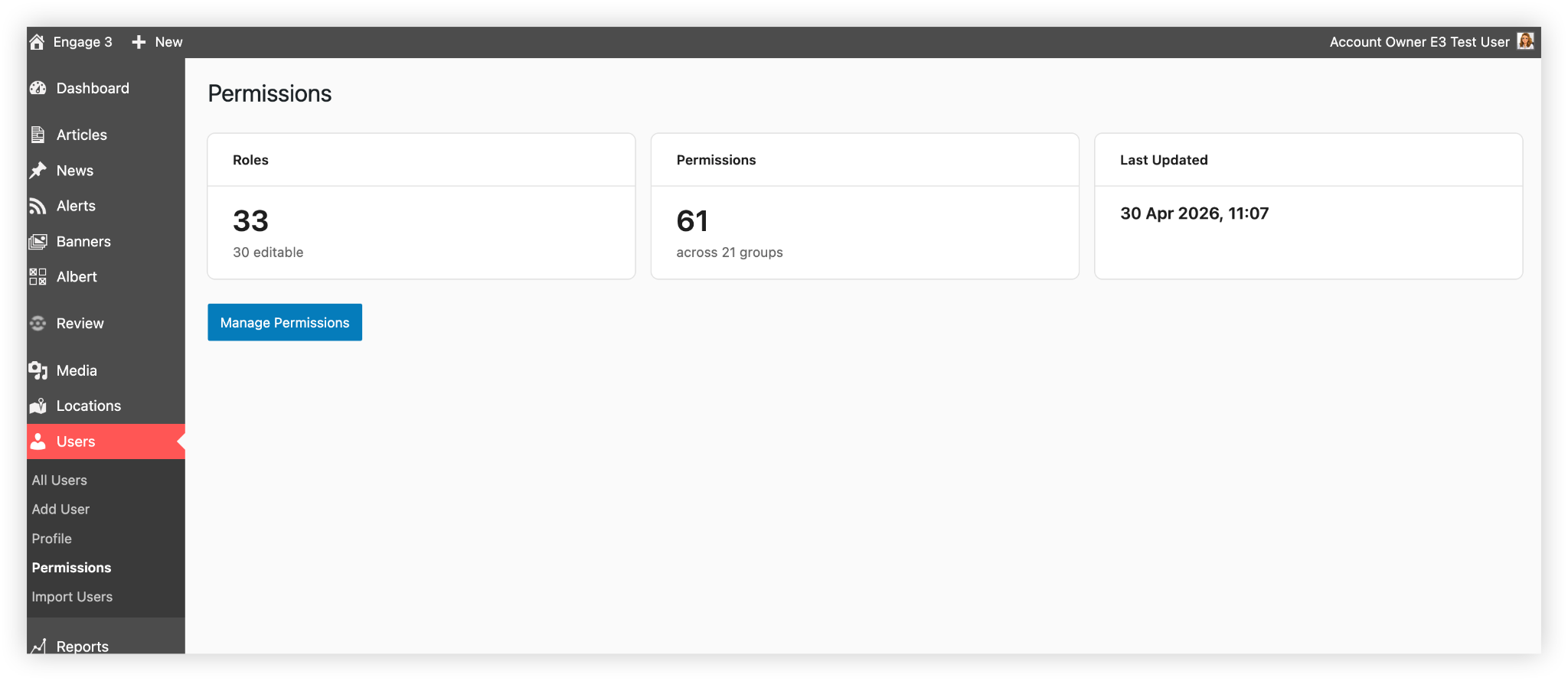
Go to permissions
- Select Users in the left-hand sidebar
- Choose Permissions
You’ll see a dashboard showing the number of roles and when they were last updated.
- Select Manage permissions to edit permissions
Option 1: copy an existing role (recommended)
Copying a role is usually faster. It gives you a working starting point you can adjust.
- Find the role you want to copy
- Select Copy under the role (for example, Standard)
- A new role appears with “(copy)” in the name (for example, Standard (copy))
To rename it:
- Select Rename under the role
- Enter the new name and press Enter
To edit permissions:
- Select the new role (you may want to clear other selections first)
- Review the permissions matrix on the right
-
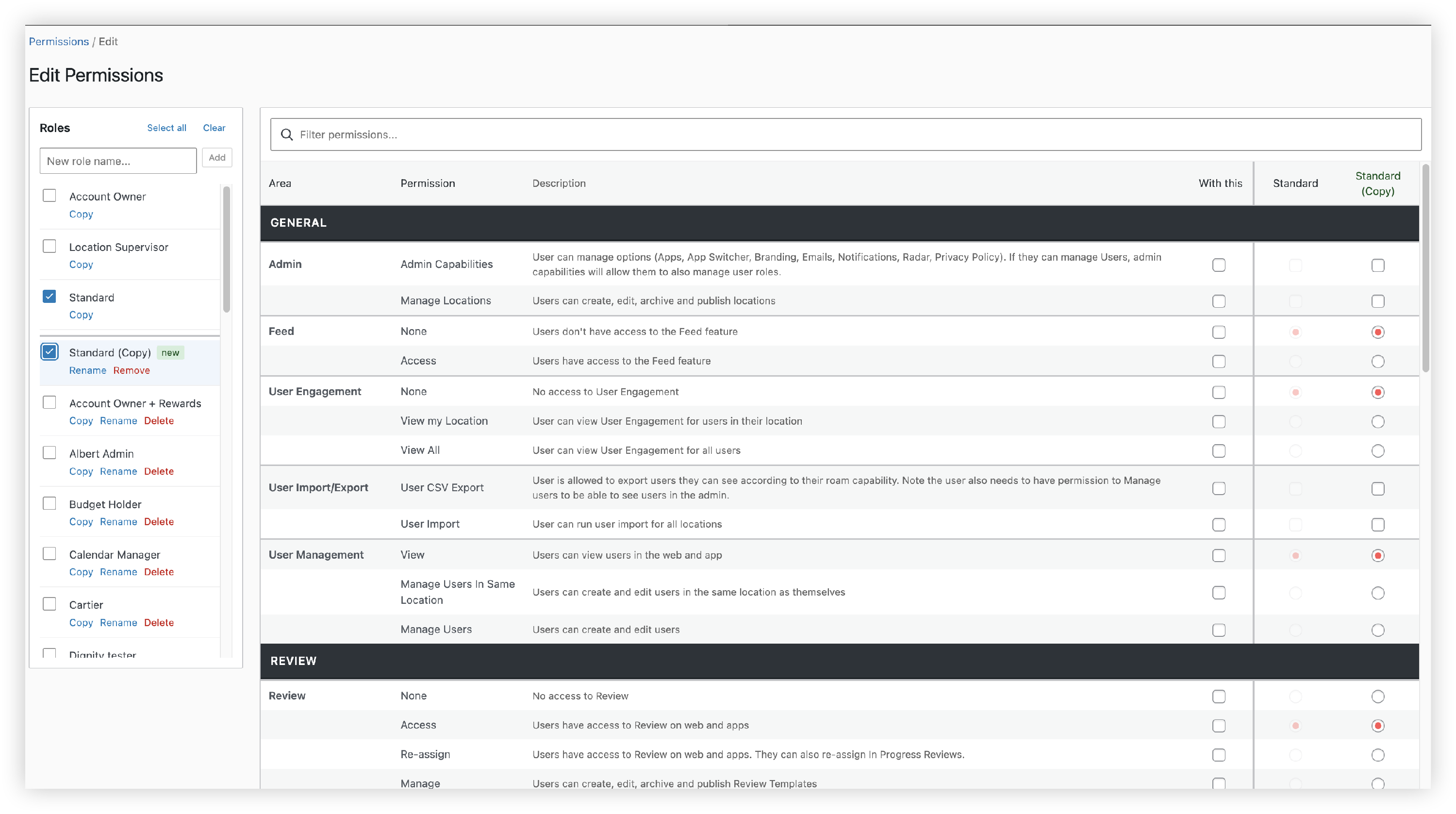
- Adjust permissions as needed
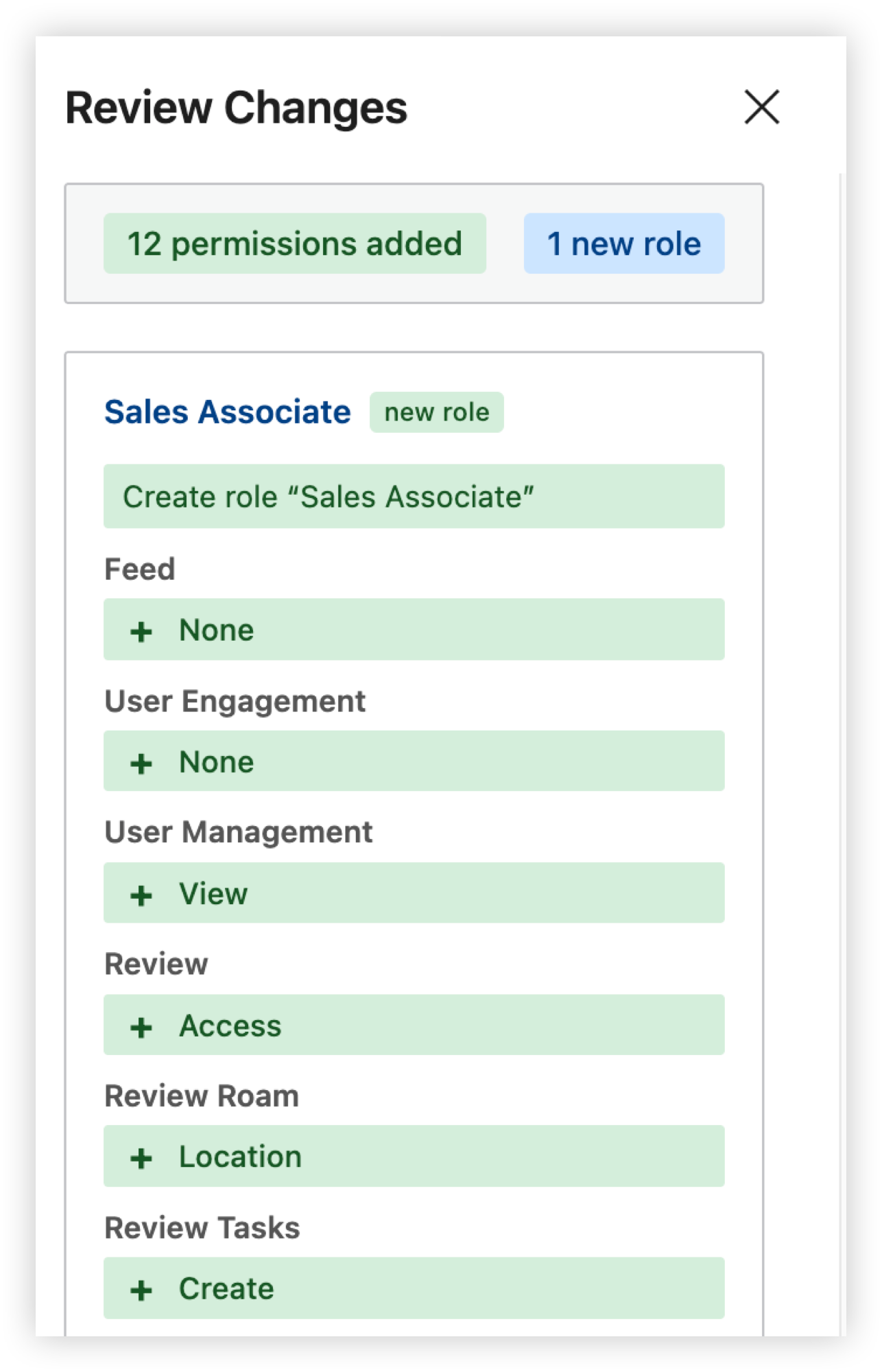
- Select Review changes at the bottom
- Check the summary, then select Confirm and save
-
Option 2: create a role from scratch
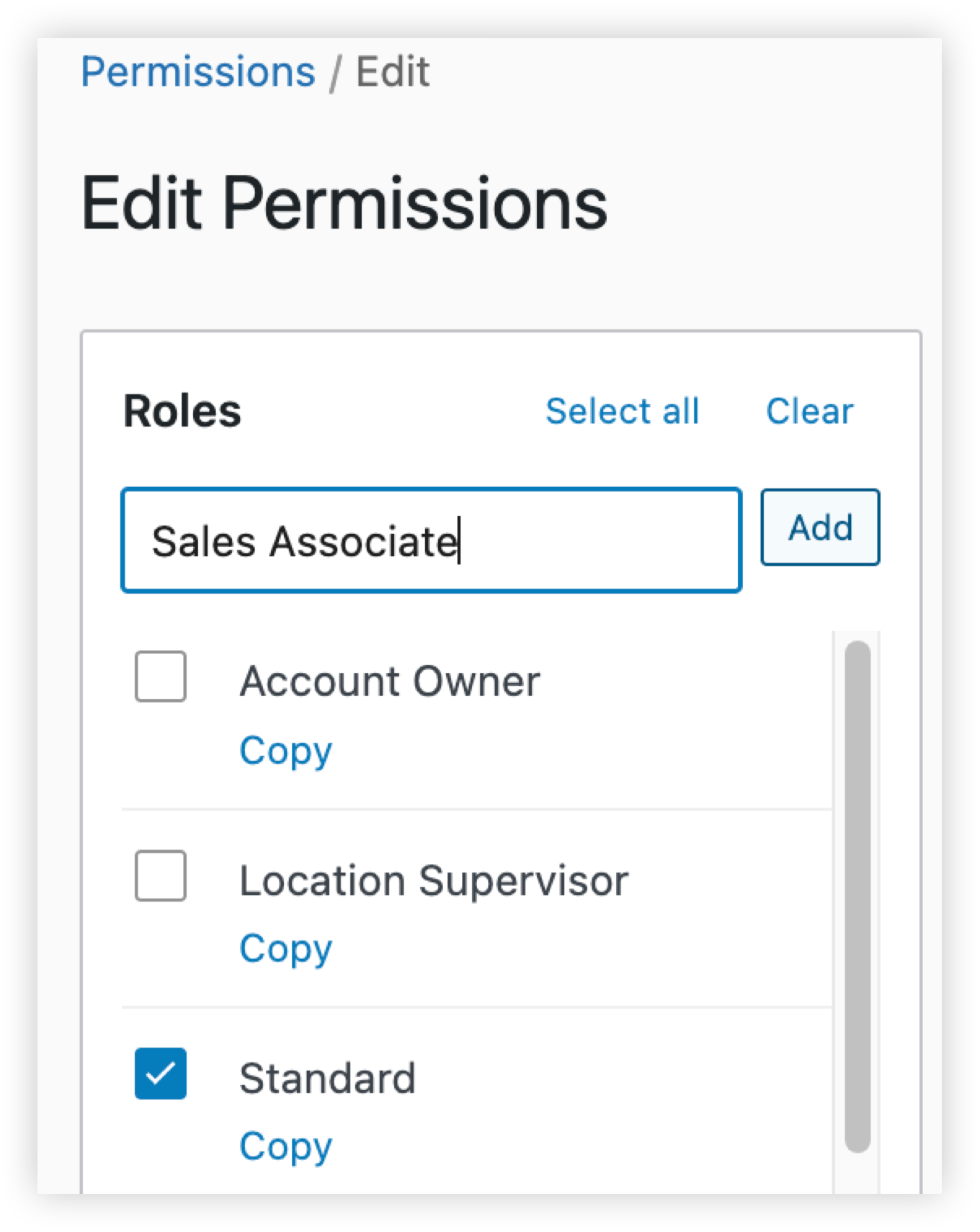
- Enter a name in the role list text box
- Select Add
-
- Make sure the new role is selected
- Set permissions in the matrix on the right
- Select Review changes
- Check the summary, then select Confirm and save
Edit an existing role
- Select the role in the role list
- Update permissions in the matrix
- Select Review changes
- Check the summary, then select Confirm and save
Rename a role
- Select Rename under the role
- Enter the new name and press Enter
Delete a role
Before deleting a role, make sure no users are assigned to it.
- Find the role in the list
- Select Delete
- Select Review changes
- Confirm by selecting Confirm and save
Need help?
The permissions matrix controls what each role can see and do. If you’re unsure how to set it up, contact the support team — we’ll help you get it right first time 👍