
Create direct tasks
Applies to: Inspections & Checklists Hub | Observations & Coaching Hub
What are direct tasks?
Direct tasks are one-off tasks you can create directly from the Tasks page — without starting a review.
They allow you to log and assign work in the moment, with clear ownership and visibility, even when it isn’t part of a formal inspection or review template.
You can create direct tasks for People or Locations.
How to create a direct task
-
Go to the Tasks page.
Depending on which Ocasta hubs your organisation uses, you may see Tasks in the main navigation in the app or on the web.
If you don’t see it, go to the You page and find the Tasks section. Select See all to open the Tasks page.
- Select Create task at the top of the page.

- A pop-up window will appear.
- Choose the type of task you want to create:
- Person task
- Location task
Create a Person Task
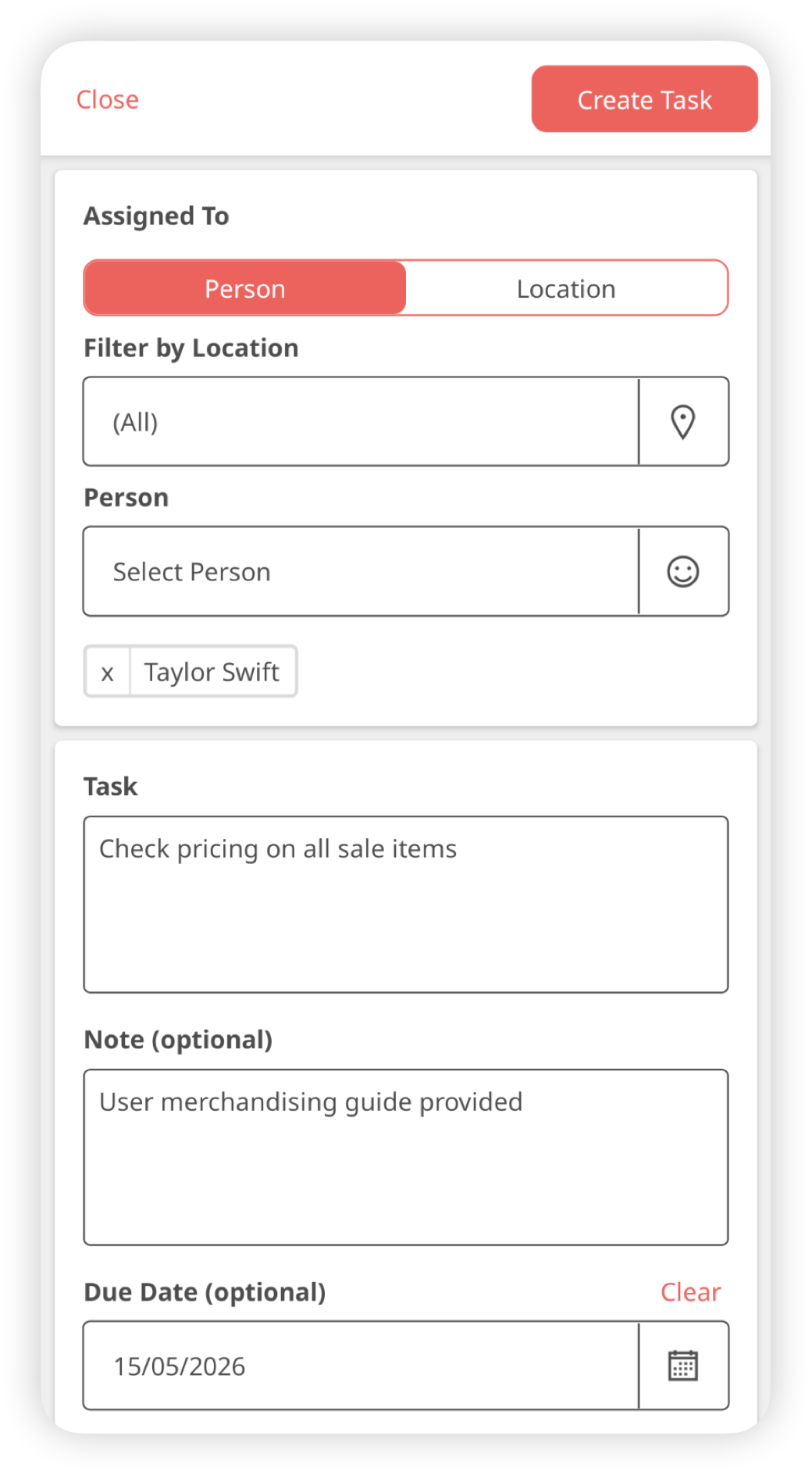
- Select Person.
- Start typing the name of the user you want to assign the task to.
- You can only assign tasks to users within your roaming permissions. For example, you may only be able to assign tasks to users in your location.
- Add:
- a task description
- any additional notes (optional)
- a due date
- Select Create Task.
The assigned user will:
- receive an email notification
- receive a push notification
- see the task in their task list
Create a Location Task
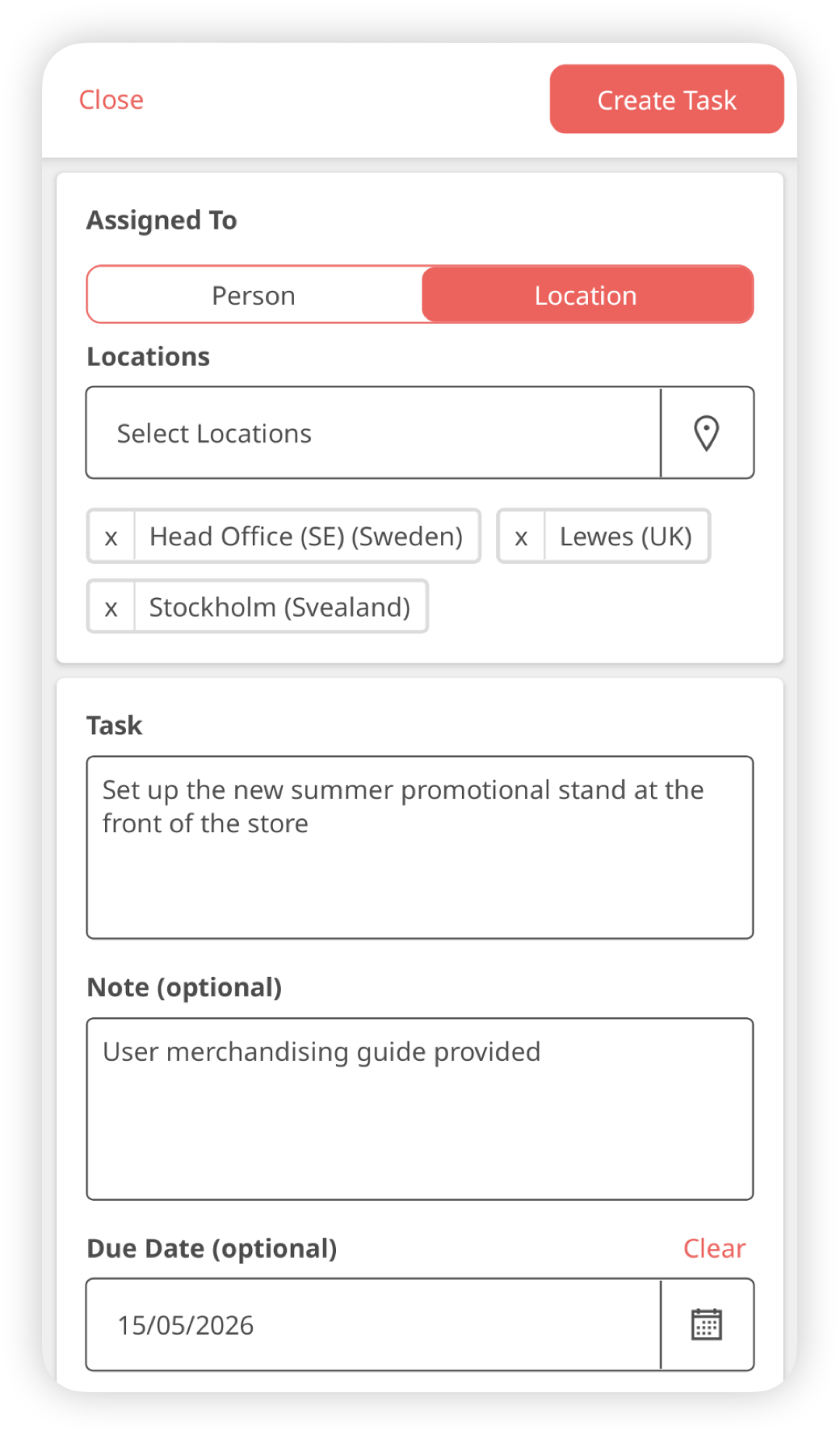
- Select Location.
- Choose the location(s) you want to assign the task to.
- You can only create tasks for locations you have permission to view, based on your Review Roam permissions.
- Complete the remaining task details in the same way as a person task:
- add a description
- add notes (optional)
- set a due date
- Select Create Task.
The location task will appear in the Open Tasks list for anyone with permission to view it. You can read more about location tasks here.
Assign a Task to Multiple People or Locations
When creating a direct task, you can assign it to:
- one person or up to 40 people at once
- one or up to 40 locations at once
For example:
- if you add 10 people, Ocasta will create 10 identical tasks — one per person
- if you select multiple locations, Ocasta will create a task for each selected location
To add multiple people or locations, continue searching and selecting additional assignees before creating the task. You can also use the Select all option at the top of the user or location list to quickly select everyone currently displayed. Select all is available when there are 40 or fewer users or locations in the list. If more than 40 users or locations are displayed, apply filters to reduce the list before using Select all.
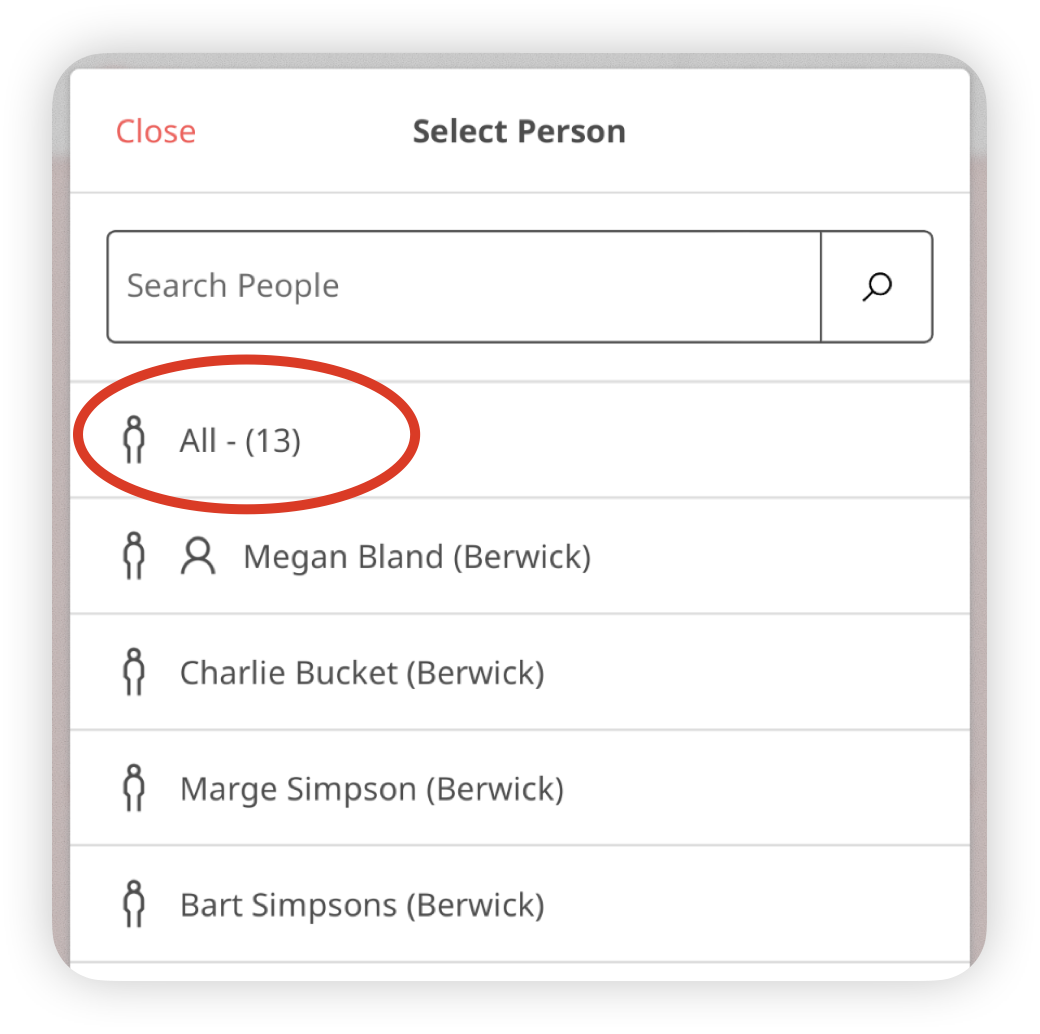
Permissions are based on your Review Roam access permission, so you can only assign tasks to people or locations you have permission to see.
For person tasks, each assigned user will:
- receive an email notification
- receive a push notification
- see the task in their task list
For location tasks, the task will appear in the Open Tasks list for users with permission to view that location. It will also appear on the Feed.
How to view direct tasks
To view direct tasks:
- Go to the Tasks page on the app or web.
- Select the task type filter.
You’ll see three options:
- All — shows all tasks you’re allowed to see
- Direct — shows tasks created outside of a review template
- Review — shows tasks created within reviews (you can also filter by review template)
Select Direct to view only direct tasks.
To see direct tasks you’ve created, combine the Direct filter with the Created by me filter.

