
What are review tasks and how to assign them
Applies to: Inspections & Checklists Hub | Observations & Coaching Hub
What are review tasks?
A review should never end with “someone will sort that later”. If you’ve spotted an issue, the fix should start there and then.
Review tasks let you turn what you see into clear action while you’re carrying out a review or assessment.
For example, imagine you’re completing a store assessment and notice a POS display is out of date. Instead of making a note and relying on a follow-up conversation, you can assign a task immediately — directly within the review.
That means:
- Clear ownership from the start
- No separate emails or messages
- No guesswork about who’s doing what
Every task is tracked in the Tasks section on both the app and the web, so you can see what’s in progress, what’s overdue, and what’s complete.
If you’re setting up a new Review template, you can decide how tasks are assigned. You might require tasks to be assigned to someone with an Ocasta account, or allow reviewers to enter a name manually. It’s your choice — based on how your teams work.
How review tasks differ from direct tasks
Review Tasks are created as part of a review or assessment. They’re linked to that specific visit, checklist, or template, so you always have the full context of what was seen and why the task was raised.
Direct Tasks are different. They’re standalone tasks created from the Tasks page and aren’t connected to a review.
If you’d like to understand how Direct Tasks work and when to use them, read our help guide.
How do I set a review task?
When you’re completing a Review, you can create a task directly from an insight (question) tile.
- Tap the insight tile you want to add a task for.
- At the bottom of the pop-up, select Add a Task.
- Choose whether you want to assign the task to a Person or a Location.
Assign a Task to a Person
- Start typing a name and select the correct person from the dropdown list.
- In Person Reviews, the reviewer appears first, followed by the person being reviewed, then all users in their location.
- In Location Reviews, the reviewer appears first, followed by all users in the selected location.
- You can only assign tasks to people in locations you have permission to view.
Assign a Task to a Location
- Search for and select the location you want to assign the task to. You can only assign the task to one location.
- You can only assign tasks to locations you have permission to view, based on your Review Roam permissions.
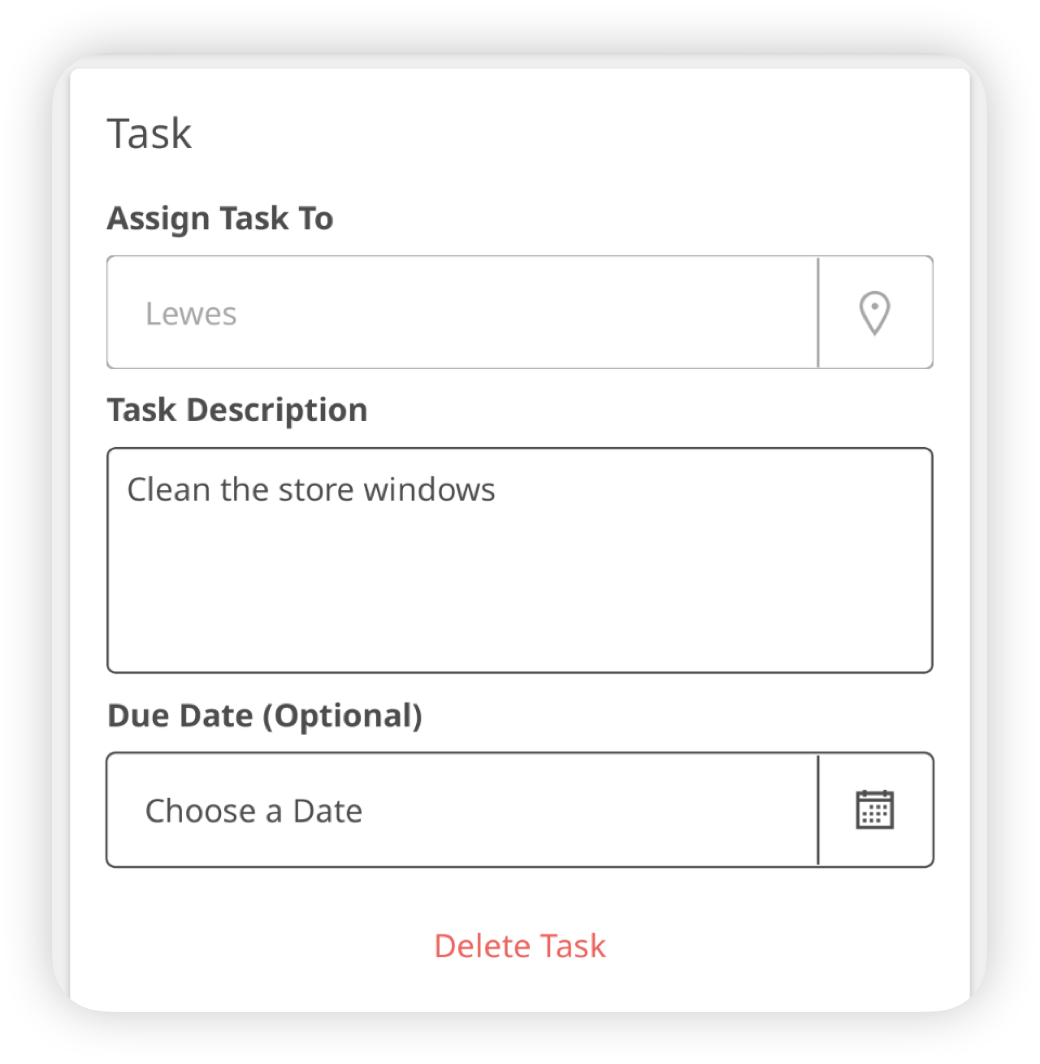
- Enter the task description.
- Add a due date if needed.
- When you’re done, tap Done at the top of the insight.
To add more tasks, tap Add Another.
Once you submit the review:
- Anyone assigned a person task will receive an email notification if task emails are enabled for your organisation and the tasks will appear in their My Tasks list.
- Location tasks will appear in the Open Tasks list for users with permission to view that location